

Clean Up Old Items can disappear when an Outlook profile includes Online Archive or IT blocks local archiving. Check those conditions first. A new profile brought the command back for one owner after those checks didn't explain the problem.
Some Outlook 2016 installations call the same command Archive instead. The ribbon's one-click Archive button is a different feature, so that button doesn't tell you whether manual archiving is available.
In this guide
1. Look for the command your Outlook installation uses
Open File > Info > Tools in classic Outlook. Look for Clean Up Old Items or an Archive entry that opens a dialog for choosing a folder, a date and an archive file.
In the original Outlook 2016 discussion, a moderator explained that MSI installations used the older Archive label. MSI is a type of Office installer, rather than a separate mail account or mailbox option.
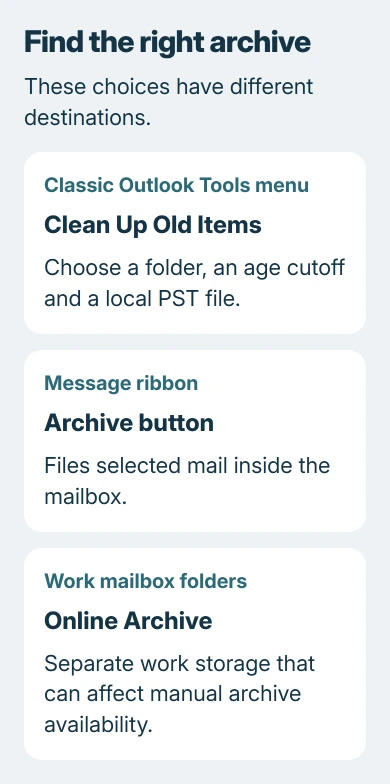
The manual command moves older items into an Outlook Data File, usually called a PST file. The dialog lets you select a folder and set Archive items older than. It doesn't immediately file selected messages in the mailbox's Archive folder.
If that dialog opens, the feature isn't missing. Use the label your installation provides. If your goal was simply filing selected messages, the ordinary Outlook Archive button does that without this dialog.
New Outlook has a different feature set and doesn't use this classic File > Info > Tools procedure. Make sure you're in the classic desktop app before trying these repairs for Outlook 2016 and later classic versions.
2. Check whether an Online Archive explains the absence
Expand the account folders and look for a separate Online Archive mailbox. Also check whether the profile contains another work account with an Online Archive, even if the account you want to archive is a personal one.
Microsoft's manual archiving instructions explain that the Archive command can be unavailable for every account in a profile containing an Exchange account whose organization uses Online Archive.
In the original case, the owner had other mailboxes, and one showed an archive even though their own account didn't. Checking only the currently selected mailbox can miss this condition.
Ask IT whether this profile is expected to use Online Archive or a retention policy instead of local PST archiving. Retention policies decide how long work messages are kept and where they move.
Don't ask IT to disable a legal hold or retention protection just to restore a menu item. Those controls protect work records; changing them isn't a normal Outlook repair.
If Online Archive is the intended destination, have IT explain which mailbox to use and how your policy moves messages. A new profile won't make an organization-approved restriction disappear.
3. Have the administrator check archiving policy
An administrator can disable manual archiving even when no separate Online Archive appears. Tell IT the exact missing menu entry, the mailbox involved and whether the option is absent for every account in the profile.
Open File > Office Account > About Outlook and copy the displayed version plus build number. That tells the help desk whether you're using an older Outlook 2016 installation or a current Microsoft 365 version with different features.
The discussion mentioned disablemanualarchive. Give IT that setting name when they check a managed installation. Don't delete policy entries yourself; an absent value doesn't grant permission to archive work mail.
Ask IT whether this mailbox and Outlook installation are allowed to archive mail locally. If it is blocked intentionally, use the approved storage route. If it's allowed, try a separate profile next.
Support for Office 2016 ended October 14, 2025. If it's still installed, plan a supported replacement with your administrator. The Office 2016 upgrade guide covers protecting local Outlook data during that move.
4. Create a separate Outlook profile without deleting the old one
An Outlook profile holds email accounts, data-file connections and settings. It isn't your whole Windows user account. Creating another profile lets you compare a clean mail setup while keeping the existing one available.
The affected owner confirmed that recreating the profile with the same account restored the button. Their later reply marked that as the solution. They had already checked archiving and the registry setting.
Back up any local PST files before changing profiles, especially messages stored only on the PC. Server mail can download again after sign-in; a forgotten local archive won't reappear just because the mailbox is added.
Use the classic Outlook profile procedure:
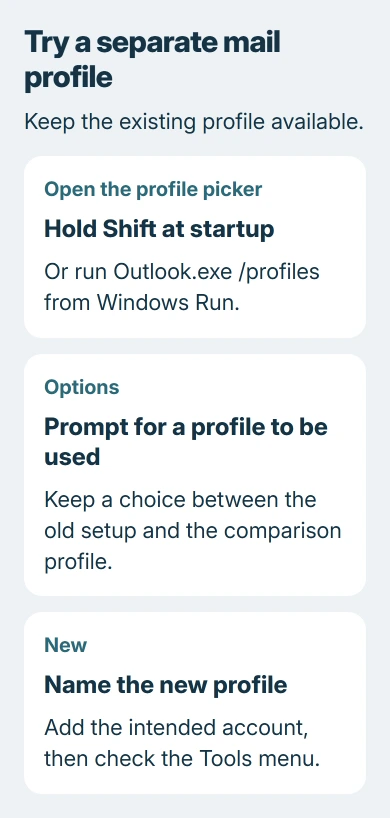
- Exit classic Outlook. Hold Shift as you launch it again; the profile picker should appear.
- If needed, press Windows + R, enter Outlook.exe /profiles and press Enter instead.
- Select Options. Enable Prompt for a profile to be used so the old and new profiles remain easy to choose.
- Select New, give the profile a recognizable name and select OK.
- Add the intended email account and finish its sign-in prompts.
Let the account finish setting up, then inspect File > Info > Tools again. I'd keep this comparison small: add the account you need first, rather than immediately recreating every mailbox and setting from the old profile.
If the command returns, you can use the new profile to archive. If it stays missing, give IT that result and the account list; they still need to check the mailbox and your organization's settings.
5. Check the archive destination before moving older mail
Once you can open the manual archive dialog, choose Archive this folder and all subfolders, select the intended folder and set Archive items older than. Review the archive file location before starting.
Choose the date and destination folder carefully. The operation moves qualifying items out of their current folders into a PST; it isn't just hiding old mail from the inbox. Start with a small folder whose contents you can recognize.
Open the archive afterward and check its messages. Include that PST in your backups. If the command stays missing, ask IT for an approved archive or export route instead of forcing a registry change.
The Short Version
First check the Archive label, Online Archive and policy. If local archiving is allowed, compare a separate profile while keeping the old setup. Confirm the PST destination before moving messages.
Checked November 16, 2026.
 If you have any business, I can build it online






