

An empty Outlook Tasks view can be a grouping problem rather than missing tasks. If the To-Do List goes blank when grouped by both Due Date and Reminder Time, remove the Reminder Time grouping first and keep Due Date.
The original asker restored their list with that grouping change. These steps cover classic Outlook for Windows. A hidden task sidebar needs its own View menu check.
In this guide
1. Remove the second grouping from the To-Do List
Open Tasks in classic Outlook for Windows and select To-Do List in the folder pane. This combines your to-do items in one list. Check that you've selected it, rather than an individual Tasks folder, before changing the view.
Choose View > View Settings > Group By. If the dialog groups by Due Date and then Reminder Time, change the Reminder Time level to (none). Keep Due Date as the main group, then confirm the changes in both dialogs.
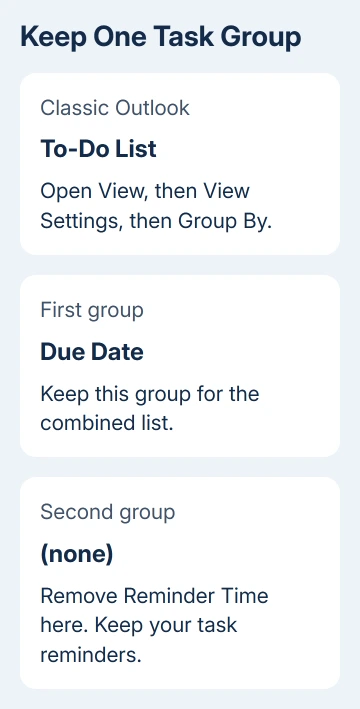
If the second grouping was hiding your tasks, they should reappear. Open an existing task and check its title and due date. This changes how Outlook displays the list; it doesn't recreate or recover deleted tasks.
One owner reported that individual task lists still accepted both grouping fields while the combined To-Do List didn't. They got the combined list working by grouping only by Due Date. Check the selected list before changing its grouping.
Sorting and grouping are separate settings. Sorting orders rows; grouping collects them under headings. Removing the second group doesn't require deleting reminders from your tasks or changing their reminder times.
If the list remains empty with only one group, compare it with the individual Tasks folder next. I'd compare those folders before discarding a carefully arranged view.
2. Compare the combined list with the actual Tasks folder
In the folder pane, open the account's Tasks folder instead of To-Do List. If several accounts have task folders, check the one where you created the missing item. Look for a familiar task rather than just comparing row counts.
If the task opens there, it still exists in that folder. The combined display is the part to work on. Keep using the individual folder for urgent work while you correct the combined view.
If the task isn't in the folder you expected, look in the other account's task folder before adjusting the display again. A task saved under another account won't become part of the intended folder just because its view has been reset.
Also check the type of item that's missing: a task or a flagged email. Both can appear in a to-do display, but they start as different items. Removing a flag and deleting a task aren't interchangeable ways to clean up a list.
If tasks remain visible until a query runs, repair task-only searches before changing those display groups.
For an empty mail folder as well as an empty task list, use the Outlook folder-pane checks. That covers a hidden navigation area, which isn't the same as visible group headings with no rows.
3. Try a fresh view without discarding the old one
Select the affected folder, then open View > Change View > Manage Views. Choose New, give the view a clear name, and choose a table view for a list of task rows. Accept its settings and apply the new view.
Microsoft's custom-view instructions explain creating a separate view in an Outlook folder. Keep the original view available so you can compare its filters and grouping afterward.
Start the new view without the two-level Due Date and Reminder Time arrangement. If the tasks appear, add your preferred columns and ordering gradually. After each adjustment, inspect the rows to catch the setting that hides them.
If only completed or overdue items are absent, inspect View Settings > Filter in the affected view. A filter tells Outlook which items to show. Removing grouping won't make an item pass a filter that excludes it.
Note any filter you need before clearing it, then check the same task. If it appears without that restriction, rebuild the filter for the items you want. Don't change the task's dates just to make it appear.
For changes affecting the inbox layout too, the Outlook view guide explains the separate layout controls. A task view doesn't need the same columns or arrangement as email.
4. Restore a missing To-Do Bar separately
If the whole task panel beside your inbox is missing, check whether it's switched off. In classic Outlook, choose View > To-Do Bar > Tasks to show that panel. It can be turned off while Tasks itself remains available.
At the top of the panel's task area, use Arrange by to choose its arrangement. Check this panel's own controls rather than assuming a change to the full Tasks folder will produce the same display there.
The sidebar can also have a completion filter. Right-click its Type a new task box and choose Filter to inspect it. A rule excluding completed tasks explains why a finished item disappears while unfinished work stays visible.
If the panel returns and shows your upcoming work, the missing-panel problem is resolved. If its rows are still wrong, compare a specific item with the full task folder to decide which panel filter or arrangement to change.
5. Restart Outlook and report a repeatable failure
Save work, restart classic Outlook, and return to the same view. A March 2019 reply announced a service change and asked owners to restart. None of the later owner replies says that change fixed it.
The owner's grouping change worked for them, but the old service announcement doesn't explain every empty list today. If one restart doesn't help, use the view checks rather than restarting over and over.
If a fresh view fails, record the version and build in File > Office Account > About Outlook. Tell IT whether the individual folder works, which grouping empties the combined list, and what happened with a new view.
For a personal subscription, use Help > Contact Support where available. Send the grouping and filter dialogs with task names hidden. Support can then see how the list is set up without asking you to change unrelated mail settings.
The Short Version
Remove Reminder Time as the second group when Due Date plus Reminder Time blanks the combined To-Do List. Compare the actual Tasks folder next, try a separate view, and handle a missing To-Do Bar through its own View menu.
Checked November 17, 2026.






