

An Outlook group that shows an unread count but no conversations can need Cached Exchange Mode switched back on. Check that setting in classic Outlook, restart the app, and reopen the group.
One owner seeing "This folder has not yet been updated. Connected to: Microsoft Exchange" restored group conversations after changing the cache settings. Their normal Inbox already worked.
In this guide
1. Check whether one group or the whole mailbox is empty
Look at the normal Inbox and then the affected group. If personal mail is current but one Microsoft 365 group has an unread counter and no visible conversations, follow the group-cache checks first.
The connection message means Outlook is connected to Exchange. Individual folders can still lack downloaded content. Tell support if you can see an unread count but no messages.
Check the same group in your organization's Outlook webmail if access is allowed. Use the same work account and open Groups, then the affected group. The original owner could see its messages there while the desktop list stayed empty.
If the messages appear on the web, you can read them there while working on the desktop problem. If the group is empty there too, ask its owner to confirm membership and access before rebuilding anything on the PC.
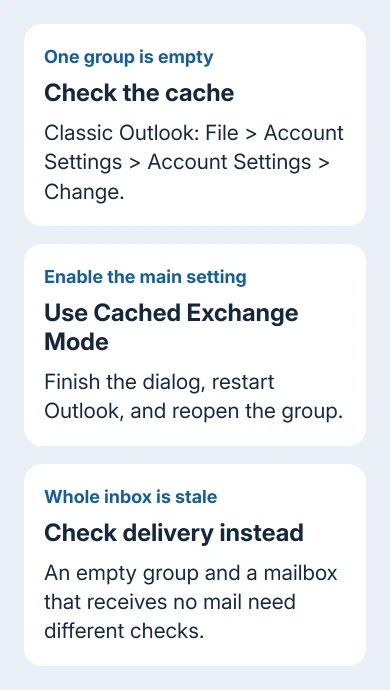
If your whole mailbox has stopped receiving mail, use the Outlook delivery checks instead. A rule, account problem or broader connection failure needs different checks from one empty group.
2. Enable Cached Exchange Mode in classic Outlook
Cached Exchange Mode lets Outlook keep a copy of your Exchange mail on the PC. In the original discussion, switching it off removed access to group conversations, while enabling it again brought the affected group back.
Open File > Account Settings > Account Settings. On the Email tab, select the work Exchange or Microsoft 365 account, then choose Change. Make sure you've selected the account that belongs to the missing group.
Under Offline Settings, select Use Cached Exchange Mode. Some update channels label it Use Cached Exchange Mode to download email to an Outlook data file. Complete the dialog, then exit and restart Outlook.
Microsoft's Cached Exchange Mode instructions recommend using it with Microsoft 365 mailboxes. You'll find this control in classic Outlook for Windows. The new Outlook app doesn't have it.
After restarting, open the group and let Outlook download its content. Check whether conversations now appear and open one to confirm the reading pane works. Seeing and opening the messages confirms that the group is usable again.
If this restores the group, leave the setting enabled. If it was already enabled, continue with the advanced-settings comparison. Avoid repeatedly toggling it while Outlook is still downloading the mailbox.
3. Review the advanced cache settings without checking everything
In File > Account Settings > Account Settings, select your work address, then open Change > More Settings. Open the Advanced tab and review the options under Cached Exchange Mode Settings.
The owner reported that re-enabling the main cache setting and checking both download options restored access. Start with the main checkbox. The two extra download options do different jobs, so check their labels before changing them.
Download shared folders controls locally downloaded shared folders. Download Public Folder Favorites is for Exchange public-folder favorites. A Microsoft 365 group and a public folder aren't the same thing.
Don't enable public-folder downloads solely because an old reply said both options were checked. Record the current settings and ask IT which shared-folder downloads are appropriate for your mailbox and organization.
Apply an approved change, close the dialogs and restart Outlook before checking the group again. Tell IT whether the main cache checkbox was already on and whether the list changed after the restart.
I'd keep the focus on the main cache setting first. The owner saw group conversations disappear when it was off and return when it was on. Changing unrelated download options can add work without helping the empty group.
4. Handle a missing or unavailable cache checkbox
New Outlook for Windows doesn't offer the classic Cached Exchange Mode switch. Without a File tab, don't search for an old Account Settings dialog that isn't part of that app.
Use the same group's web view as a comparison, then report a new Outlook app problem through your organization's support route. The classic Outlook fix from 2019 doesn't have an equivalent switch in new Outlook.
In classic Outlook, a missing checkbox can mean the selected account isn't Exchange. POP and IMAP accounts don't support Cached Exchange Mode. For Outlook.com, the default cache mode can't be changed.
An Exchange administrator can disable the option, and some Windows Server setups don't support it. On a managed PC with no cache control, have IT check policy and server support instead of overriding it through the registry.
Tell them which Outlook app and account type you use, not just a screenshot of an empty folder. That tells them whether your setup supports Cached Exchange Mode.
5. Compare a separate profile if the group stays blank
If webmail has the conversations and a classic Outlook setup that supports Cached Exchange Mode still doesn't, try another profile. Close Outlook, press Windows + R, enter outlook.exe /profiles, and press Enter.
Open the picker's Options. Turn on the option to choose a profile at startup, then click New. Choose a distinct name, add your usual work mailbox, and sign in. Keep the original profile with its settings and local archive connections.
Open the affected group in the new profile after mail has begun syncing. If the conversations appear there, tell IT the new profile works. If both profiles stay blank, report that result instead of making another profile.
When only old ordinary mail is missing, the offline-mail range guide covers the sync slider. That slider isn't a substitute for checking whether the group conversations appear at all.
Give IT the group-specific results
Send the help desk the group address, whether other members can read it, the desktop and web results, Outlook build, and the cache settings you found. Ask them to check group access, sync and any policy disabling the cache.
If the issue persists across profiles, have the administrator take these results to Microsoft 365 support. Make clear that the group is empty while your Inbox works. That directs the support case toward the group's sync problem.
The Short Version
For one empty group with a working Inbox, enable Cached Exchange Mode in classic Outlook and restart. Compare webmail, check advanced options with IT, and try a separate profile if necessary. New Outlook needs a different support route.
Checked November 17, 2026.






