

Incorrect Autodiscover details can stop an Exchange account opening in Outlook. If a fresh profile works briefly, then switches to IMAP settings, ask the domain's web host to check its response before you rebuild Outlook again.
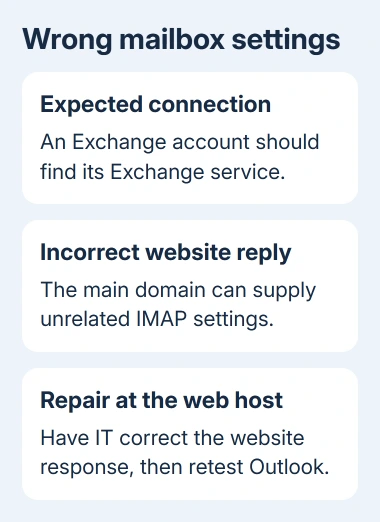
Autodiscover supplies Outlook with mailbox connection settings. A wrong response from your domain's website can send it to another mail service. The useful sign is an Exchange profile that works at first, then changes to IMAP.
In this guide
1. Recognize the profile that works and then breaks
A new Exchange profile connects at first, but Outlook then refuses to open after its connection settings change. The mailbox may remain accessible through an existing phone connection or webmail.
An owner in the original Autodiscover discussion saw Exchange entries replaced with IMAP information. Outlook then reported that it couldn't log them on and that the profile was missing required Exchange information.
The same case also displayed System resources critically low before closing. With those errors together, tell IT about the changing mailbox settings. The resources message on its own doesn't confirm a memory shortage.
Keep the exact startup messages and tell IT whether the problem returns after a new profile. If Outlook simply crashes without this account-discovery pattern, use the general Outlook startup repairs instead.
These checks concern classic Outlook with an Exchange account. If your provider uses IMAP and you set up the account that way, seeing IMAP isn't a fault by itself.
2. Keep mail available while IT checks the domain
Use the organization's working Outlook on the web account for urgent mail. That avoids repeatedly rebuilding the same desktop profile while the source of its incorrect settings remains unchanged.
Check the same mailbox, not a different personal address. If webmail also fails, give IT its error separately. If the web inbox works, you still have mailbox access while IT checks how desktop Outlook gets its settings.
The same owner made a freshly created Autodiscover XML settings file read-only and reported that Outlook kept working. That was a temporary way to stop the file changing, not a correction to the service supplying it.
I'd have IT repair the response rather than make that file read-only. A frozen settings file can complicate later account changes, and its path varies with the local setup. Don't copy another person's cached XML into your profile.
If shared folders also fail, note that in the report. Shared and public-folder access can depend on Exchange discovery too, though ordinary folder permissions are a separate check.
3. Ask the web host to correct its Autodiscover response
Have the mail administrator contact the email domain's website host. Ask whether its main HTTPS website responds to /Autodiscover/Autodiscover.xml with settings that don't belong to the Exchange mailbox.
For @example.com, Outlook can check https://example.com/Autodiscover/Autodiscover.xml. A website advertising POP or IMAP there can lead it away from the intended Exchange service.
Microsoft's unexpected Autodiscover response repair directs the web host to stop the website responding to those requests. This is a server-side correction, not a Windows folder rename.
Give the administrator every email domain affected, especially when the sign-in domain and the visible email-address domain differ. A record for one domain doesn't explain what another domain's web server returns.
The host should check the returned response as well as the DNS records. The Autodiscover hostname can be correct while the main website still answers first with the wrong information.
After the correction, have IT retry the affected account's discovery and desktop launch. Outlook should keep the correct Exchange connection after you close and reopen it.
4. Use a root-domain exclusion only as temporary relief
When the web host can't fix the response immediately, IT can temporarily stop Outlook checking the main HTTPS domain. Have IT apply this only after confirming that the main website is supplying the wrong response.
For the Outlook 2016 case, the relevant user registry location is HKEY_CURRENT_USER\Software\Microsoft\Office\16.0\Outlook\Autodiscover. The setting is the ExcludeHttpsRootDomain DWORD value, set to 1.
Before editing, IT should export that registry key and note any existing value. Change only the confirmed setting for the affected user; unrelated exclusions can disable another working discovery route.
The value tells Outlook to skip the main HTTPS domain check. It doesn't repair the website, change the mailbox to Exchange, or fix incorrect DNS by itself. Restart classic Outlook after IT applies the temporary setting.
Treat this setting as a short-term workaround. Remove that temporary change once the web host has corrected its response, then verify that normal discovery works again.
Older Outlook 2013 uses 15.0 in that registry path, while Outlook 2010 uses 14.0. Don't install an obsolete Outlook version to follow an old path. For a current managed installation, ask IT which configuration applies to your setup.
5. Verify the repair without deleting the old profile
After IT fixes discovery, open Outlook and confirm it connects to the intended Exchange mailbox. Close it normally, launch it again, and verify the account still connects. The original fault returned after the initial successful launch.
If the profile retains incorrect settings, ask IT to create another profile for the repaired setup. Keep the original until IT has protected its local-only data and saved the account settings you'll need.
A fresh profile that works once is less useful than a profile that keeps working after discovery runs again. Tell IT if the same incorrect service returns, along with the time and the email domain being used.
For continued failure, have the mail administrator give support the discovery results, affected domains, Outlook version, and temporary exclusions. Send the reports privately because they can contain account details.
The thread also mentioned a certificate-chain warning, but it wasn't confirmed as the cause. Ask IT to check that warning separately rather than assume it explains the changed mailbox settings.
The Short Version
When an Exchange profile starts correctly and later changes toward IMAP, have the web host correct its Autodiscover response. Use working webmail meanwhile. A root-domain exclusion is temporary and should be removed after the server repair.
Checked November 17, 2026.
 If you have any business, I can build it online






