
Your service is set to Automatic, yet after every restart it sits at Stopped. You start it by hand, it runs fine, and the next restart undoes it.
I would read the System log before changing anything. Windows writes down why it gave up on the service, and the number tells you which fix fits.
On Super User, the January 2016 question has 226,139 views. Its asker put it simply: "But I can start them manually and after that everything is ok".
Why an Automatic service misses its start
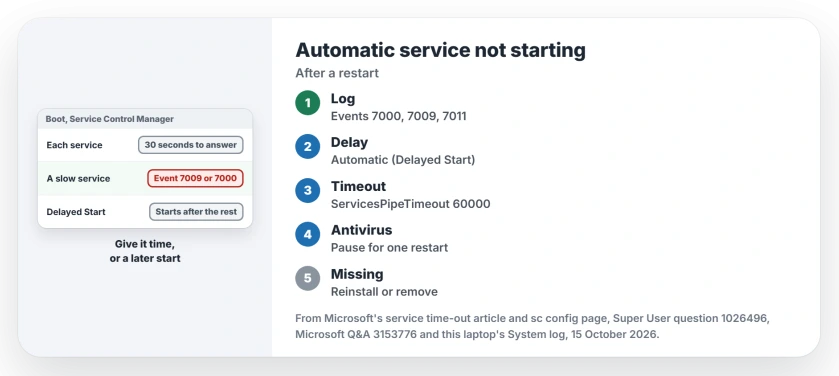
At boot, your PC starts dozens of services at once, and each gets a fixed wait. A slow one can run out of time.
An owner on that thread spelled out the default: "By default, the Service Control Manager will wait 30,000 milliseconds (30 seconds) for a service to respond". Miss it, and your service stays stopped.
Microsoft's time-out article says the service control manager waits for that limit "before logging event 7000 or 7011". You can read those events yourself.
Ours: this laptop has 102 Automatic services. Since April, its System log holds 847 events with ID 7011 and 27 with ID 7009.
One of them reads "A timeout was reached (30000 milliseconds) while waiting for the Windows Camera Frame Server Monitor service to connect". That is the same 30-second wall.
Status: tested read-only on this Home edition laptop, version 25H2, using its service list and System log since April, on 15 October 2026. No startup type or registry value was changed.
1. Read the log for that service
Open Event Viewer, then Windows Logs, then System, and filter by the source Service Control Manager. Or print your last twenty entries that matter:
Get-WinEvent -FilterHashtable @{LogName='System'; ProviderName='Service Control Manager'; Id=7000,7009,7011,7034} -MaxEvents 20 | Format-List TimeCreated, Id, MessageThe accepted answer on a 2026 Microsoft Q&A question maps the numbers for you. Event 7009 is a timeout, 7000 or 7001 means the service never launched, and 7034 means it started, then crashed.
Not every stopped Automatic service is broken, though.
Ours: 10 of the 102 were stopped when I looked, and half of those were Delayed Start or trigger start services, which Windows starts later or only on an event.
Check your service's startup type before you call it a fault.
2. Switch it to Automatic (Delayed Start)
This is the fix the asker settled on. In their words: "The only solution that works for the moment is to change the startup type of these services from Automatic to Automatic Delayed".
Double-click your service in Services and pick Automatic (Delayed Start). Or from an administrator prompt, keeping the space after the equals sign:
sc config "ServiceName" start= delayed-autoMicrosoft's sc page describes delayed-auto as a service that "starts automatically a short time after other auto services are started". That short wait is often all a slow service needs.
Some services refuse it. An owner trying it on the Realtek Audio Service got "unable to set the delayed auto-start flag" with error 87. If yours does too, step 3 is next.
3. Give slow services more time
Microsoft's workaround is a registry value called ServicesPipeTimeout, in milliseconds. Its article sets 60000, a minute, and adds: "Increase the number carefully".
An owner whose services kept missing the start raised it further. They reported: "In the end, we fixed it by setting the time out of the services to a higher value". Their value was 180000.
From PowerShell run as administrator, then restart:
New-ItemProperty -Path 'HKLM:\SYSTEM\CurrentControlSet\Control' -Name ServicesPipeTimeout -PropertyType DWord -Value 60000 -ForceI would keep this as a stopgap. Microsoft says it may work, but recommends you "research this problem to determine whether it is a symptom of another problem".
4. Something blocking it, or a file that is gone
On Microsoft Q&A, one owner found Windows Audio stopped after every restart on several PCs. Their antivirus, Sophos Endpoint, was in the way.
They proved it simply: "I disabled this program temporarily and restarted the PC several times to test". A reinstall of the antivirus then let the service start. Pause your security app for one restart to test the same way.
Ours: two services left by an old Google updater version failed with event 7000 at the last boot here. Windows could not find their program file.
No wait or delay will help a service whose program is gone, so reinstall or remove the app that owns it.
A service that hangs at Stopping instead is a different fault. The stuck service page ends it by process ID.
Why does Windows Time stay stopped?
It may not be Automatic at all. Some services use trigger start, which waits for an event instead of the boot. An owner found their Windows Time had switched to Automatic (Trigger Start), so scheduled time syncs failed.
Ours: on this laptop, Windows Time is Manual with two triggers, one for joining a domain, and it was running. If your clock drifts after restarts, the clock page reads the gap first.
The Short Version
- Windows gives each service about 30 seconds at boot; a slow one stays stopped.
- Read events 7000, 7009, 7011 and 7034 under Service Control Manager first.
- Switch the service to Automatic (Delayed Start).
- Still failing? Raise ServicesPipeTimeout to 60000 and restart.
- Rule out antivirus, and a service whose program is gone.
Where to Next
Which service was it for you, and did Delayed Start cure it? Name the service in a comment, since my list of services that need the delay grows with each reply.

Isaac Smith is the founder and editor of PC Glance, a website that covers computers, laptops, and technology. He is a tech enthusiast and a computer geek who loves to share his insights and help his readers make smart choices when buying tech gadgets or laptops. He is always curious and updated about the latest tech trends.