
You open Event Viewer to find out why your laptop feels slow and see a warning repeated for every core: "The speed of processor 0 in group 0 is being limited by system firmware".
I would measure the speed before touching anything. The warning is often harmless. When it is not, the cause is usually something you can switch off or swap.
This warning drew a Super User question in August 2015 that now has 139,400 views. A 2022 Microsoft Q&A copy shows 50+ on Same question.
What Event 37 is telling you
The source is Kernel-Processor-Power, event ID 37. Microsoft's Event ID 37 article says it is logged "when the hardware platform determines that the OS can't use some frequency range that the processor supports".
So your firmware set the cap, not Windows. In Microsoft's words, the event "notifies the user that the processor or CPU core can't support running at full speed".
That sounds worse than it often is. Intel says the same warning does not point to faulty hardware, and its support article names thermal, power or current limits as the usual reasons.
Ours: Windows 11 25H2 still words it as processor %1 limited by system firmware, with the seconds spent in that state. This laptop's System log goes back to 2 April 2026. It holds no event 37 at all.
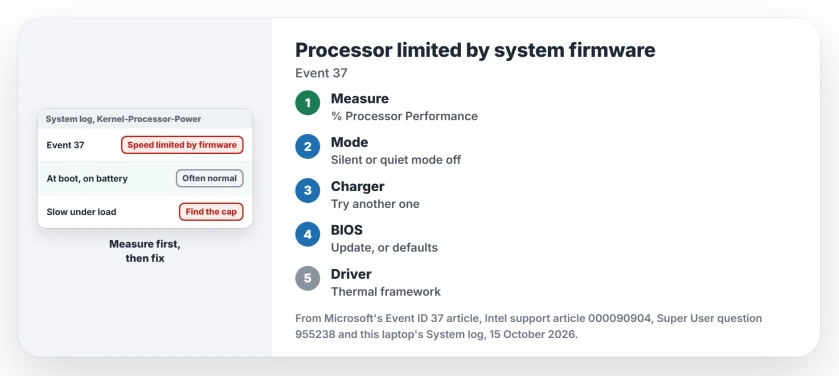
Status: Microsoft's and Intel's event 37 pages, compared with this laptop's power settings on 15 October 2026. Its AMD processor logged no event 37, so no cap could be reproduced.
1. Measure the speed before anything else
A few entries at startup can be normal for you. One admin saw the event eight times while unplugging laptops and booting them on battery.
Their reading: "Seems to be just a warning the CPUs are automatically reduced in performance by the firmware when on battery power". Another owner logged it at every boot. Each entry said 71 seconds.
So measure yours. This PowerShell line prints five one-second readings of how hard the processor runs, where 100 is its base speed:
Get-Counter '\Processor Information(_Total)\% Processor Performance' -SampleInterval 1 -MaxSamples 5Ours: on this laptop, plugged in, it read between 106.7 and 114. The cores were boosting past base speed. If yours sits far under 100 under load, keep going.
2. Turn off a silent or quiet mode
This is the cheapest check. An owner with a Samsung Series 9 found it stuck at 47 percent and 0.80 GHz. They had never meant to turn the cause on.
In their words, the laptop "has this 'silent mode' which I could enable by Fn + F11". It slowed the fans. It also throttled the processor.
Look for the same thing in your maker's app, which may keep its own quiet profile apart from Windows. Another owner named Intel Extreme Tuning Utility and Lenovo Vantage as tools that throttle without saying so.
Set Windows to Best performance as well. Microsoft's power mode page says that option "Maximizes performance". Ours: this laptop's maker plan keeps the maximum processor state at 100 percent on battery and plugged in.
3. Try a different charger
A failing charger can trigger the cap without ever showing you an error message. An owner's Lenovo kept dropping to 0.39 GHz. Then they found the adapter "was turning on and off at random intervals".
The fix was plain: "Buying a new charger (from the manufacturer) fixed it completely". A new Dell adapter did nothing for another owner, though. Treat this as one test, not the answer.
Stuck at that exact 0.39 GHz? The 0.39 GHz page goes through the charger, power driver and fan checks in order.
4. Update the BIOS, or set it back to defaults
Microsoft's own fix line says to "check for any Power Capping policy from the hardware manufactory". On a laptop, that lives in your maker's BIOS and power software.
The accepted answer on an older Microsoft Q&A question gives the order I would follow: "Ensure the system has adequate cooling, and that you've upgraded to the most recent BIOS". Intel adds a reset of the BIOS settings to their defaults.
Heat counts here too. If the fans run hard and the base is hot, start with the overheating checks before any setting.
5. A thermal driver holding it back
On some Intel laptops the throttling comes from a driver that the maker installs to manage heat.
A technician whose customer's HP ran at 25 percent of its rated speed removed Intel Dynamic Platform and Thermal Framework under System devices.
That "fixed the problem", they wrote. The accepted answer on the 2015 question blames the same Intel software. It suggests the Performance plan with both processor states at 100 percent.
I would update that driver from your laptop maker before removing it, because it exists to stop overheating. One more owner turned SpeedStep off in the BIOS. The message went, but the processor lost its power saving.
Is event 37 a sign the processor is failing?
No. Intel says the warning does not mean the hardware is at fault. Microsoft's article treats it as the platform blocking part of the frequency range.
What it can mean is a laptop running slower than it should. A cap caused by heat, a charger or a silent mode goes away when you remove the cause.
The Short Version
- Event 37 means the firmware capped the processor under full speed.
- A few entries at startup on battery are normal; measure the speed first.
- Check for a silent mode or a maker's tuning app.
- Try another charger, then update the BIOS or reset it to defaults.
- A thermal framework driver can throttle on its own; update it before removing it.
Where to Next
Did your cap come from a mode, a charger or a driver? Add the make and model of your laptop when you comment, because I want to see which makers come up again and again.

Isaac Smith is the founder and editor of PC Glance, a website that covers computers, laptops, and technology. He is a tech enthusiast and a computer geek who loves to share his insights and help his readers make smart choices when buying tech gadgets or laptops. He is always curious and updated about the latest tech trends.