
You type the PC name, enter a password you know is right, and Remote Desktop refuses with "The connection was denied because the user account is not authorized for remote login".
I would not reset the password. The PC you are reaching keeps a separate list of who may sign in from afar, and your account is not on it.
Super User's copy of the question, from February 2017, has 171,568 views. Its asker's administrator account got in while a normal account did not.
Why Windows turns a valid account away
Microsoft's access denied troubleshooting page reads the message this way: it "suggests that the user's account doesn't have the correct user access rights to establish an RDP connection to the target server".
Your password is not the problem. Two things must be true on the remote PC, and Microsoft says your account must pass both.
It must be a member of the Remote Desktop Users or Administrators group. It must also hold the Allow log on through Remote Desktop Services right.
Administrators pass the first test by default. Windows' own Remote Desktop Users box says so: "any members of the Administrators group can connect even if they are not listed".
That explains the 2017 asker. In their words: "If I use an administrators account this works fine". Their second account was refused. Yours may be in the same spot.
Ours: the refusal text sits in this laptop's Remote Desktop Connection files. It runs Windows 11 Home, so it cannot accept a connection. Its Remote Desktop Users group is empty.
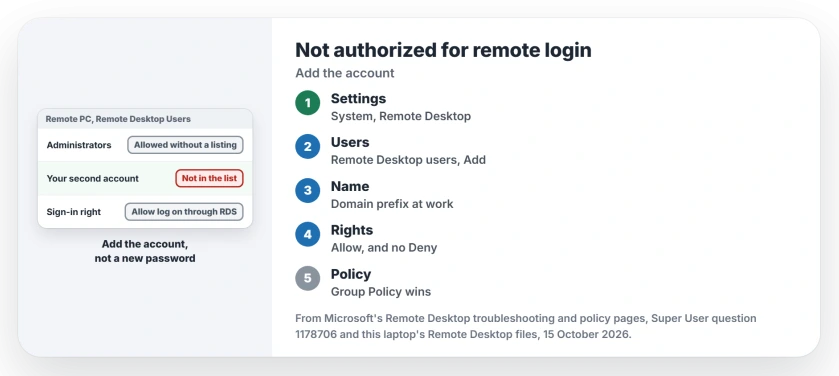
Status: Microsoft's Remote Desktop pages and this laptop's own Remote Desktop files, compared on 15 October 2026. It runs Home, so a connection to it could not be tried.
1. Add the account under Remote Desktop users
Work on the remote PC for this step. Sign in there with an administrator account first.
Open Settings, then System, then Remote Desktop. Ours: the Settings app's own text on 25H2 includes Remote Desktop users and Remote Desktop users, connection permissions.
Choose Add and enter your account. The older route is System Properties, Remote tab, Select Users. Both open the same box.
Microsoft gives a third way: "open the Local Users and Groups (Lusermgr.msc) tool" on the remote PC and check the Remote Desktop Users group.
An owner who did exactly that in 2022 wrote: "And yes it works". On a PC outside a domain, that group is the list Microsoft points you to.
2. Type the account the way that PC knows it
The user name has to be one the remote PC recognizes. An owner on a domain kept getting this exact error, then found why: "I was not including the domain name in the username field".
Once they did, it changed. In their words, "After I started using the domain name, this method works perfectly on Windows Server 2019 / Windows 10 clients".
So use DOMAIN\name for a work account. Another owner's account did not exist on the remote PC at all. They added it there under User Accounts and reported it "Worked like a charm".
Does your remote PC sign in with a PIN only? Remote Desktop wants the account password. The PIN sign-in page shows the one sign-in that fixes it.
3. Still refused? Check the Allow and Deny rights
On a Pro PC, open Local Security Policy, then Local Policies, then User Rights Assignment. Find Allow log on through Remote Desktop Services.
Microsoft's fix if your account is missing: "either add the group to the policy or add the user to one of the groups that is already configured".
Check the Deny entry beside it too. Microsoft's policy page says you "can assign the Deny log on through Remote Desktop Services user right" to exclude people. It warns this can block accounts the Allow entry lets in.
4. A work PC? Group Policy decides
Here your own changes may not last. Microsoft puts the rule in one line: "Remember that Group Policy settings override Local Security Policy settings".
A September 2024 Microsoft Q&A question shows the pattern. One user could reach every office workstation except their own.
A Microsoft external staff member asked whether the domain-level policy had been checked. That is the first question to put to your IT team.
The top Super User answer, which the asker accepted, is for admins. It adds a security group to Remote Desktop Users with a Group Policy Preference, and warns that "edits to the User Rights Assignment policy are not cumulative".
Does a Home PC give this error?
Not this one. Microsoft's setup page says the remote PC needs the Pro edition, so a Home PC never gets as far as checking your account.
Ours: Settings on this laptop carries the line "Your Home edition of Windows 11 doesn't support Remote Desktop". You get a connection failure instead. The edition check page covers that refusal.
The Short Version
- The account is valid but not allowed to sign in remotely on that PC.
- On the remote PC, add it under Settings, System, Remote Desktop, Remote Desktop users.
- Type it as that PC knows it, with
DOMAIN\nameon a work network. - Check Allow log on through Remote Desktop Services, and the Deny entry beside it.
- On a domain, Group Policy overrides the local settings.
Where to Next
Which fixed yours: the users list, the name format or a policy someone set years ago? Tell me in the comments, because the policy cases are the ones I want more of.

Isaac Smith is the founder and editor of PC Glance, a website that covers computers, laptops, and technology. He is a tech enthusiast and a computer geek who loves to share his insights and help his readers make smart choices when buying tech gadgets or laptops. He is always curious and updated about the latest tech trends.