
You copy cells, and the moving border appears. You do one more thing, the border is gone, and Ctrl+V pastes nothing, in Excel or anywhere else.
I would stop fighting Excel on this one. It ends a copy on purpose, and the way round is a second clipboard that keeps what you copied.
A Microsoft Q&A question about Excel clearing the clipboard, typed in angry capitals, shows 20+ on Same question, and the Super User one has 62,212 views.
Why Excel drops your copy
Excel treats a copy differently from Word. A copy in Excel is a pending action, marked by that moving border, until you paste it or cancel it.
The accepted Super User answer quotes Joel Spolsky, once a program manager on Excel, who said Excel "has move and copy" rather than true cut and paste. It cancels a copy when cells might shift.
Ours: in a hidden Excel 16.0 build 20430, I copied three cells and tried 12 actions in turn. Two pastes, a typed value, a new row, AutoFit, a new sheet, switching sheets and a new selection all kept the copy.
Four ended it. Making another cell bold, a recalculation, Esc and deleting the copied cells each took the Windows clipboard from 23 formats to none.
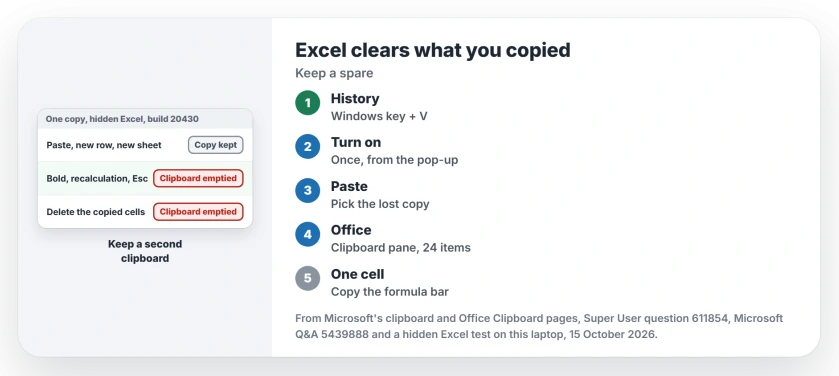
Status: twelve actions were tried against one copy in a hidden Excel, build 20430, on 15 October 2026, beside Microsoft's clipboard pages. Nothing was saved and the clipboard was put back.
1. Turn on clipboard history
Press Windows key + V. If history is off, Windows offers to turn it on.
From then on, Windows keeps a list of recent copies. When Excel drops yours, press Windows key + V instead of Ctrl+V and pick it from the list.
A 2022 Super User answer suggests this. In their words, it "brings up a popup with the 25 most recent items on the clipboard".
Microsoft's clipboard page adds a limit: the list empties at every restart, apart from the items you pin.
Ours: history was off here, the Windows default. The clipboard history page covers what it keeps, syncs and pins.
2. Or use the Office Clipboard
Excel has its own collector. On the Home tab, select the small arrow at the corner of the Clipboard group.
Microsoft says "The Office Clipboard can hold up to 24 items". Click any item in the pane to paste it.
An owner, the Super User asker, called it "The only workaround" they knew, though they disliked the space it takes on screen. That is why I would try history first.
3. One cell? Copy from the formula bar
A Microsoft Q&A reply adds one more route. Copy the text in the formula bar, not the cell, press Esc, then paste into the formula bar of the target cell.
In that reply's words, "That doesn't clear the clipboard, and you can paste to as many cells as you need". It copies plain text, with no border.
Can you stop Excel from clearing it?
No. The accepted answer states it flatly: "you can't stop this from happening", and Excel offers no setting for it.
Macs do it too. An owner on Excel 16.103.1 for Mac reported the loss in April 2026, and a Microsoft Q&A moderator kept the copy by turning on the Mac's clipboard history.
If Excel freezes when you copy rather than forgetting, the Excel copy freeze page covers that fault.
A selection that stays marked while the destination remains unchanged can match the silent paste bug with edition-specific Office fixes.
The Short Version
- Excel treats a copy as a pending move, and some actions cancel it.
- In the test, bold, a recalculation, Esc and deleting the copied cells each emptied the whole clipboard.
- Turn on clipboard history and paste a lost copy with Windows key + V.
- Or open the Office Clipboard, which holds up to 24 items.
- For one value, copy from the formula bar.
Where to Next
What wipes your copy most often? Name the action in the comments, a recalculation, Esc or something else, because I would like to test the next one here.

Isaac Smith is the founder and editor of PC Glance, a website that covers computers, laptops, and technology. He is a tech enthusiast and a computer geek who loves to share his insights and help his readers make smart choices when buying tech gadgets or laptops. He is always curious and updated about the latest tech trends.