

Copy works in Excel, but paste does nothing, no error appears and your original cells simply stay selected.
I would check your Office edition before resetting the clipboard, because Microsoft has fixed this silent paste fault with different updates for several Excel versions.
A newer Excel 2016 report from an affected workplace still needs an answer.
Check whether this is the silent paste fault
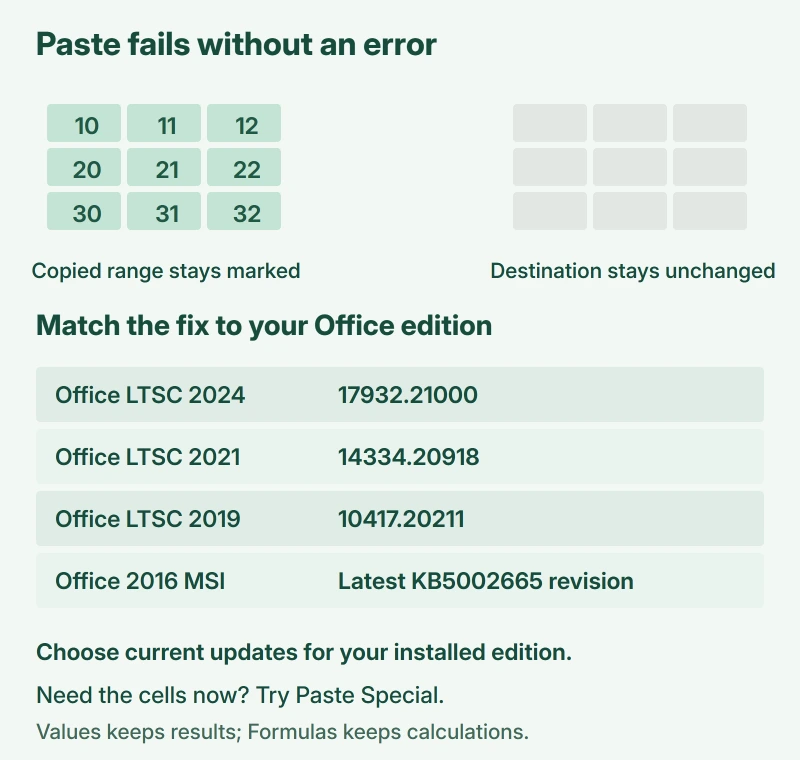
Microsoft describes a particular failure: your copied range remains selected, but the destination doesn't change. No warning explains why. Its Excel paste issue page covers Excel 2024, 2021, 2019 and 2016.
Does Excel stop responding when you press Copy? Our Excel copying freeze fixes fit that symptom better. If the selection disappears before you paste, see why Excel clears copied cells.
Status: Windows Excel, checked 17 October 2026. Microsoft lists the original silent paste issue as fixed; an October Excel 2016 recurrence report has no confirmed repair.
Open File > Account and read the product name under Product Information. Note its version and build. About Excel adds details such as 32-bit or 64-bit. Your edition decides which row to use.
Get the update for your Office edition
Microsoft states these fixes in its current issue notice:
| Your Office edition | Fixed build or update |
|---|---|
| Office LTSC 2024 | Build 17932.21000 |
| Office LTSC 2021 | Build 14334.20918 |
| Office LTSC 2019 | Build 10417.20211 |
| Office 2016 | Latest revision of KB5002665 |
These are fix references, not instructions to install an older build. Choose the latest update offered for your edition.
For an installation with Update Options, save your work and go to File > Account > Update Options > Update Now. Let Office finish installing. If needed, select Enable Updates to reveal Update Now first.
One owner confirmed on September 21, 2026 that updating Office LTSC Professional Plus 2024 to Version 2408, build 17932.21000 C2R, solved their paste failure.
After updating, copy the same cells and try the paste again. Check the destination itself. A successful copy alone doesn't show that pasting works.
If Update Options is missing, Microsoft says your installation may use volume licensing or company-managed updates, which your help desk can check against the vendor notice.
For Office 2016, Microsoft's KB5002665 download page applies to the MSI installation. It does not apply to Click-to-Run editions. Use its download instructions for the matching installation.
The revision matters here. An earlier KB5002665 package still failed with conditional formatting in a workbook; Microsoft says to install the latest revision for that fix. Having an older copy of the same KB isn't enough.
Use Paste Special when you need the cells now
Microsoft documents Paste Special as a workaround for this fault, so you can try it while waiting for the update or your help desk.
Copy your cells, select the destination, then open Home > Paste dropdown > Paste Special. The keyboard shortcut is Ctrl+Alt+V. Pick the content you actually need:
- Values keeps cell values or formula results, without their formulas or formatting.
- Formulas keeps the formulas, without the cell formatting.
- Values and number formats or Formulas and number formats also brings the number formatting.
I would choose Formulas if the copied cells must keep calculating, or Values when you only need their current results. Check the pasted formula references, since copying can adjust them for the new location.
This workaround changes what gets pasted. It doesn't repair Excel, and Values won't preserve a working calculation for you.
If Excel 2016 broke again after the October update
An owner reported another failure after KB5002934 on October 14, 2026, using Excel 2016 MSI 64-bit version 16.0.5574.1004 with the earlier KB5002665 fix already applied.
In their case, ordinary paste failed in existing workbooks while Paste Special still worked. Safe Mode, disabling add-ins and Open and Repair hadn't helped, and the thread had no confirmed repair when I checked it.
That is an owner report, not Microsoft's confirmation of a new regression. If it matches your PC, give your help desk those details and a sample workbook you can safely share. I wouldn't promise another reinstall will solve it.
The Short Version
- Match the silent failure to your exact Office edition and installed build.
- Install current updates; the Excel 2016 MSI fix needs the latest KB5002665 revision.
- Try Paste Special with the content type you need while the fault continues.
- Treat the October Excel 2016 recurrence as unresolved, rather than assuming the September fix covers it.
Where to Next
Tell me whether the offered update restored normal paste, along with your Office edition, full build and whether Paste Special worked while ordinary paste failed.

Isaac Smith is the founder and editor of PC Glance, a website that covers computers, laptops, and technology. He is a tech enthusiast and a computer geek who loves to share his insights and help his readers make smart choices when buying tech gadgets or laptops. He is always curious and updated about the latest tech trends.