
Task Manager shows your laptop's processor at 0.39 GHz, and everything crawls. It stays there with the CPU at 100 percent, often after sleep or after you unplug the charger.
It is frustrating, and it looks like a dying chip, but I would rule out the simple reading first, because 0.39 GHz at rest is normal. The fault is a clock that will not climb when the laptop has work to do.
Asked about a laptop stuck under 1 GHz, one Microsoft Q&A question shows 100+ under Same question.
Stuck, or just resting?
Laptop processors drop their clock when idle. They climb in a fraction of a second under load. An adviser in a 2023 question explained that with nothing heavy running, "your processor will just tick over at a very low clock speed".
So test it. Start something heavy, a game or a video export, and watch Speed on the CPU page of Task Manager's Performance tab. If it climbs, nothing is stuck.
For numbers you can keep, Microsoft documents typeperf, a command that "writes performance data to the command window".
Its page on Microsoft Learn lists the switches. This line logs ten samples of your processor's performance against its base clock:
typeperf "\Processor Information(_Total)\% Processor Performance" -sc 10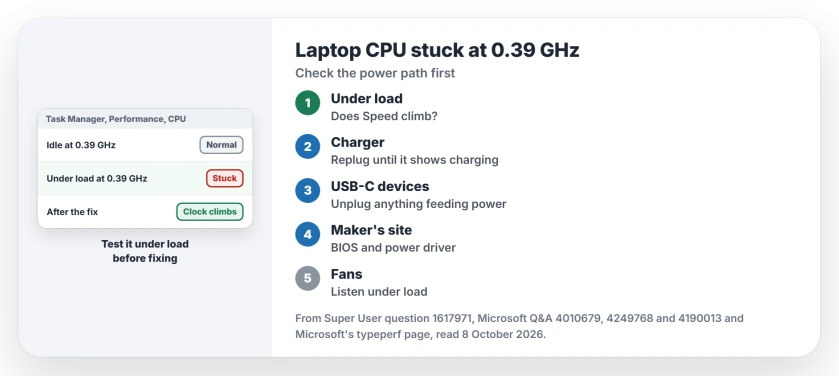
Status: checked 8 October 2026. 0.39 GHz at idle is normal. Stuck under load? Replug the charger, update the BIOS and the maker's power driver, and check the fans.
Ours: on this Ryzen 7 6800H laptop the counter read 113 to 127 during normal work. Processor Frequency showed 3,201 MHz, the chip's base. A chip held at 0.39 GHz on a 2 to 3 GHz base would read somewhere around 13 to 20.
1. Plug the charger in until Windows sees it
The quickest owner fix comes from Dell laptops. In a 2024 question about a G15 stuck at 0.39 GHz, an owner wrote that Dell "has a known power management bug" that shows after sleep.
Their routine: "plug in your charger, wait about 5 seconds and when the battery indicator on Windows shows it's charging, you can then unplug your charger". They added "If this doesn't work the first time, try it again".
The same pattern is reported by owners on other brands, where the clock drops when the laptop doubts its power. An HP Pavilion owner fixed theirs by enabling "Battery Remaining Time" in the BIOS.
Their guess was that "Windows thought battery was at a critical level", and low battery readings and odd chargers both fit that pattern.
A phone did it for one Super User owner, tethered over USB-C and feeding the laptop a trickle of power. Their words: "when I unplug my phone, I see the CPU doesn't lock anymore". Unplug any USB-C device that can supply power while you test.
If your laptop also says plugged in, not charging, our laptop not charging page covers the charger checks.
2. Update the BIOS and the maker's power driver
Lenovo owners got their fix from Lenovo's own software, after a Super User owner said Lenovo investigated and blamed Modern Standby. The fix was Lenovo's latest thermal driver plus one registry value.
A ThinkPad T14 owner followed it and listed what each part did. A BIOS update from 1.17 to 1.19 "fixed low clock freq. after wake-up". The drivers with the value fixed the screen-off case.
The value is MSC, set to 0, under Lenovo's LITSSVC service. It only means something on a Lenovo with the Intelligent Thermal Solution driver installed. Skip it on other brands.
reg add HKLM\SYSTEM\CurrentControlSet\Services\LITSSVC\IC\CONFIG /v MSC /t REG_DWORD /d 0 /fA later commenter warned "There is no CONFIG folder anymore", and reg add creates it. For a ThinkPad T15, an answer pointed at BIOS 1.34 or newer.
Whatever your brand, get the newest BIOS and the power or thermal driver from your maker's site, matched to your exact model, and I would do that before any tool or tweak.
Event Viewer may record the same cap as a Kernel-Processor-Power warning, and the event 37 page explains when that entry matters and when it is noise.
3. Check that the fans spin
A clock pinned low on a hot chip is heat protection, and one Super User poster had the same symptom with a dead fan. Their report: "Replacing the fan works".
On a ThinkPad X1 Carbon, another owner found "the CPU fan turns off when the Screen turns off". They kept the screen on as a workaround. Listen for your fans under load.
If yours runs hot at idle, our laptop overheating page covers the vents and the dust.
A power limit set too low
An ASUS FX505GT owner hit the same wall at 798 MHz, and a reply in that 100+ question found "the turbo power limits are being set to an absurdly low value of 5 Watts". The chip throttled all day.
The owner's stopgap was a forced shutdown with the power button. It held until the next sleep. The reply suggested ThrottleStop to lock the limits, a third party tool for experienced users.
A BIOS update from the maker is the cleaner route, so ask your maker's support about power limits if one does not help.
Safe Mode as a test
The Dell asker in the 2024 question started Windows in Safe Mode and wrote "CPU speed increased to 2.69 approx". That is a useful test for you too.
If your clock climbs in Safe Mode, something loaded in normal Windows holds it down, which points back at the maker's power and thermal software from step 2.
What did not help owners
- Turning off Modern Standby. The T14 owner wrote that it "did not help to avoid slow work when the screen is off".
- Minimum processor state and SpeedStep in the BIOS, of which the same owner said "I didn't see any effect from these changes at all".
- A new motherboard. The accepted answer in the Dell question blamed a failing processor, and an owner replied "This is not a CPU or board issue".
The Short Version
- 0.39 GHz at idle is normal. Test under load before you fix anything.
- Stuck under load? Plug the charger in until Windows shows charging, then unplug, and remove USB-C devices that feed power.
- Update the BIOS and the maker's power or thermal driver. Lenovo owners also set MSC to 0 under LITSSVC.
- Check the fans, and keep the motherboard for last.
Where to Next
Run the typeperf line once at rest and once under load, and keep both sets of numbers, since those two runs tell you whether anything is stuck.
If the second set stays low, send it through the comments with the make and model of the laptop. I will match it to one of these causes.

Isaac Smith is the founder and editor of PC Glance, a website that covers computers, laptops, and technology. He is a tech enthusiast and a computer geek who loves to share his insights and help his readers make smart choices when buying tech gadgets or laptops. He is always curious and updated about the latest tech trends.