
Finder slows to a crawl copying to your external SSD, or stops with error -51. Yet the drive checks out fine. That is maddening. I would look for an old Android app on your Mac before you blame the SSD.
A MacRumors member found the cause on macOS Tahoe: Google's Android File Transfer Agent. A second owner confirmed the fix on a Samsung T9.
How the owner traced it
The failures hit Samsung T7, T7 Shield and T9 drives, formatted as exFAT, APFS and encrypted APFS. Two disk tools found no fault, and copies made in Terminal with ditto finished and matched the originals.
So the owner checked the Mac's USB device tree with ioreg in Terminal.
In their words, Google's agent "was attaching itself as a USB user client the external drives, even though they were ordinary storage devices." The drives were never at fault.
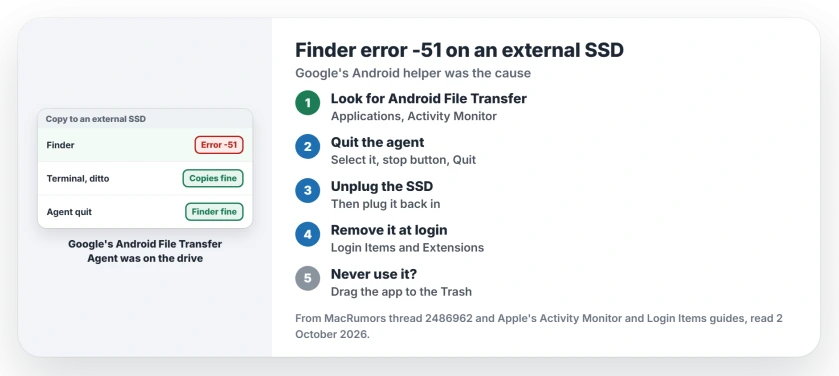
Status: checked 2 October 2026. Stopping Google's Android File Transfer Agent ended Finder error -51 for two owners copying to Samsung SSDs, one of them on macOS Tahoe.
1. Look for Android File Transfer
If you ever connected an Android phone to this Mac, you may have installed Google's Android File Transfer, the old app for copying photos and files off the phone. The owner found its agent running in the background and starting at login.
Check your Applications folder for the app. Then open Activity Monitor, which lives in the Utilities folder inside Applications, and search for Android File Transfer Agent.
2. Quit the agent
Apple's Activity Monitor guide shows the steps: select the process, click the stop button at the top left, and choose Quit. The owner used Terminal instead, with pkill -f "Android File Transfer Agent".
Next, unplug the SSD. Plug it back in. The owner wrote: "Finder transfers immediately returned to normal speed".
3. Stop it opening at login
The agent returns at every login. Remove it. Apple says to open System Settings, General, then Login Items and Extensions, select the item under Open at Login and click the remove button.
The owner kept the app for occasional use this way, opening it only when a phone needed it. They warn it can add itself back after you use it, so check that list after each Android transfer.
4. Or delete the app
A second owner chased the same fault on an M2 Ultra Mac Studio with a T9. A big Resolve cache folder kept failing in Finder while ditto in Terminal copied it without trouble.
They dragged the app out of Applications, and "the T9 has been rock solid for me ever since." That settled it for them.
That is the simpler route if you no longer move phone files this way. Google's current help page for USB transfers covers a Windows computer and a Chromebook, with no Mac section at all.
5. Copy the files again
Try the copy that failed, ideally the same large folder as before. The owner's later multi-gigabyte copies all finished without error -51, at normal speed, once the agent was gone.
Ours: if Finder still stops with the agent gone, test another cable and port before you suspect the SSD. Rule out the simple things.
A drive that never mounts is a different fault, and the Corsair page covers one. If files copy but search cannot find them, the Spotlight page helps.
Why does Finder fail with error -51 on my external SSD?
For two owners on MacRumors, Google's Android File Transfer Agent had attached itself to the drives. Quitting it, or removing the app, ended the failed copies.
How do I stop Android File Transfer opening at login?
Open System Settings, General, Login Items and Extensions. Select Android File Transfer under Open at Login and click the remove button. The owner says to check the list again each time you use the app.
Will deleting Android File Transfer break anything?
It only removes USB file transfers from an Android phone through that app. One owner deleted it and their SSD copies have worked ever since.
The Short Version
- Finder error -51 hit Samsung SSDs on macOS Tahoe.
- Terminal copies still worked, so the drives were fine.
- Google's Android File Transfer Agent was the cause.
- Quit it in Activity Monitor or with pkill.
- Unplug the SSD and plug it back in.
- Remove the agent from Open at Login.
- Or delete the app if you never use it.
Where to Next
Start in Activity Monitor and search for Android File Transfer. If it is running, quit it. Then reconnect your SSD and repeat the copy that failed.
If error -51 returns with the agent gone, post your drive model under the article. I'll list each extra cause here.

Isaac Smith is the founder and editor of PC Glance, a website that covers computers, laptops, and technology. He is a tech enthusiast and a computer geek who loves to share his insights and help his readers make smart choices when buying tech gadgets or laptops. He is always curious and updated about the latest tech trends.