
You copy a folder in Finder, the progress bar starts, and then it stops with error code -8062. Another folder copies without trouble. That is frustrating.
Before you blame the disk, I would look at iCloud Drive, because the asker on Ask Different traced theirs to folders still syncing with it.
The question, asked in March 2025, has 2,156 views. The asker's own fix was one switch in iCloud settings, and two other owners added ways around it.
When the error shows up
The asker put it simply: "Some folders copy fine. Some start and then stop with the 8062 error message". They thought it might have started with the macOS 15.3.2 update, though they could not be sure.
They also believed "the issue is only with folders within my Desktop and Documents folders". Both of those were synced with iCloud Drive.
During a copy, "the iCloud time icon displays suggesting it is downloading files before they are copied". Copying took far longer than it should.
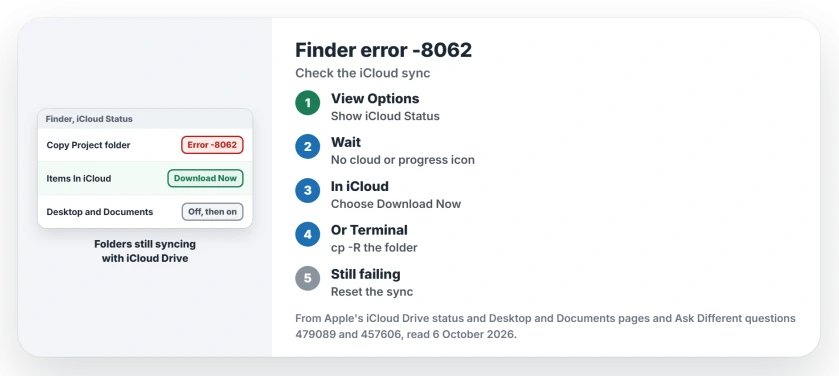
Status: checked 6 October 2026. Error -8062 when copying folders on a Mac showed up on folders still syncing with iCloud Drive. Let the sync finish, or copy in Terminal.
The only way they found to copy some folders was deleting the hidden .DS_Store files first. Those files come straight back.
What the cloud icon is telling you
Apple explains the icons on its iCloud Drive status page, where "In iCloud" means your item is only in iCloud. Waiting to Upload means it "is not yet stored in iCloud".
Either way, the folder is not fully in sync yet. I would treat any icon there as a reason to wait.
A 2023 question on Ask Different shows the same fault with a different number, error -36. That owner could not copy folders "when the parent folder is synching to iCloud".
The rest of their report matches yours: "both functions work normally as soon as the parent folder is fully synched to iCloud".
1. Let the folder finish, or download it now
In Finder, choose View, then Show View Options, and select iCloud Status. Apple says the icon for most transfers shows next to each name anyway. Wait until nothing in your folder shows a cloud or progress icon.
For anything marked In iCloud, Apple's step is to Control-click it and choose Download Now. Once the whole folder is on your Mac, try the same copy again in Finder.
2. Copy it in Terminal
One owner with the same error skipped Finder: "What worked for me is using the terminal to copy the folders". In their words: "Obviously, this isn't a long term fix, but it got the job done for me".
The command is cp with the -R option, then the folder, then the new copy's name:
cp -R ~/Documents/Project ~/Documents/Project-copyOurs: type cp -R and a space, then drag the folder into the Terminal window. That fills in its path. Then add a space and the new name. I would use this for one-off copies.
3. Turn iCloud Drive's sync off and on again
The 2023 owner fixed their copies this way. Under iCloud Drive, they turned off Sync this Mac and Desktop & Documents Folders, then restarted.
Then they turned both back on and restarted again, which "seems to have completely cleared the issue".
Expect a wait, though. In their case "it took a couple hours to redownload everything". Ours: make a fresh Time Machine copy of your Mac first.
On current macOS, the switches sit in System Settings: click your name, then iCloud, then Drive. Apple's own steps for Desktop & Documents Folders use the same screen.
4. Or keep Desktop and Documents on the Mac
The asker's accepted answer was the bigger step: "Having turned off iCloud Drive Desktop and Documents, the problem seems to have stopped". They added later: "Since turning it off, everything has been fine".
Know where your files go first. According to Apple, they remain in iCloud Drive, and new local Desktop and Documents folders appear in your home folder.
So the new folders start out empty. Move your files back from iCloud Drive yourself.
Not in iCloud at all?
One reply says the error "happens also outside any iCloud repository". Another owner blamed a full disk: "the disk space of the MacBook is almost completely used".
Their way through was to open the half-copied folder and choose to continue the copy, as often as it took. So check your free space as well.
A different code, -51, came from somewhere else entirely: Google's Android File Transfer agent on an external SSD. And if your iCloud items never finish syncing, iCloud Drive may have stalled after sleep.
The Short Version
- Error -8062 on a folder copy showed up on folders syncing with iCloud Drive.
- Turn on the iCloud Status column and wait until nothing is moving.
- Control-click items In iCloud and choose Download Now.
- cp -R in Terminal copied the folders for one owner.
- Turning the sync off and on, with restarts, cleared it for another.
- Turning off Desktop & Documents Folders stopped it for the asker.
Where to Next
Turn on the iCloud Status column in Finder, then look for cloud or progress icons inside that folder before you copy it again.
Was your folder syncing with iCloud, or was the disk full? Tell me in a comment.

Isaac Smith is the founder and editor of PC Glance, a website that covers computers, laptops, and technology. He is a tech enthusiast and a computer geek who loves to share his insights and help his readers make smart choices when buying tech gadgets or laptops. He is always curious and updated about the latest tech trends.