
You set up your new Mac, start Migration Assistant, and hours later the bar sits still near the end. Each cable you try ends the same way.
It is worrying when your whole old Mac is inside that transfer. Before you try again, I would check one number: whether everything you picked fits the new Mac.
That is what finally got an owner on Ask Different through. Asked in May 2025, the question has 4,076 views, and the owner posted the fix the next day.
Where it stalled
The owner was moving from a 2021 MacBook Pro with 1 TB to a 2025 MacBook Air with 512 GB. Wi-Fi was too slow. Over a cable, "USB-C took nine hours and then got stuck on a single file".
Thunderbolt did better at first. In their words, "Thunderbolt took twenty minutes before it too got stuck", near the end again, and it sat there for over an hour.
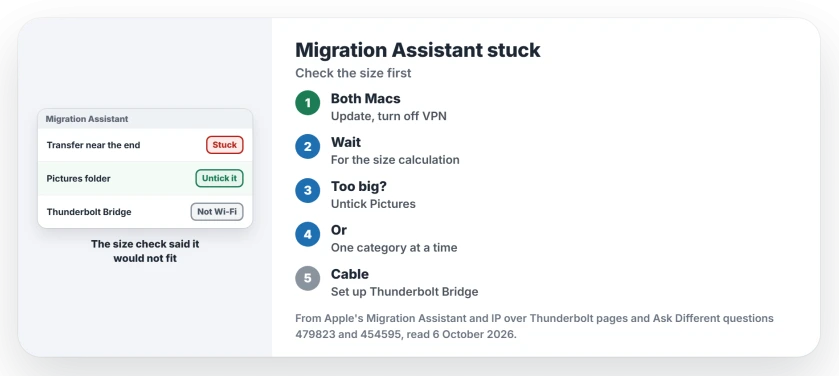
Status: checked 6 October 2026. One owner's Migration Assistant kept stalling near the end because the old Mac's data did not fit the new one. Untick a big folder, then transfer.
A Time Machine attempt failed as well, "supposedly not enough space". They did not believe it, since the old Mac showed only 460 GB in use. That warning turned out to be the clue.
What Apple says about pauses
Apple's Migration Assistant page sets the bar for patience: "Large transfers might need hours to complete, and might seem to pause occasionally". A still bar is not always a stall.
Apple also says Migration Assistant first "calculates how much storage space is used by all of your information", and that you should "Wait for the calculation to complete". Then you pick categories.
Apple asks you to turn off antivirus, firewall or VPN software on both Macs until it finishes, and to update macOS on each. I would do both before a second attempt.
1. Check the size against the new Mac
The owner started again from a Time Machine backup and let the calculation run. This time it said the data "was in excess of the storage available". Your direct transfer may never warn you like that, and theirs never did.
Their answer explains the trap: "Direct transfers reported the same 460 GB number but then got stuck at the end of the transfer".
The Time Machine route also let them untick the Pictures folder, which held most of the data, and "this wasn't an option during a direct transfer".
With Pictures left out, "The transfer then proceeded as normal and only took about twenty minutes". Ours: compare the total on the selection screen with the new Mac's free space, and leave room to spare.
2. Move one category at a time
A commenter had also suggested narrowing it down: "please select only one of the options, such as the user account". Then: "If that succeeds, try another one. Keep going until either failure or complete success".
Apple's selection screen allows it. You can tick whole categories or open one with its arrow and pick items inside.
Ours: move your user account and apps first, and bring a big Photos library over later from an external drive. I would leave Photos for last on any Mac with a small drive.
If Photos then says there is not enough room, check the real free space in Disk Utility before deleting anything.
3. Make the cable carry it
A cable does not guarantee a cable transfer. One owner connected a 2014 MacBook Pro to a MacBook Air M2 with Thunderbolt, "but Migration Assistant is using Wi-Fi". A commenter told them to set up networking on the Thunderbolt connection.
They cancelled, "added a Thunderbolt networking interface on the source", and started again. It then ran at 846 MB/s. Their reply: "Better than 5 MB/s over Wi-Fi".
Apple's steps for IP over Thunderbolt start in System Settings, Network: "Click the Thunderbolt Bridge service, then click Details". If the service is missing, Apple says you need to add one. By default both Macs get addresses using DHCP.
Restoring from a backup instead?
The same calculation runs when you migrate from Time Machine, which is how our downgrade from macOS 27 page brings files back. Untick what will not fit there too.
Ours, on paper: 460 GB at 5 MB/s is more than a day, and at 846 MB/s it is minutes. Many small files slow both, so treat those as limits, not promises.
Need only a few folders off the old Mac? Target disk mode over a Thunderbolt cable copies them without a full migration.
If a migration you stopped and restarted left an extra account behind, a later macOS update may refuse you as not an owner; the owner page shows how to check.
The Short Version
- A transfer that stalls near the end can mean the data does not fit.
- Start from a Time Machine backup and let the size calculation finish.
- Untick the biggest category, often Pictures, and bring it over later.
- Or move categories one by one until one fails.
- Turn off antivirus, firewall and VPN software on both Macs.
- Over Thunderbolt, set up Thunderbolt Bridge so the cable does the work.
Where to Next
Start Migration Assistant again, wait for the size calculation, then check it against the free space on the new Mac before you continue.
Which Macs were you moving between, and what got it unstuck? Tell me in a comment.

Isaac Smith is the founder and editor of PC Glance, a website that covers computers, laptops, and technology. He is a tech enthusiast and a computer geek who loves to share his insights and help his readers make smart choices when buying tech gadgets or laptops. He is always curious and updated about the latest tech trends.