
You installed macOS 27 Golden Gate, and your Mac now feels worse than it did on Sequoia. Maybe scrolling stutters, Safari fails to load pages, or Mission Control misbehaves. That is frustrating, but going back is possible on most Macs.
I read Apple's pages on reinstalling macOS, bootable installers and Time Machine, and a MacRumors thread where owners went back. Whether it is easy depends on one thing: the backup you made before you upgraded.
The owners who went back
A MacRumors thread titled "I just downgraded my MacMini M4 back to Sequoia" drew about 3,000 views in under five days.
Its first poster had "numerous issues" on a clean install of macOS 27, from mouse behavior to "Choppy scrolling and random FPS drops".
Their rollback worked because they had made a full backup before upgrading. In their words, "the rollback was seamless and fast." Another owner "reverted all the way back to Sequoia" after a day or two.
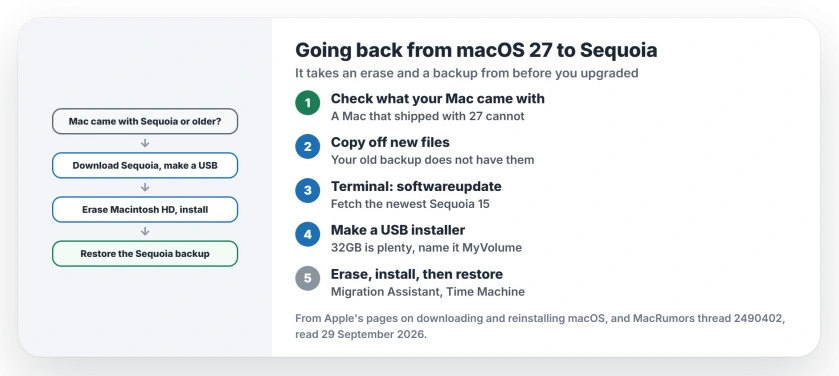
Status: checked on 29 September 2026 with macOS 27.0.1 out. Apple documents every step. A Mac that shipped with macOS 27 cannot go back, and your files come from a backup made before you upgraded.
1. Check that your Mac can run Sequoia
Apple's Terminal route downloads macOS "no earlier than the version that came with your Mac". So a Mac that shipped with macOS 27 has nothing older to go back to.
That caught one owner out. They had planned a new M6 Mac mini, then dropped the idea "because it does not support Sequoia". If your Mac came with Sequoia or earlier, you can continue.
2. Copy off anything new since the upgrade
Going back erases your Mac. Any file you created or changed since you upgraded is not in your old backup, so copy it to an external drive or iCloud Drive first.
Also make a fresh Time Machine backup of macOS 27 as it is now. If the downgrade goes wrong, you can still get back to where you started.
Before you go back over one annoyance, check it is not a setting; the Safari windows page is one example.
3. Download Sequoia and make a USB installer
Apple's download page gives a Terminal command. First list what your Mac can get, then fetch the newest Sequoia version it shows, a number starting with 15:
softwareupdate --list-full-installers
softwareupdate --fetch-full-installer --full-installer-version [number]
Then follow Apple's bootable installer steps. Apple says a "32GB flash drive has more than enough storage space for any macOS installer". Rename the drive MyVolume and run Apple's command for Sequoia:
sudo /Applications/Install\ macOS\ Sequoia.app/Contents/Resources/createinstallmedia --volume /Volumes/MyVolume4. Erase your Mac and install Sequoia
With Apple silicon, Apple's steps are to shut down, connect the drive, then keep the power button held down. Your Mac shows its startup options; choose the installer and click Continue.
Keep your Mac online, since Apple says the installer needs the internet for firmware.
The installer will not put an older macOS over a newer one on the same disk, which is why the erase comes first. Open Disk Utility from the installer's window, erase Macintosh HD, then install Sequoia.
When Disk Utility offers Erase Volume Group, take it rather than deleting the volumes one by one, as the MacBook factory reset guide explains.
You may have heard that Recovery can do this alone. On Apple silicon, Apple says Recovery "installs the current version of the most recently installed macOS", which is macOS 27.
Only after an erase, Apple adds, "you might get the macOS that you were using before upgrading". The USB installer removes the guesswork.
5. Bring your files back from Time Machine
When Sequoia starts, the setup assistant offers to transfer your data. Apple says Migration Assistant can use a Time Machine backup "to restore all of your personal files, including your apps and everything in your user account."
Pick a backup made on Sequoia, before you upgraded, as the first poster did. Then copy back the new files you saved in step 2.
If the restore sits near the end for hours, check whether the backup fits the drive before starting over. One owner's transfer only finished once a big folder was left out.
If you would rather stay on macOS 27
Some faults have their own pages here. The Mission Control page covers what works for now, and the Magic Mouse page covers a mouse that connects but does not work.
Not every owner regrets upgrading, either. In the same thread one wrote, "I've had zero issues with macOS 27", on an M2 MacBook Air.
Can I downgrade from macOS 27 to Sequoia?
Yes, if your Mac came with Sequoia or an earlier macOS. You erase the Mac, install Sequoia from a USB installer and restore your files from a backup.
Does downgrading delete my files?
The erase removes everything, so your files come back from a backup. Anything made since you upgraded needs copying off first.
Can Recovery reinstall Sequoia by itself?
Not reliably. On Apple silicon, Apple says Recovery installs the most recently installed macOS, which is macOS 27.
Can a Mac that came with macOS 27 run Sequoia?
No. Apple's own download route stops at the version your Mac came with.
The Short Version
- Going back to Sequoia means an erase.
- A Mac that shipped with macOS 27 cannot.
- Copy off files you made since upgrading.
- Download Sequoia with Terminal.
- Make a USB installer, 32GB is plenty.
- Erase, then install Sequoia.
- Restore your Time Machine backup.
Where to Next
Check which macOS your Mac came with, then make that fresh backup before anything else. If a step stops you, post its number as a comment. I answer those, and the fix goes into this page.

Isaac Smith is the founder and editor of PC Glance, a website that covers computers, laptops, and technology. He is a tech enthusiast and a computer geek who loves to share his insights and help his readers make smart choices when buying tech gadgets or laptops. He is always curious and updated about the latest tech trends.