
Error code -36 means Finder couldn't finish reading or writing data, but it doesn't identify the failing file, disk or connection. Try copying one affected file to a different folder first, then use that result to choose the next check.
The dot_clean command handles certain hidden files that store extra information about your files. It isn't the fix for every -36 error: a disconnecting drive, an unreadable original or an unfinished iCloud download needs a different check.
1. Try one file and check the destination
Keep the original where it is and copy one file instead of moving the whole folder. Select it, press Command+C, open the destination folder and press Command+V. Write down any filename Finder shows in the error.
Apple says to check that the file isn't open elsewhere and that the receiving disk has enough free space. Its copying guidance also separates disk-format and permission problems.
Status: checked November 3, 2026 against Apple's copying and First Aid instructions. Owner reports show that dot_clean can fail and that recovering other files doesn't repair the unreadable ones.
Try the affected file in a local folder on your Mac, then try a different small file on the original destination. If your Desktop and Documents sync through iCloud, use another folder you know is stored locally for this comparison.
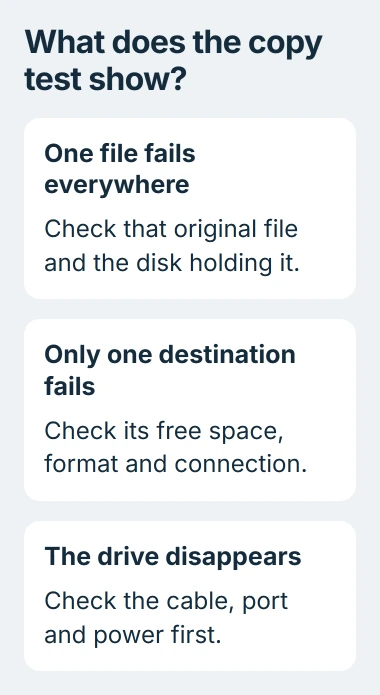
If the same file fails in both places, focus on that file and the disk it's coming from. If different files fail only when copied to one external disk, check that disk's space, format and connection.
Select the disk you're copying to in Finder and press Command+I to see its details. It needs room for everything you're copying, even if the first few files transferred successfully.
Apple states that macOS can read NTFS disks but can't normally write to them. If that is your destination's format, use a writable disk instead. Reformatting isn't a first test because it erases the selected disk.
2. Stabilize an external drive before trying again
If a USB disk disappears during the copy, check its connection before running cleanup commands. Eject it normally when possible, reconnect it directly to the Mac, and try a suitable data cable and another port.
If your desktop drive has its own power adapter, check that too. Apple's storage-repair guidance includes these cable, connection and power checks when the Mac can't detect an external device.
Try a small transfer and watch whether the disk stays in Finder the whole time. If either disk keeps disconnecting, repeating the copy won't get it to finish.
I'd stop experimenting with an unstable disk that holds your only copy of important files. Ask a recovery specialist about preserving the data before attempting repairs that write to that disk.
For a drive that stays connected, move on to the file-specific checks. If the displayed code is actually -51, use the separate Finder SSD error guide rather than assuming these codes share one cause.
3. Use dot_clean only for the hidden-file case
Files starting with ._ store extra Mac information separately from the main file. These small companion files aren't your actual document, photo or video.
Apple documents dot_clean for these files in its archived signing troubleshooting note. That explains the tool's job; it doesn't mean these files cause every -36 error.
If Finder names a ._ file, or you've moved the folder between Mac and non-Mac disks, try cleaning up that folder. Make a backup first because the command changes the extra information stored with its files.
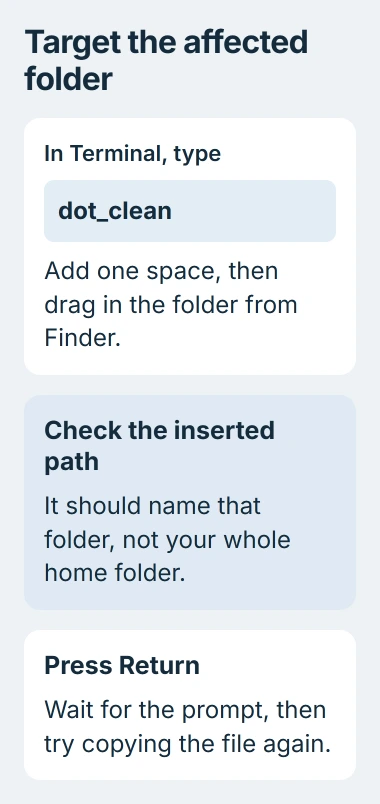
Open Terminal from Applications > Utilities. Type dot_clean followed by one space, then drag the affected folder from Finder into Terminal. Dragging fills in the correct folder path, even if its name contains spaces.
Your command should end with the folder's path, like this:
dot_clean /Volumes/Transfer/ProjectUse your own folder's path in place of the example. Run it on just that folder, without extra deletion options or your entire home folder. Press Return, wait for the command prompt to return, then try copying the file again.
If Terminal shows an access error, write it down instead of guessing at administrator commands. If Finder still names the same ordinary file, move on to the disk check; repeating this cleanup won't help you check the disk.
An owner on Ask Different reported that dot_clean didn't fix their -36 errors on a troublesome backup disk. They later recovered some data, but some files stayed unreadable. The command isn't a disk repair.
4. Run First Aid on a stable disk
Apple's First Aid instructions explain that Disk Utility repairs disk formatting and the records that organize files and folders. That doesn't mean it can recover every damaged file.
Back up the files you can still read before running repairs. Then open Disk Utility from the Utilities folder. Choose View > Show All Devices to see the disk and its volumes, the separate storage areas inside it.
Select the last volume listed inside the affected device. Choose First Aid, then Run or Repair Disk, depending on the version. Let it finish and read the result before selecting the next item.
Work upward through that disk's volumes and any volume groups, then its containers, which hold volumes. Finish with the device itself. Your disk may list fewer items; check the ones it shows.
For your Mac's startup disk, Apple directs you to use Disk Utility in macOS Recovery. You can check an external data disk while macOS runs if it can be unmounted, meaning the Mac can stop using it during the check.
After First Aid finishes, try the small copy from section 1 again. If First Aid reports errors it can't repair, keep the remaining data safe and ask about recovery before erasing the disk.
5. Separate cloud downloads from unreadable local files
With iCloud Drive files, check whether Finder is still downloading or transferring the file. If it's only stored in the cloud, your Mac needs to download it before the copy to a local folder can finish.
The iCloud folder-copy troubleshooting page covers the reported -36 and -8062 failures during sync. Follow that route when the same file copies normally after its download finishes.
On a stable disk, copy readable files in smaller groups to identify which ones fail. One owner recovered most of their backup through Finder this way after First Aid helped the disk mount.
They still couldn't recover some videos and screenshots. List any files you had to skip and look for another backup of them. A finished transfer doesn't mean you've recovered everything if those files are missing.
If the file fails with different connections and destinations, tell Apple Support or the drive maker. Include the disk model and First Aid's message. For files you can't replace, ask a recovery service before reusing or formatting the disk.
The Short Version
Try one file in another destination and check any unstable connection. Use dot_clean for hidden companion-file problems, and back up readable data before First Aid. Keep track of any files that still won't copy.

Isaac Smith is the founder and editor of PC Glance, a website that covers computers, laptops, and technology. He is a tech enthusiast and a computer geek who loves to share his insights and help his readers make smart choices when buying tech gadgets or laptops. He is always curious and updated about the latest tech trends.