
Deleting files on iPhone starts in Files, where touching and holding an item reveals Delete. Check its location first: deleting from iCloud Drive also removes that file from other devices using the same account.
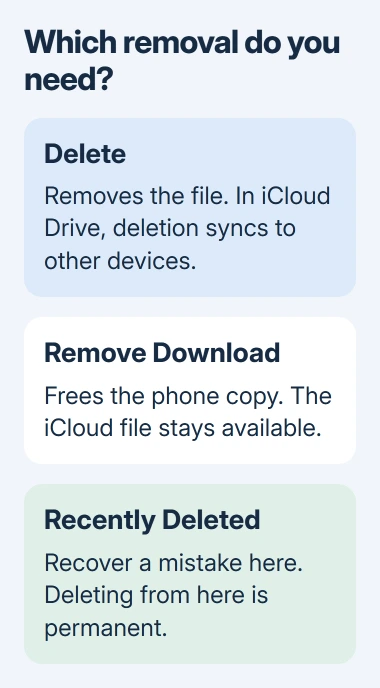
For extra phone space while keeping an iCloud document, choose Remove Download instead. That removes the downloaded copy, leaving the file available from iCloud.
Choose the file and check where it is stored
Open Files > Browse and select the location containing the unwanted document. On My iPhone holds local files; iCloud Drive holds documents synced through Apple's cloud service.
Apple documents those locations in its Files navigation guide. Open the document before removing it when several copies have similar names.
Status: Apple's Files deletion, download removal and recovery instructions checked November 3, 2026. The 30-day recovery period applies to iCloud Drive and On My iPhone items.
For a Safari download that is difficult to locate, check its chosen Downloads folder. Photos kept in the photo library belong in Photos, even though separate image files can also exist in Files.
Delete one document or select several
For one file, touch and hold it, scroll through the menu if necessary, then tap Delete. Apple's file-management instructions provide that same action for a folder.
For several items, open their folder, tap More (the three dots), and choose Select. Mark only the unwanted items, then tap the trash button. Confirm that the intended files have left that folder.
Before removing a folder, inspect its contents. A folder can contain documents that are not visible in the parent view; deleting it is a broader action than removing one selected file.
For a document scanned directly into Files, check that the saved PDF opens and contains the required pages before deleting an earlier attempt.
Free phone space while keeping an iCloud file
In Files > Browse > iCloud Drive, touch and hold a downloaded file and tap Remove Download. Apple says this releases the device's copy without deleting the iCloud original.
The filename can remain visible afterward. That is expected: the cloud document is still available to download again. Deleting it because its name remains would perform a different action.
Apple's deletion and storage guide separates these commands. For another provider, such as Dropbox or OneDrive, use that provider's instructions for removing offline copies.
Recover a mistake before making removal permanent
For an ordinary Files deletion, open Browse > Recently Deleted. Touch and hold the item, then choose Recover. It returns to the folder it came from.
Apple states that files in this recovery area are permanently removed after 30 days. Deleting an item from Recently Deleted removes that recovery option immediately, so inspect it carefully before choosing Delete there.
For missing iCloud documents, the iCloud recovery page also offers Recently Deleted and Recover. Apple cannot restore a file through that route after permanent removal.
If deletion is unavailable in another cloud service, contact that provider with the location and exact error. For an iCloud or local Files failure, give Apple Support those details; resetting iOS is excessive for removing one document.
The Short Version
Use Delete for a document that should go away, or Remove Download for an iCloud document that should remain online. Check Recently Deleted promptly after a mistake, and treat deleting from that area as final.

Isaac Smith is the founder and editor of PC Glance, a website that covers computers, laptops, and technology. He is a tech enthusiast and a computer geek who loves to share his insights and help his readers make smart choices when buying tech gadgets or laptops. He is always curious and updated about the latest tech trends.