

Converting a picture to PDF on an iPhone takes two stages: save the photo as a file, then export it as PDF in Preview. The finished document goes into Files, where you can attach it to a form or send it without a separate converter.
Preview is included with iOS 26 and iOS 27. Saving a photo to Files alone keeps it as an image; the PDF conversion happens inside Preview.
1. Put the picture where Preview can open it
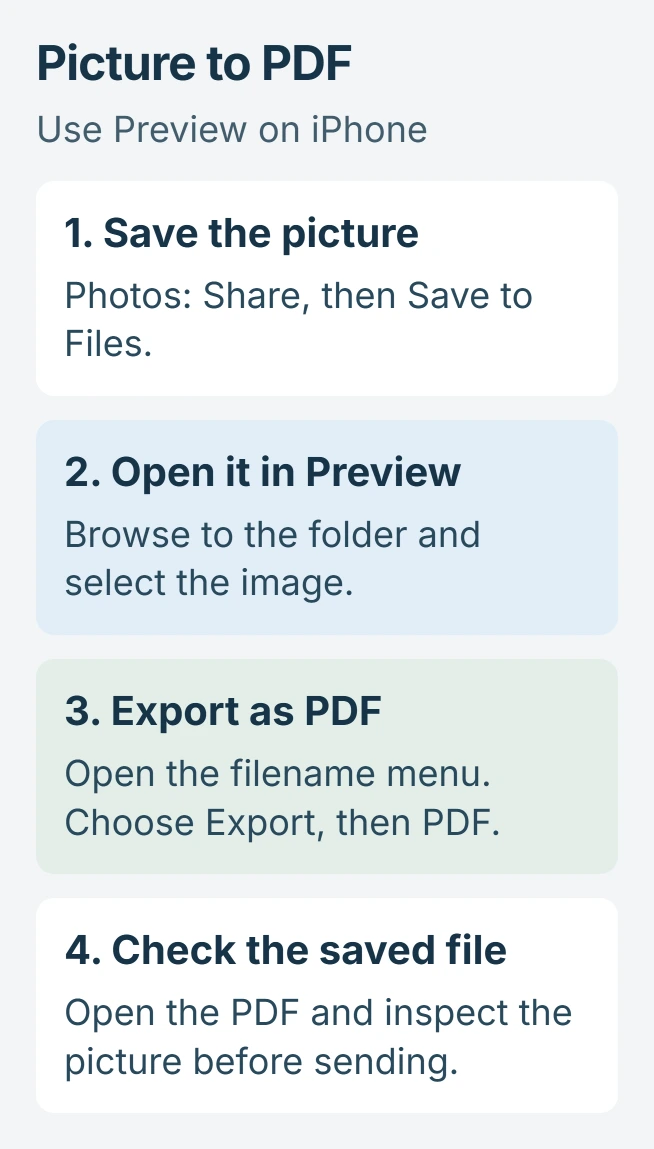
In Photos, open the picture, tap Share, then scroll through the actions and choose Save to Files. Pick a folder you can recognize, such as Downloads, and tap Save.
Apple documents the Photos-to-Files action in its photo export instructions. For this task, keep the original photo; there is no need to delete or reimport it.
Status: Preview's iOS 26 and iOS 27 export instructions checked November 1, 2026. The detailed save controls here follow iOS 27. No personal photo was converted.
For an email attachment, touch and hold the attached picture in Mail, then choose Save to Files. Apple gives that alternative in its attachment-saving guide.
A picture already stored in Files is ready for the next stage. If its location is unclear, the iPhone downloads guide explains how to locate the folder without searching Photos.
2. Export the image in PDF format
Open Preview. Tap Browse, choose the location and folder used for the picture, then tap the image. Apple's Preview browsing guide also describes Recents for files opened earlier.
- Tap the actions menu beside the filename at the top.
- Choose Export, then select PDF as the format.
- On iOS 27, tap Done after reviewing the export options.
- Choose the destination folder. Use Save As to give the document a recognizable name, then tap Save.
Apple says PDF is one of Preview's supported output formats in its export reference. Choosing JPEG or HEIC there produces another image file instead.
On iOS 26, the same filename menu leads to Export > PDF. Its export panel differs from iOS 27, so follow the save controls offered by that version rather than looking for every newer option.
3. Check the saved document before attaching it
Return to the destination folder in Files and open the new PDF. Zoom in on any small print and check the whole picture, including its edges. An upload that accepts PDF still needs the document to be legible.
Share the PDF from that file's Share menu, or select it through the receiving website's file picker. Selecting the original picture from Photos sends the image again.
Apple states that Embed Text in iOS 27's PDF export options runs text recognition to make images searchable. That is optional; a PDF containing a picture does not automatically become editable text.
If the starting material is a paper bill or form, scan the document on iPhone instead. The scanning controls help capture the page itself before it becomes a PDF.
For an export that fails repeatedly, record the iOS version, source image format and exact error for Apple Support. If the PDF opens correctly but a website rejects it, check that site's file-size and page requirements.
The Short Version
Save the picture into Files, open it in Preview and choose PDF in Export. Reopen the saved document to check it, then attach that file instead of returning to the photo library.

Isaac Smith is the founder and editor of PC Glance, a website that covers computers, laptops, and technology. He is a tech enthusiast and a computer geek who loves to share his insights and help his readers make smart choices when buying tech gadgets or laptops. He is always curious and updated about the latest tech trends.