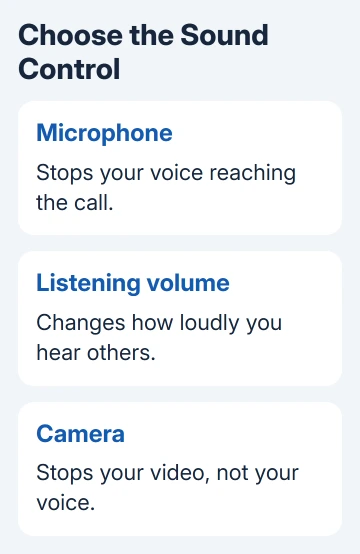
Tap the microphone button during FaceTime to stop the other person hearing you. The call stays connected, and you can still hear them. Turning down the volume quiets their voice instead, so use the right control for each job.
To silence calls before you answer, use the incoming-call settings instead. During a connected call, the microphone, listening volume and camera each have separate controls.
In this guide
Mute your microphone on an iPhone or iPad
Start or answer the FaceTime call, then tap the call screen once if its controls are hidden. Mute yourself by tapping the microphone button. Tap it again when you're ready to speak.
Apple says to use the Microphone Switch button to mute. It stops outgoing sound in both audio and video calls.
The other person can keep talking while you're muted. Listen for their reply, and check that the microphone shows it's muted before starting a private conversation nearby. An active video call can still show your face and surroundings.
On iPad, bring the FaceTime controls into view the same way and use the microphone control. The controls sit in different places on the larger screen, but the microphone button still mutes your voice, not the speaker.
If a small call window is floating over another app, return to the FaceTime call to reach its controls. The other app's toolbar won't mute your FaceTime microphone.
Recent versions can display a reminder when you speak while muted. That reminder doesn't mean the other person heard you. Use the microphone button to unmute before continuing your sentence.
I'd use the visible call control before an important private aside. It's easier to check than trusting that a headset button did what you expected.
Use the Mute button on a Mac
Move the pointer over the FaceTime call window to reveal its controls. Click Mute. Click the same button again to restore your microphone when you want to speak.
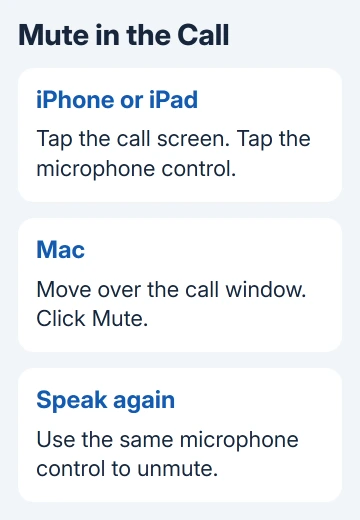
The Mac audio controls work during both video and audio calls. You can still hear the call while muted, without sending noise from your room.
Keep the FaceTime window visible long enough to confirm the control changed. A microphone icon in another app may belong to a different recording or meeting. Change the control in the call you're actually using.
For low microphone volume, open Apple menu > System Settings > Sound > Output & Input > Input. Its volume slider changes the input level; it's a different adjustment from muting a conversation.
In older macOS releases, find Sound > Input inside System Preferences. For a brief mute, stay with FaceTime's own button rather than moving the system input slider and having to restore it later.
Turn down the other person's voice
During the call, use the volume-down button on your iPhone or iPad to quiet incoming sound. On a Mac, use its volume keys or the Sound control for the selected output device.
This is useful when the room needs to be quieter but you still want to speak. It doesn't mute your microphone. They may still hear everything your microphone picks up.
With headphones connected, adjust their listening volume. A headset's microphone mute and volume buttons do different jobs, even when they're close together on the same earcup or cable.
FaceTime's microphone button controls your own voice. It isn't a remote mute switch for another participant. Ask them to mute their microphone if their background noise is interrupting a group conversation.
For a private listen, headphones are usually the better choice than repeatedly changing the speaker level. Check the selected audio output if sound continues coming from the phone or Mac instead of your headphones.
Keep video private separately
During a video call, show the call controls and use the camera button to stop sending video. The conversation can continue with sound. Use the microphone button too when neither your room nor your voice should be shared.
Don't use the camera preview as your only check of audio privacy. A paused or disabled picture says what the camera is doing, not what the microphone is sending.
For a call that stays silent after unmuting, use the FaceTime microphone checks. Compare the call input with a recording before treating the microphone as broken.
Check the AirPods control before relying on it
Supported AirPods can mute or unmute a call by pressing a stem. Your model and its call settings determine the action, so don't assume a double press always means mute.
Connect the AirPods, then open their settings using your paired iPhone. Review the call controls there. The actions for muting and ending a call can be changed on supported models. Ending the call makes you leave the conversation.
Listen for the feedback and check FaceTime's on-screen mute state after using the stem. For unfamiliar AirPods, the on-screen microphone button is the clearer choice until you've checked their assigned controls.
If headphones mute your voice without a button press, use the Mac call-volume checks. A microphone that switches or mutes on its own needs a different fix.
Silence incoming calls without confusing it with mute
Muting an active call doesn't stop future calls ringing. For quiet time, open Control Center, press and hold Focus, then select Do Not Disturb. Open Settings > Focus > Do Not Disturb and check which calls are allowed through.
With Face ID iPhones and iPads, start at the top-right corner and swipe downward. On Home button iPhones (SE, 8 or earlier), start at the display's lower edge and swipe upward. Either gesture opens Control Center.
For unknown callers specifically, use Settings > Apps > FaceTime > Silence Unknown Callers on current iOS. Older iOS versions place FaceTime directly in Settings.
That setting targets unknown callers. Calls from contacts, recent outgoing calls and Siri Suggestions can still ring. Use it for unwanted incoming interruptions, rather than expecting the microphone button to change future alerts.
For a mute button that won't respond, end the call when privacy matters, then reopen FaceTime and retry. If it keeps failing, give Apple Support the device, software version and whether it happens in audio calls, video calls or both.
The Short Version
Use FaceTime's microphone control to mute yourself, volume controls to quiet incoming sound, and the camera control to hide video. Check headset call assignments before relying on a stem press, and unmute with the same microphone button.
Checked November 12, 2026.