
FaceTime can connect while your microphone is muted or a forgotten headset is being used as the microphone. Unmute in the call controls first. Then disconnect Bluetooth audio for one call to check your iPhone's own microphones.
Silent recordings point toward the phone's microphone openings or hardware. Clear recordings with failed FaceTime audio point toward call settings or the connection. Turning up the speaker won't fix the voice you send.
1. Unmute the microphone inside the call
Tap the FaceTime screen to show its controls. Find the microphone button and check whether it's muted. Tap it to unmute, then ask your contact to listen while you speak a complete sentence.
On an iPad, use the same call microphone control. On a Mac, move the pointer over the call window and click the mute button to change its state. Check during the connected call so you're adjusting the conversation you're in.
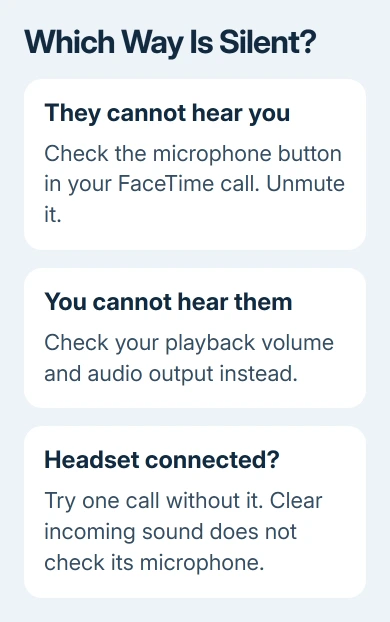
The other person's microphone controls what they send to you. Your microphone controls what they hear. If you can hear them clearly but they hear silence, turning up your volume won't help them hear your voice.
AirPods and some headsets can mute through their own controls. Look for the on-screen mute indication after using an earbud control. If the problem returns immediately when a headset reconnects, continue with the audio route next.
Try a second contact if one is available. If only one person can't hear you, ask them to check their speaker volume and selected audio output. A second successful call can spare you from resetting a working phone.
2. Take the headset out of the call
Put wireless earbuds in their case and turn Bluetooth off temporarily through Settings > Bluetooth. Disconnect a wired headset or USB audio accessory too. Start another FaceTime call using the phone on its own.
Speak at a normal distance without covering the phone's openings. If your voice returns, reconnect each accessory separately. That points to the accessory or how the call uses it. Keep using the phone microphone while you check that device.
Don't confuse a connected accessory with a working microphone. A headset can play the other person's voice while its own mic is muted or failing. Hearing them clearly doesn't mean the headset can send your voice back.
On a Mac, open FaceTime's Video menu and select the microphone you intend to use. A display, webcam or headset may add another input. Choose the Mac's built-in microphone for a comparison rather than leaving an unfamiliar input selected.
Then open Apple menu > System Settings > Sound > Input. Select that microphone, check its input volume, then speak while watching the input level. A moving level shows that macOS is receiving sound from that selection.
If an older Mac uses System Preferences, open Sound > Input there instead. Our broader FaceTime connection guide handles calls that won't connect; these microphone checks are for a call that's already connected.
3. Change a mic mode that is filtering the sound
During a FaceTime call on a supported iPhone, open Control Center and tap FaceTime Controls. Under Audio & Video, check the microphone mode. On older iOS versions, the control may be labeled Mic Mode instead.
Choose Standard for a comparison. Voice Isolation filters background sound; Wide Spectrum includes more surrounding sound. Noise filtering can be the wrong choice when sharing music or sounds in the room.
Apple's microphone mode instructions explain the supported devices and controls. These choices aren't available on every model or in every call type, so a missing mode isn't itself a microphone failure.
Mic modes are saved per app. Check the mode while FaceTime is active rather than changing it in another calling app and assuming FaceTime changed too. After selecting Standard, ask the other person whether your voice sounds clearer.
On a supported Mac, use the video or audio controls in the menu bar during the call to choose Standard. If speech is still completely absent, move to recordings; filtering doesn't explain every silent microphone.
4. Compare Voice Memos with both cameras
Remove any case or film covering the microphone openings and clear visible debris gently. Don't push a pin into the openings or put liquid into them. Physical blockage can affect calls even though the screen and speakers work.
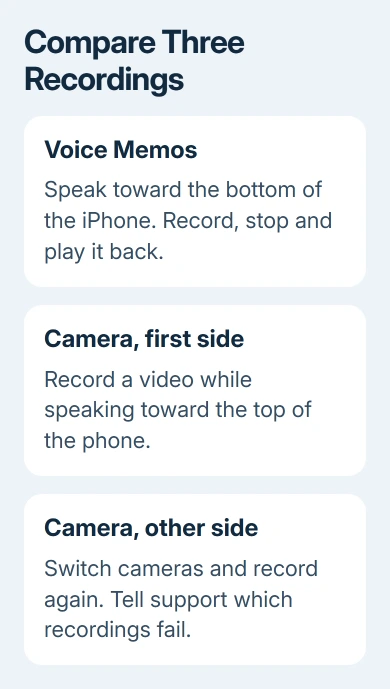
Open Voice Memos, record yourself speaking toward the bottom of the iPhone, stop, and play it back. Your voice should be clear. This checks one microphone, so you'll need the camera tests too.
Next, open Camera and record a video while speaking toward the top of the phone. Switch cameras and record another video the same way. Play both back to compare the results.
The iPhone microphone tests walk through those recording tests. Note which recording fails. Tell support if a memo sounds clear but a camera video is silent. That's a different problem from silence in every recording.
If all recordings are clear, continue with the FaceTime software and connection checks. If one or more are unclear, use our phone microphone troubleshooting and arrange service if clearing the openings doesn't help.
I'd keep the short recordings until the problem is resolved. They give a repair technician something concrete to compare with a call that happened hours earlier, especially when the microphone only fails intermittently.
5. Restart and compare the connection
End the call, restart the device, and try again. Install available iOS, iPadOS or macOS updates through Software Update. Rejoin a fresh call rather than relying on a conversation that was already having audio trouble.
Compare Wi-Fi with cellular data on an iPhone where FaceTime cellular use is available and allowed. If voices break up or vanish on one connection but work on the other, address that network before treating the phone's microphone as broken.
An iPad without cellular service can use another trusted Wi-Fi connection instead. Keep the same microphone and contact during that comparison so the change actually tells you something about the network.
For a FaceTime link opened in a browser, allow its microphone prompt and check the selected input. This permission belongs to the browser, separately from native FaceTime. Ring volume won't fix denied recording access.
Get help for the part that still fails
Contact Apple Support for FaceTime audio help if recordings stay clear but calls remain silent across contacts and connections. Give the device model, software version, chosen microphone and whether an accessory changes the result.
Ask for microphone service if local recordings stay silent or distorted after the physical checks. For a Mac, report whether the Sound input meter responds. That helps support distinguish an app, accessory or hardware problem.
The Short Version
Unmute FaceTime, try a call without headsets and try Standard mic mode. Test Voice Memos and both cameras next. Clear recordings point toward FaceTime or its connection; failed recordings need microphone checks or service.
Checked November 9, 2026.

Isaac Smith is the founder and editor of PC Glance, a website that covers computers, laptops, and technology. He is a tech enthusiast and a computer geek who loves to share his insights and help his readers make smart choices when buying tech gadgets or laptops. He is always curious and updated about the latest tech trends.