
Bring the Apple Watch beside your unlocked iPhone. Hold the watch's side button to turn it on, then tap Continue on the phone's setup prompt. The iPhone handles pairing, sign-in and most settings while both devices stay close.
For a first watch, choose a new setup. If an older watch was paired to this iPhone, setup may offer its settings or a backup instead. A watch still linked to a previous owner's account needs their help before you can finish setup.
Get the phone, watch and account ready
Update your iPhone to the latest iOS it supports, turn on Bluetooth, and connect it to Wi-Fi or a mobile network. Charge the watch if it won't turn on. Keep your iPhone passcode and Apple Account password available.
Check compatibility first. Apple's setup instructions list these requirements: Series 12 and Ultra 4 need iOS 27 on an iPhone 11 or newer. SE 3 needs iOS 26 on an iPhone 11 or newer.
Earlier watches can have different requirements. The phone may ask for an update during setup. If it can't run the required iOS, restarting the watch won't make the pair compatible; check the exact watch model before going further.
This procedure starts a watch's setup. If you're moving a watch you already use to another phone, follow pairing with a new iPhone first so its backup and health data get the right preparation.
An Android phone can't replace the iPhone in this pairing process. There is a separate family setup option for someone without their own iPhone, but it still needs a compatible organizer's iPhone and an eligible watch.
Pair the watch with the camera or manually
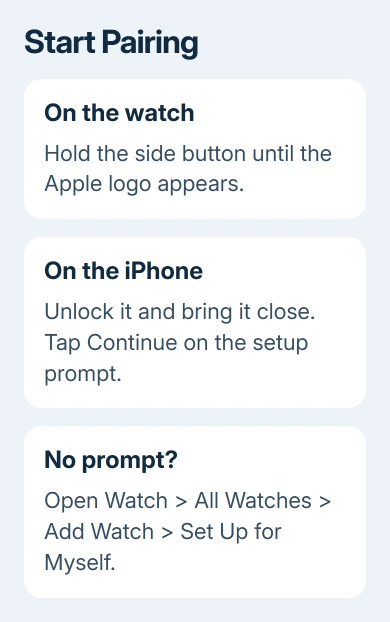
- Wear the watch, then press and hold its side button. Let go once the Apple logo is visible. Use the button beside the round Digital Crown, rather than pressing the crown itself.
- Unlock the iPhone and hold it near the watch. When Use your iPhone to set up this Apple Watch appears, tap Continue.
- If the prompt doesn't appear, open the iPhone's Watch app. Tap All Watches > Add Watch, then choose Set Up for Myself for your own watch.
- Hold the iPhone over the animation on the watch. Center it inside the camera viewfinder and wait for the paired confirmation.
- If the camera can't read the animation, tap Pair Apple Watch Manually and follow the displayed prompts. You can pair manually instead of repeatedly trying to get the camera to read it.
Keep both devices together while you work through the next screens. The paired confirmation means the devices recognize each other. You'll still need to finish account sign-in, settings and syncing before the watch is ready.
Choose a fresh setup or the settings you want to keep
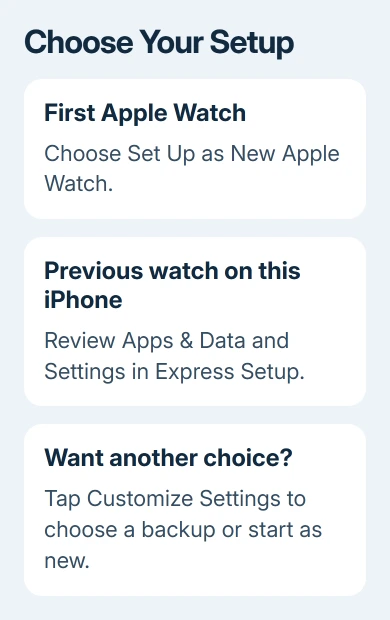
For your first watch, tap Set Up as New Apple Watch. A watchOS update may be required before you can continue. If setup asks you to update the iPhone too, complete the phone update before returning to pairing.
If another watch was used with this iPhone, you may see Make This Your New Apple Watch. Open Apps & Data and Settings to see what Express Setup will carry over, then continue if those choices suit you.
Choose Customize Settings when you want to select a previous watch backup or start as new instead. A new setup is useful for a clean start; restoring a backup keeps the settings it supports from your previous watch.
Select the wrist you'll wear it on and accept the terms when prompted. These questions are part of setup, so they don't mean pairing has failed. Keep going until you reach the account and passcode screens.
I'd review the offered backup before tapping through. Two watches can belong to the same person and still have different app layouts or preferences, so don't choose a backup just because the device it came from looks newer.
Sign in and create the watch passcode
Enter your Apple Account password if asked. If setup doesn't ask, you can sign in later through Watch > General > Apple Account on the iPhone. Some cellular features need iCloud sign-in before they'll work.
Activation Lock means the watch is already linked to an account. Enter that account's credentials, or have the previous owner remove the watch from their account. Erasing a secondhand watch won't remove that account link.
Create a passcode when offered, then enter the code on the watch itself. The watch passcode is its own code, not a request to type the Apple Account password on the small display.
Setup offers Create a Passcode, Add a Long Passcode and Don't Add Passcode. A passcode is required for features such as Apple Pay. Choose one if you want to use those features, even if skipping looks quicker today.
Set health details, cellular service and payments
Choose text size and bold text to make the display comfortable to read. Check your date of birth and other health details when offered; those details affect the information used by Fitness and Health.
Without Express Setup, you'll see settings shared with the iPhone. Enabled features such as Find My, Location Services, Wi-Fi Calling and diagnostics can carry across. Read each choice; some features may already be on.
Review the information about Emergency SOS and Fall Detection, and any health notification choices shown for your model. Available features differ by model, age and region. Setup explains the options supported by this particular watch.
A cellular model can activate a mobile plan during setup. If you're doing that later, open Watch > My Watch > Cellular > Set Up Cellular on the iPhone and follow your carrier's prompts. A GPS-only watch has no cellular activation option.
Carrier support and plan eligibility matter here. Pairing the watch doesn't automatically create a watch plan. Check with your carrier if setup rejects the account or doesn't offer the service you expected.
Supported models may demonstrate gestures. Ultra models also have Action button choices, and some models show Depth app options. Configure Apple Pay when offered, or leave payments for later if you don't have your card details ready.
Let syncing finish and check the first connection
The watch face signals that pairing setup has finished and the watch is ready. Keep the devices nearby while background syncing continues. Your apps and data won't necessarily all arrive together.
For a family member without their own iPhone, choose Set Up for a Family Member during pairing instead. That requires an eligible cellular watch and Family Sharing; it isn't simply the ordinary setup with the sign-in screen skipped.
If setup gives an error, update the iPhone, restart each device and repeat pairing. A watch already showing a passcode may still be paired to another phone. Don't erase a watch whose existing data you need without preparing its backup.
Use our Apple Watch connection checks when setup finished but the devices won't stay connected. If pairing itself still fails, tell Apple Support exactly which screen you're stuck on and give them both device models.
The Short Version
Update the compatible iPhone, enable Bluetooth and pair through the nearby prompt or Watch app. Choose new setup or a backup, sign in, create a passcode and finish the model's settings. Keep the devices close through setup and syncing.
Checked November 9, 2026.

Isaac Smith is the founder and editor of PC Glance, a website that covers computers, laptops, and technology. He is a tech enthusiast and a computer geek who loves to share his insights and help his readers make smart choices when buying tech gadgets or laptops. He is always curious and updated about the latest tech trends.