
Your eSIM has been stuck on Activating and nothing is moving. That is a bad place to be, because the phone looks perfectly healthy and you have no line.
It is caught between your iPhone and your carrier's servers, and the way out is a short ladder rather than one magic fix.
Work down it with me, and check the status bar after every single step.
The check that tells you to stop
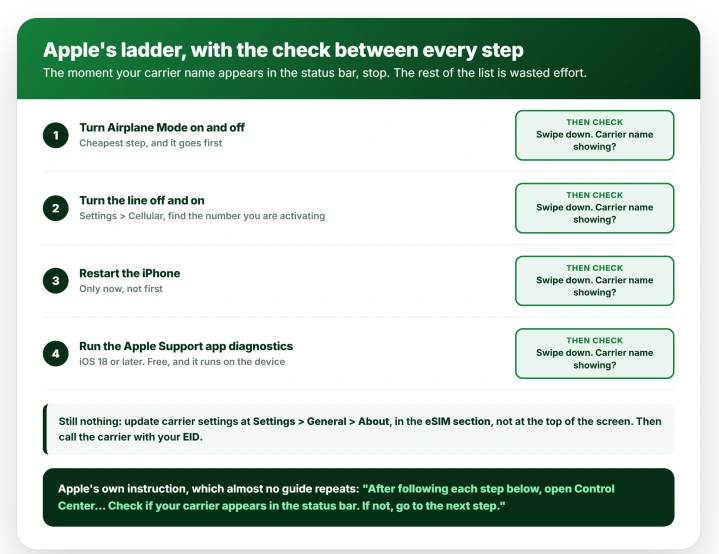
Apple's instruction, in If you can't set up an eSIM on your iPhone, is exact: "After following each step below, open Control Center by swiping down from the upper-right corner of the screen. Check if your carrier appears in the status bar. If not, go to the next step."
Do one thing, swipe down, look for the carrier name. Not all four and hope. Pages that drop the check send people through the whole lot, including a restart they never needed.
Apple's steps, in Apple's order
Work down these, checking the status bar after each.
- Turn Airplane Mode on and off. The cheapest step, and Apple puts it first. It drops and re-attaches the cellular radio, which is often all a stalled activation needs.
- Turn the line off and on. Open Settings, tap Cellular, and look for the number you are activating under Cellular Plans or SIMs. Tap the line itself, since the switch is on its own screen rather than in the list, then turn Turn On This Line off, wait a few seconds and turn it back on. Apple's wording: "If it is, turn off the line and then turn it back on again."
- Restart the iPhone.
- Run the Apple Support app diagnostics. Apple's step, "on iPhone models running iOS 18 or later", is to download the latest version of the Apple Support app "to run additional diagnostics that might help determine the source of your device's issue". It is a free App Store download rather than something already on the phone, and the latest version matters, because an old copy will not have the checks.
That last one gets skipped because it sounds like a support-ticket funnel. It is a real diagnostic and it is free, which beats forty minutes on hold.
Update the carrier settings, in the eSIM section
If the ladder ran out, carrier settings are next, and the exact route matters because it is not where most instructions point.
- Open Settings, tap General, tap About.
- Scroll down to the eSIM section. Apple's wording is that "your iPhone's carrier name and a version number is next to Carrier."
- Tap the version number. If an update is waiting, you get a prompt to select OK or Update.
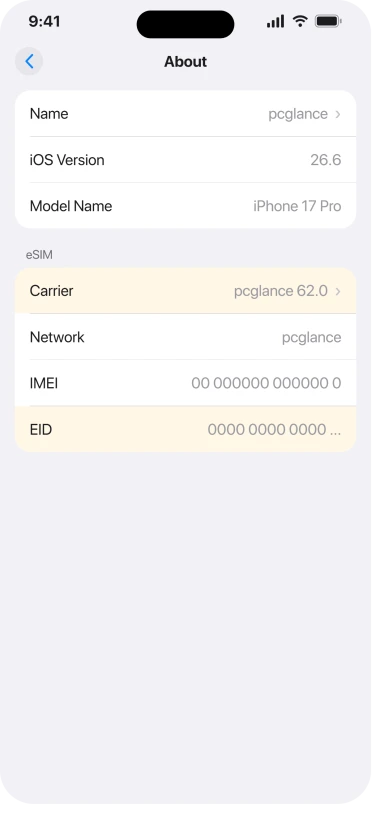
The carrier version sits inside an eSIM section, not at the top with the model and serial number.
People scroll to About, find no Carrier row where they expected one, and conclude their iPhone does not show it.
Confirm you actually meet the requirements
Apple lists three things you need.
Your iPhone "must be connected to a Wi-Fi network or hotspot", you need "an active cellular plan and eSIM on your iPhone from a carrier that supports eSIM", and your devices need "the latest version of iOS that they can use", which you check at Settings > General > Software Update.
The Wi-Fi one catches people, because it is the opposite of what feels logical. You are setting up phone service, so you assume it happens over the cellular network.
It does not, and until there is Wi-Fi or a hotspot it can reach, the activation has nothing to talk to.
There is one exception, and Apple spells it out: "In some countries and regions, iPhone models that are eSIM-only can activate without a Wi-Fi network." If yours is an eSIM-only model, the Wi-Fi step may genuinely not apply to you.
Apple's setup page adds three harder gates that no amount of restarting will get past. The model floor is "iPhone XS, iPhone XS Max, iPhone XR, or later".
In China mainland, only the iPhone 17e and iPhone Air support eSIM. In Hong Kong and Macao, certain models use two physical nano-SIM cards instead.
If you are moving a number rather than activating a new one
Transferring a number from an old iPhone is a different path with its own conditions, and a stall usually means one is unmet.
Before you start, know what it costs. Apple states it directly: "When the cellular plan on your new iPhone activates, it deactivates your previous SIM." The old phone loses service.
That is intended rather than a failure, but you want to know it before you begin, not after the old handset goes dark.
Apple's checklist for eSIM Quick Transfer, from its eSIM setup guide:
- You are signed in to both devices with your Apple Account.
- Your previous iPhone is unlocked with its device passcode.
- Both devices are nearby with Bluetooth turned on, from Settings > Bluetooth on each phone. The Control Center icon is not enough, because that only disconnects for the day.
- Both devices are on iOS 18.4 or later.
Bluetooth is the one that quietly fails. It is what lets the two iPhones find each other and shake hands, so with it switched off the transfer never starts and never explains why.
To run it after setup, open Settings, tap Cellular, then Set Up Cellular or Add eSIM, and choose the plan to transfer.
Apple adds a useful fallback for the case where nothing appears: "If you don't see a list of numbers, tap Transfer From Nearby iPhone."
One thing genuinely changed this year. Apple notes that "with iOS 26, you can transfer more than one phone number to your new iPhone", so a dual-line setup no longer has to be rebuilt one number at a time.
If the transfer stalls, look for a banner first. This is Apple's own instruction for this exact situation and almost nobody quotes it: "If a banner appears on your new iPhone that says Finish Setting Up Your Carrier's Cellular Plan, tap it. You will be redirected to your carrier's webpage to transfer your eSIM."
So an activation that looks frozen can be waiting on one tap.
There is more than one way in, so try another route
Quick Transfer is only one way in, and a stall there does not mean the line cannot be set up at all. Which alternatives you get depends on your carrier.
- eSIM Carrier Activation, where the carrier assigns the plan to your iPhone. This one is not automatic, and that trips people up: Apple's steps are to tap the Carrier Cellular Plan Ready to Be Installed notification, or find that same item waiting inside Settings, then tap Continue. An activation that looks stuck can simply be an install nobody has tapped.
- A freshly issued QR code from your carrier, scanned on the iPhone. It sidesteps the old handset, Bluetooth and the whole device-to-device conversation. Ask for a new code rather than reusing an old one: activation codes are usually single-use, and many providers will not let the same one install twice.
- The carrier's own app, which some providers use in place of a code.
- A transfer from an Android or other non-Apple device. Apple's baseline instruction is to contact your carrier. Direct transfer is narrower than it sounds: with iOS 26 only "some carriers and select smartphone manufacturers" support it.
Two more routes exist that rarely get a mention, and both rescue a dead end.
Enter the details by hand. If the QR code is used, lost, or sitting on the very phone that needs to scan it, the carrier can read the numbers out instead.
Open Settings, tap Cellular, tap Add Cellular Plan, then tap Enter Details Manually at the bottom of the screen.
Tap and hold a code that arrived on the phone itself. On iOS 17.4 or later, a QR code in your default mail app or browser needs no second screen: "tap and hold the QR code. Then, tap Add eSIM." Some carriers send a link instead, which works the same way.
If Quick Transfer keeps stalling, asking the carrier to issue a fresh activation is often a shorter call than asking them to debug the transfer, because it sidesteps the part that is failing.
Not every carrier uses QR codes, so ask what they can send.
Once the line is live, give messaging a moment to pick up the number.
If it does not, our guide to iMessage refusing to activate covers the toggles that push it along.
When to stop and call the carrier, and what to have ready
Plenty of eSIM failures are on the carrier side and no setting on your phone will move them. What Apple tells you to gather first is the difference between one call and three:
- The exact error message on screen.
- Your phone number.
- Your carrier account password or PIN.
- Your iPhone's IMEI or EID, found in Settings > General > About.
Have both numbers ready rather than guessing which they want, since Apple lists them as alternatives.
An inaccessible handset still has other places to retrieve its IMEI, including the account device list and original packaging.
Find the EID first: it identifies the embedded SIM rather than the handset, and it is the one nobody can locate in a hurry.
If the line activates but you still show no service afterwards, that is a different problem, and our guide to an iPhone stuck on SOS or No Service picks up from there.
What does not help
- Running the whole list without checking between steps. Apple's page is explicit about the status bar check, and skipping it means you cannot tell which step worked.
- Deleting the eSIM to start fresh. This is the most expensive mistake on the list. An eSIM is a provisioned profile rather than a reusable file, and most activation codes are single-use, so deleting one can leave you with no line at all until the carrier issues a new one. Our guide to an iPhone stuck on SOS or No Service sets out when deleting is genuinely the right call and what to have confirmed with the carrier first.
- Assuming the phone will activate over cellular. Wi-Fi or a hotspot is a stated requirement, with a narrow exception for eSIM-only models in some regions.
- Blaming iOS when the carrier never supported it. Quick Transfer only works if your carrier offers it, and the alternatives are a QR code or the carrier's own app.
Status: current for iOS 26.6, and Apple last revised its eSIM setup page for iOS 26 multi-number transfers. Recheck if the Settings > Cellular wording changes on a point release.
Why is my eSIM stuck on Activating?
The activation is a conversation between your iPhone and your carrier's servers that did not finish. Apple's first three moves are Airplane Mode off and on, turning the line off and on in Settings > Cellular, then a restart, checking the status bar for your carrier name after each one.
Do I need Wi-Fi to activate an eSIM?
In most cases yes, and it catches people out because you are setting up phone service and assume it happens over the cellular network. Apple lists a Wi-Fi network or hotspot as a requirement, with one exception: in some countries and regions, iPhone models that are eSIM-only can activate without one.
Where is the EID on an iPhone?
Settings, then General, then About, where it sits in the eSIM section rather than at the top with the model and serial number. Apple lists the IMEI and the EID as alternatives, so have both ready. The EID is the one worth finding first, because it identifies the embedded SIM rather than the handset.
Does transferring an eSIM cut off my old iPhone?
Yes. Apple states that when the cellular plan activates on the new iPhone, it deactivates your previous SIM. That is intended behaviour rather than a fault, but plan for the old handset to lose service the moment the transfer completes, so do not rely on it for calls or two-factor codes afterwards.
The Short Version
- Check the status bar after every step. Apple says to open Control Center and look for your carrier name, then stop as soon as it appears.
- The order: Airplane Mode off and on, then Settings > Cellular to turn the line off and on, then a restart, then the Apple Support app diagnostics on iOS 18 or later.
- Carrier settings live in Settings > General > About, in the eSIM section, not at the top of the screen.
- Wi-Fi or a hotspot is a requirement, except on eSIM-only models in some regions.
- Transferring a number needs both phones signed in to your Apple Account, the old one unlocked, Bluetooth on, and iOS 18.4 or later on both. With iOS 26 you can move more than one number.
- Transferring deactivates the SIM on your old iPhone.
- Before calling the carrier, collect the error message, your number, your account PIN, and your IMEI or EID.
Where to Next
Check the status bar after every step, not at the end. That is the part people skip, and it is how you find out which step actually worked.
If you reach the bottom of the ladder with it still on Activating, the next call is your carrier rather than Apple.
Tell me which step it died on and who your carrier is, and I will tell you whether I have seen that pattern before.

Isaac Smith is the founder and editor of PC Glance, a website that covers computers, laptops, and technology. He is a tech enthusiast and a computer geek who loves to share his insights and help his readers make smart choices when buying tech gadgets or laptops. He is always curious and updated about the latest tech trends.