
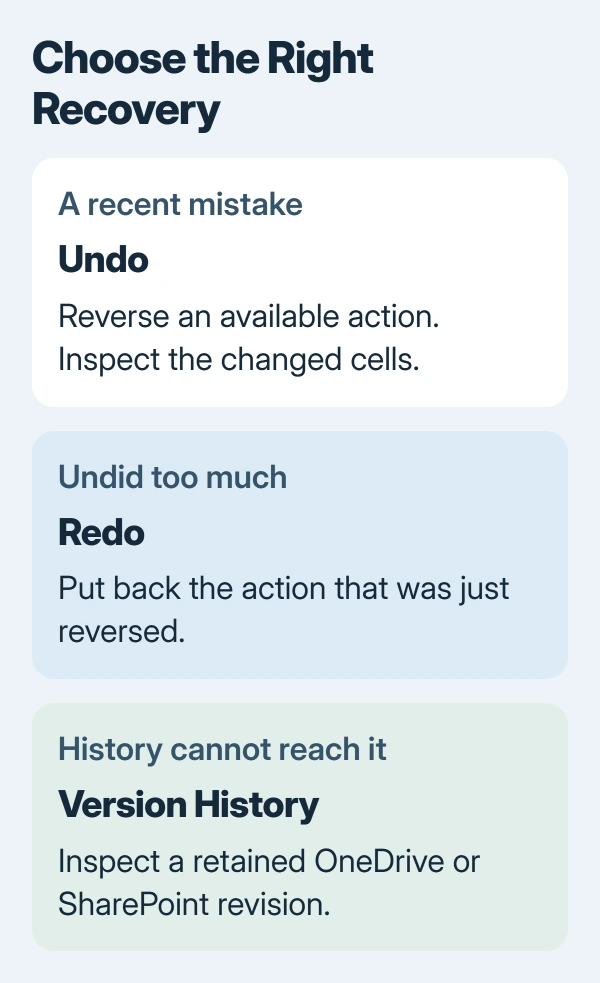
Undo in Excel reverses recent edits with Ctrl+Z on Windows or Command+Z on Mac. Use it after an unwanted change and inspect the worksheet before repeating it. An earlier edit can remain undoable even after saving.
Undo has limits, and some operations cannot be reversed through it. When the required action is unavailable, look for a retained file version instead of continuing to undo unrelated work.
Reverse the last change and inspect the result
Choose the intended Excel window and select Undo or use its shortcut. Check the affected cells and formulas afterward. Each additional press reverses another available action, so stop when the wanted content returns.
Microsoft documents Undo alongside Redo and Repeat. Desktop Excel places Undo near the top of the window; browser Excel provides it on the ribbon.
Status: Excel's Undo limits, platform shortcuts and cloud-version recovery checked November 1, 2026 against Microsoft documentation. No workbook was modified for this guide.
For a replacement applied too widely, inspect both the corrected cells and their formulas. Before attempting the change again, set the Excel replacement scope to match the records that should change.
Put back an edit that was undone
Use Redo immediately after undoing too much. In Windows, Ctrl+Y performs Redo; on Mac, use Command+Y. Microsoft's Excel shortcut reference lists these platform controls.
Check the command's name when choosing it from the interface. Repeat can perform an action again, such as another paste, while Redo restores something just undone. They are different purposes even where a keyboard combination is shared.
For Excel in a browser, select the ribbon's Undo or Redo control when a keyboard combination is being handled by the browser. Confirm the worksheet result rather than judging success from the keypress alone.
Why Undo may be unavailable
Microsoft states that Office normally retains up to 100 undoable actions. Commands such as saving a file are not themselves undoable, and running an Excel macro can clear the undo history.
The control can therefore say Can't Undo or appear dimmed. A saved workbook and an available Undo history are different things: a save is not an action you can reverse, but preceding edits may remain undoable.
Changing an Undo-history limit cannot recreate an edit that has already disappeared from that history. Keep the current workbook intact while checking the recovery options that actually have retained copies.
Recover an earlier saved version when needed
For a file stored in OneDrive or SharePoint Online, Microsoft says Version History can restore a retained revision.
In Excel for Windows, open File > Info > Version History when offered. Select an earlier version to inspect its contents before choosing Restore. The title menu in Microsoft 365 also provides access to Version History.
Keep a separate copy of any current work that must survive. Restoring a whole version can replace later changes elsewhere in the workbook, including changes that were correct. Coordinate this with other people editing a shared file.
If the workbook was never saved or Excel crashed, follow the unsaved Excel recovery routes. Those search retained recovery copies and address a different situation from reversing an edit in an open worksheet.
For a local file without an available Undo action, earlier version or backup, there may be nothing to restore. Ask the file owner or IT about retained copies; Microsoft Support cannot promise to recreate unrecorded changes.
The Short Version
Undo the unwanted action, inspect the cells, and use Redo if necessary. When history cannot reach the change, inspect an earlier saved version or the recovery copies appropriate to the workbook's situation.

Isaac Smith is the founder and editor of PC Glance, a website that covers computers, laptops, and technology. He is a tech enthusiast and a computer geek who loves to share his insights and help his readers make smart choices when buying tech gadgets or laptops. He is always curious and updated about the latest tech trends.