Excel's warning about one or more formula references means a reference can't be used. Check formulas for #REF!, then check Formulas > Name Manager for broken names. Charts and external workbook links can hold bad references too.
This is different from the message about a problem with a formula you're currently typing. When the warning appears during saving or opening, check the workbook's existing references rather than changing separators in an unrelated formula.
In this guide
1. Save a working copy and check recent changes
Use File > Save As to make a separate working copy before replacing references. If the warning prevents saving that copy, leave the workbook open and preserve the last good saved version while you examine the error.
Think about the last change to the workbook's layout or files: a deleted sheet or column, renamed source file or copied sheet. Start with formulas that depended on it. References can break even when the current page shows plain numbers.
If a deletion just happened, Undo may restore it. Once a deleted range has become #REF!, typing the old worksheet name somewhere else won't automatically reconstruct the original formula's missing address.
Check whether the warning appears after a particular edit or only when saving. Try that same action after each repair. A warning that returns on Save needs another Save after a repair to confirm the result.
I'd keep a short note of each reference changed. A workbook can contain several broken references, and clearing one error doesn't tell you that the remaining formulas point to the intended data.
2. Search formulas throughout the workbook
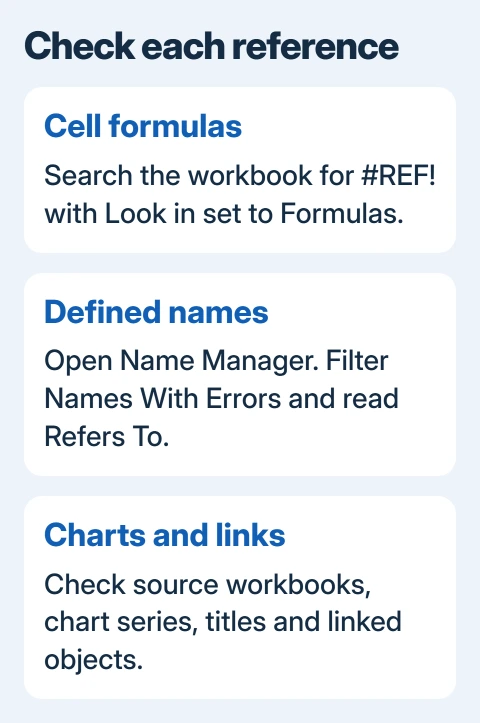
In desktop Excel for Windows, press Ctrl + F, expand Options, set Within to Workbook and Look in to Formulas. Search for #REF! and select Find All.
Choose a result and read the formula bar for that cell. For example, a sum containing #REF! needs the intended cell range restored. Replace the broken part with the real source range, then check the calculated result.
If the reference pointed to a deleted worksheet, restore that worksheet from a good copy or rebuild the formula using the correct remaining data. Don't replace every error with zero just to make the warning disappear.
Search the workbook, not only the active sheet. A formula on another worksheet can be responsible even when the page you planned to print looks fine. Hidden sheets also deserve attention when you know the workbook contains them.
On Mac, choose Edit > Find > Find. Expand the search options for workbook scope and formula searching where offered. Use these Mac controls rather than assuming the Windows dialog and shortcuts are identical.
For a cell displaying #NAME? instead, the Excel name-error checks cover undefined names and misspelled functions. That error can help you locate a problem, but it isn't the same message as the workbook warning.
3. Repair named ranges without deleting valid names
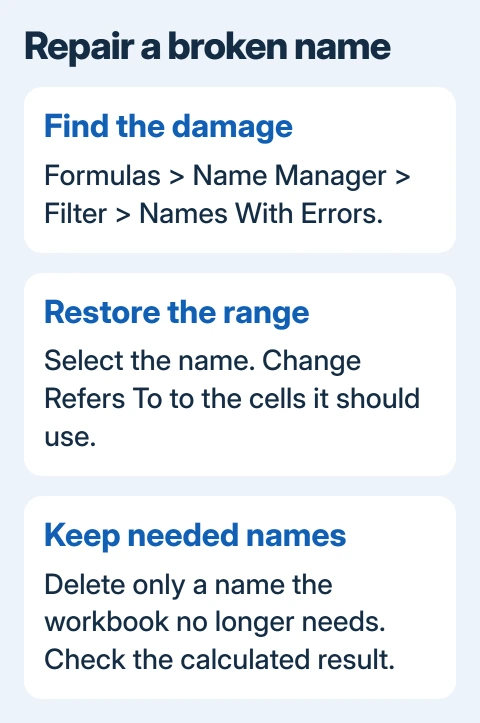
On Windows, choose Formulas > Name Manager. Open Filter and select Names With Errors. Select a name and read Refers To to see whether it contains #REF! or points to a source that no longer exists.
Microsoft's Name Manager instructions explain the error filter and the Refers To field. A defined name gives a range or formula a label. If its reference breaks, formulas using that label can fail even without a sheet address in them.
If the name is still needed, edit Refers To so it points to the correct cells, then save that change. Check its Scope too: a name can belong to the whole workbook or to one worksheet.
Delete a name only when you know the workbook no longer needs it. Removing every name with an error can create new errors in formulas that use those names. Repair the reference to keep those formulas connected to the right cells.
Mac name controls differ by edition. Check Formulas for name management, or Insert > Name > Define in editions using that menu. Check where the name points, not just how it's spelled.
4. Check links to other workbooks
Open Data > Queries & Connections > Workbook Links in current Windows Excel. Older editions can show Data > Edit Links instead. Look for a source workbook that moved, was renamed or is no longer accessible.
Open the correct source file, then update or change the source through the link controls. Check that the linked values match the source you intended; a similarly named workbook might contain a different month's data.
To locate external references in formulas, use Find with Within: Workbook and Look in: Formulas, then search .xl. This can reveal references to Excel source files, but it won't find every link in charts, shapes or elsewhere in the workbook.
Avoid Break Links unless you want to keep the current values without future updates. It replaces formulas using the external link with their current values, so the workbook stops updating those results from the source.
If copying data triggered the trouble, the Excel paste checks cover destination and range problems. Use them for a rejected paste; use link repair when the paste completed but imported a broken reference.
5. Inspect charts and objects when cells look clean
Select a chart's title and read its formula bar for a cell reference. Then check Chart Design > Select Data for series names and ranges. A deleted sheet or shortened range can leave a chart pointing at missing cells.
Repair the series or title reference with the intended range. Check each chart, including charts on sheets you don't normally open. A chart can retain a reference even when the visible cells no longer contain that formula.
Also select linked text boxes or shapes and inspect the formula bar. External references can live there too. There isn't one automatic command that finds every link across all these places.
After repairs, save, close and reopen the copy. If the warning persists, tell the workbook's owner or Microsoft support what triggers it and which references you checked. Remove private data from any example you send.
The Short Version
Search workbook formulas for #REF!, repair broken names, then check external links and chart references. Work on a copy and verify the saved file. Restore the intended addresses instead of deleting formulas to suppress the warning.
Checked November 13, 2026.