

Excel's problem sending the command to the program error can come from a blocked opening request. Clear Ignore other applications that use Dynamic Data Exchange (DDE) first. If it's already clear, check Excel's compatibility settings.
These checks are especially useful in Excel 2010 on Windows. When File > Open works but double-clicking doesn't, focus on the opening request. When both fail, check the workbook and Excel startup too.
In this guide
1. Clear the setting that blocks opening requests
Start Excel from its program shortcut without double-clicking a workbook. In Excel 2010, choose File > Options > Advanced, scroll to General, and clear Ignore other applications that use Dynamic Data Exchange (DDE).
Click OK, close Excel normally, then double-click a known workbook in its folder. Your workbook should appear, rather than an empty Excel window or the same command error.
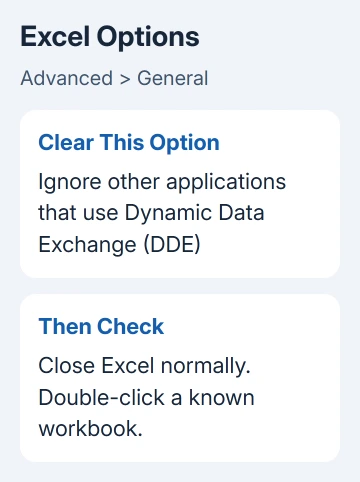
DDE is an older way for Windows programs to exchange messages. In this case, the important message is the request to open your workbook. Ignoring those requests can break opening from a folder even though Excel itself starts.
Microsoft's Advanced options reference explains that this setting prevents DDE exchanges. It's an opening setting, so don't change macro permissions or disable Protected View for this check.
If the box was already clear, leave it clear and continue. The original Excel 2010 case had exactly that result: the person could open files inside Excel and had already checked this option.
2. Remove unnecessary compatibility overrides
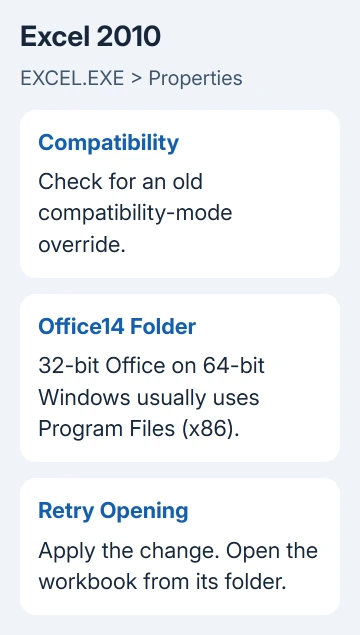
Close Excel. Locate EXCEL.EXE, right-click it, choose Properties, and open Compatibility. Note which options are selected before clearing any settings added to make Excel run as an older Windows program.
For a normal Office 2010 installation, check C:\Program Files\Microsoft Office\Office14. On 64-bit Windows with 32-bit Office, check C:\Program Files (x86)\Microsoft Office\Office14 instead.
Check whether Office is 32-bit or 64-bit. A 64-bit Windows installation doesn't automatically mean Excel is the 64-bit edition, so a missing executable in one folder means you should look in the other location.
Clear the compatibility mode checkbox if it's selected. Also check for an administrator override that someone added during earlier troubleshooting. Apply the changes, start Excel normally, and retry the workbook from its folder.
On a managed work PC, have IT change a required administrator setting. Remove only accidental changes; your organization may need that setting for its work.
The historical Excel 2010 thread recommends clearing compatibility boxes, but an owner also reported that this didn't work for them. It's a useful setting to check, though it didn't solve that owner's problem.
If the workbook now opens normally, stop changing settings. If it still fails, the next check helps you tell whether Windows has trouble opening the file or Excel has a wider problem.
3. Compare File > Open with a second workbook
Start Excel and use File > Open to open the affected workbook. Then create a small blank workbook, save it locally with a new name, close it, and try opening that file from its folder.
If both files open inside Excel but both fail when double-clicked, the problem follows the opening method. Use File > Open to keep working while you repair the application or its file association.
If only one workbook fails even inside Excel, save a duplicate before trying recovery. An Excel content error needs workbook recovery, which is different from repairing how Windows launches a file.
Check the exact message instead of treating every Excel error alike. A warning about formula references points to workbook formulas or objects, rather than the DDE opening request.
Right-click the test workbook and choose Open with. Select Excel if offered. This checks whether Windows is choosing the intended application; it doesn't repair a damaged workbook.
I'd compare those two opening methods before starting an Office reinstall. If one method works every time and the other fails, you can give the person helping you a clearer description than just saying Excel won't open.
4. Test Excel without its usual add-ins
Save your work, close Excel, press Windows+R, type excel /safe, and press Enter. Open the same test workbook from inside that Excel session.
Safe Mode starts Excel without many of the extras it normally loads. If the workbook opens in Safe Mode yet fails during normal use, check File > Options > Add-ins next. Note the enabled entries before changing them.
Choose COM Add-ins beside Manage, then Go. Clear one suspect entry, restart Excel normally, and repeat the same opening test. Re-enable it if the failure remains, then compare another entry.
This test is most useful when normal Excel startup or File > Open also fails. After opening a file in Safe Mode, retry double-clicking in a normal Excel session too.
An employer's reporting or accounting add-in can be essential. Ask IT or the add-in supplier for a compatible version if disabling that entry changes the result, rather than leaving an important tool off without explanation.
5. Repair Office when opening still fails
Close your Office apps. Open Control Panel > Programs and Features, select the Office 2010 installation, and choose Change > Repair when offered. Keep its license details and installer available in case the repair asks for them.
Restart after repair and retry the same workbook. If it still fails, ask IT to check Excel's file association and launch settings. Give your Windows version, whether Office is 32-bit or 64-bit, and the result from File > Open.
Microsoft ended support for Office 2010 in October 2020. Ask IT about moving the affected workflow to supported Office if the opening fault continues, rather than making unsupervised registry or DCOM changes.
The Short Version
Clear the DDE ignore option, remove accidental compatibility overrides, and compare double-click opening with File > Open. Test startup extras only when Excel itself also misbehaves, then repair Office if the failure persists.
Checked November 16, 2026.
 If you have any business, I can build it online






