

Subtracting in Excel uses a formula beginning with an equal sign and the minus sign. Enter =25-9 in an empty cell and press Enter, or Return on Mac, to get 16. Use cell references when the numbers should remain editable.
Keep the starting amount first and the amount to deduct second.
Start with a minus formula
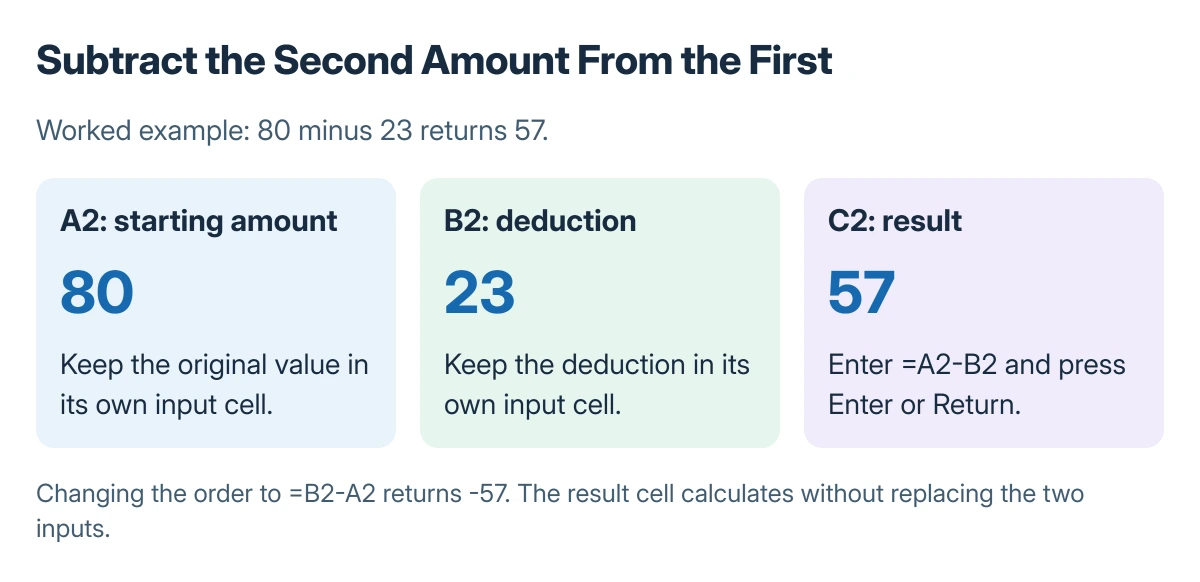
Select the result cell, type the formula, and confirm it. For example, enter 80 in A2 and 23 in B2, then put =A2-B2 in C2. The result is 57 without changing either input cell.
Status: Microsoft's subtraction and cell-reference documentation reviewed 23 October 2026. The sample values are worked examples; no workbook was opened or changed here.
Microsoft says to use the minus arithmetic operator in its Excel subtraction instructions. There is no SUBTRACT function. A longer formula such as =80-23-7 deducts both later numbers and returns 50.
Reversing the cells changes the calculation: =B2-A2 gives -57 in this example. Check the intended direction when a negative result appears rather than changing the number format to hide it.
Fill the subtraction down matching rows
Put each row's starting amount in column A and deduction in column B. Enter =A2-B2 in C2, then copy or fill that formula into the required result cells underneath.
Microsoft documents relative references: the next row becomes =A3-B3, then =A4-B4. Inspect a filled result in the formula bar to confirm that the inputs come from its own row.
Use the Excel multiplication examples when the shared adjustment is a factor rather than a deduction.
Keep one shared deduction fixed
Store a shared deduction in E1. Enter =A2-$E$1 in the first result cell, then fill down. A2 can move to A3, while the dollar signs keep E1 fixed.
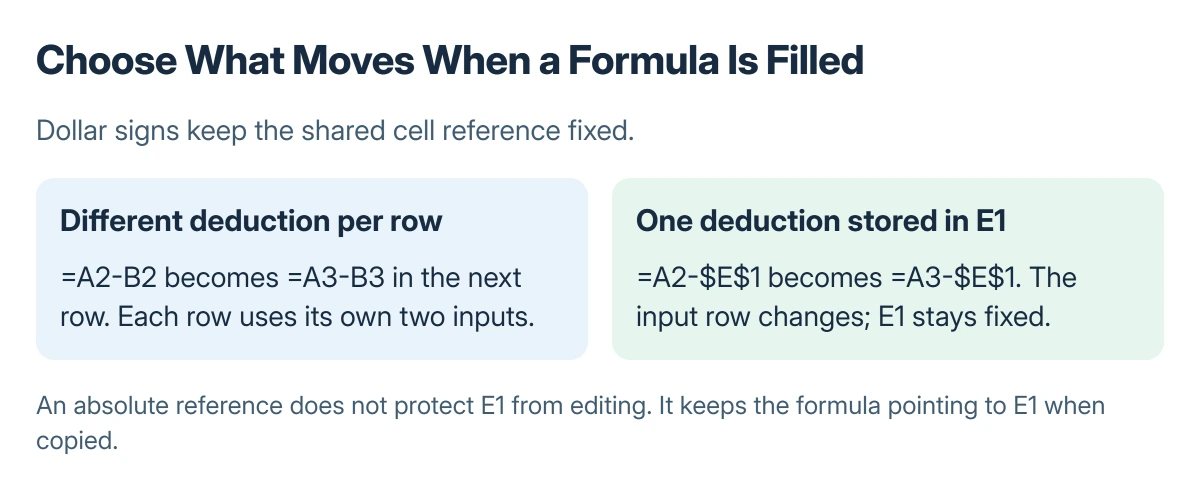
Microsoft states that a reference with dollar signs stays fixed when copied, as explained in the reference rules. This locks the reference in a copied formula; it does not protect the cell from editing.
Check a displayed formula or unexpected format
If the cell displays the typed expression instead of calculating, use the formula-versus-result checks. Confirm that the expression starts with an equal sign and the result cell is not being treated as text.
If the answer appears as a date, choose General in the Home tab's number-format control. Microsoft's Mac arithmetic page names this check. Inspect the formula and input values before changing workbook-wide settings.
For an error value, read the exact error and examine its referenced cells. A minus formula cannot subtract ordinary text as if it were a number.
The Short Version
Use =A2-B2 for row-by-row subtraction. Keep a shared deduction fixed with =A2-$E$1 before filling downward. Confirm the cell order, formula bar and number format when the result differs from the intended calculation.

Isaac Smith is the founder and editor of PC Glance, a website that covers computers, laptops, and technology. He is a tech enthusiast and a computer geek who loves to share his insights and help his readers make smart choices when buying tech gadgets or laptops. He is always curious and updated about the latest tech trends.