

Learning Excel is easier with one small workbook that does a real job. Start with an expense list, calculate its total, then turn the list into a table and chart. That teaches the skills a beginner can reuse without memorizing functions.
The exercise here uses three purchases and works in current desktop Excel or Excel for the web. Follow it once with the sample amounts, then rebuild it with your own non-sensitive data.
Start with a blank workbook and a small job
In Excel for Windows, choose File > New > Blank workbook. In the browser, open your OneDrive and choose Create or upload > Excel workbook. Name the workbook Practice Expenses so it is easy to locate again.
Microsoft documents browser editing and automatic saving in its Excel for the web instructions. Desktop Excel may ask for a folder and filename when saving for the first time.
Status: Microsoft's Excel basics, formulas, tables and chart instructions reviewed October 27, 2026. Sample arithmetic checked separately; no workbook was opened on this laptop.
Use the same Excel version throughout the exercise. Windows, Mac and browser menus differ slightly; the cell references and formulas here do the same job in each.
Enter records in rows and fields in columns
Click A1, type Item, then press Tab and type Amount in B1. Enter this practice data, with one purchase on each row:
| Row | Column A: Item | Column B: Amount |
|---|---|---|
| 1 | Item | Amount |
| 2 | Notebook | 12 |
| 3 | Pens | 7 |
| 4 | Folder | 4 |
The row-number column in this example is a location guide. Do not type it into the worksheet. A1 means column A, row 1; B4 means column B, row 4.
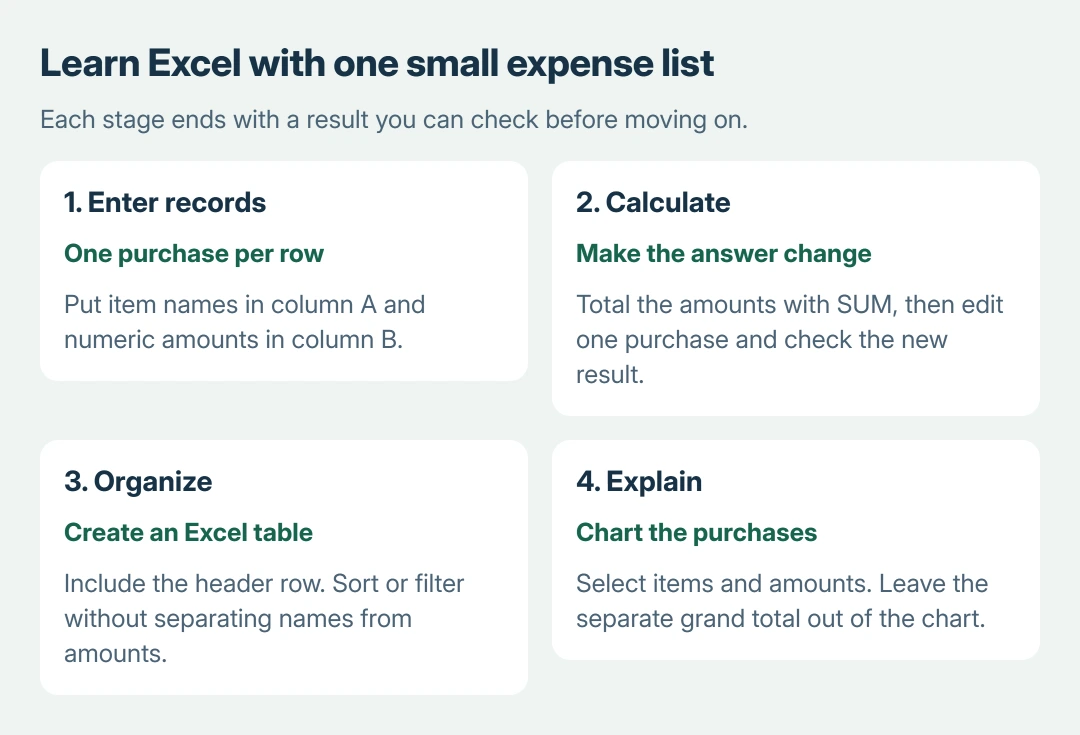
Type the amounts as numbers, without adding words such as dollars inside those cells. Keep one header row and avoid blank rows within the list. That makes the next sort, filter and chart easier to select correctly.
Press Enter to move down or Tab to move right. To correct an entry, select its cell and edit through the formula bar. Check the cell address before replacing a value.
Make the total respond to an edited amount
Type Total in A6. Select B6, enter =SUM(B2:B4) and press Enter, or Return on a Mac. The answer should be 23.
The colon means the range from B2 through B4. SUM adds the values in that range. Microsoft says formulas begin with an equals sign in its simple-formula guide.
Change the notebook amount in B2 from 12 to 15. B6 should now show 26. This is the useful learning check: the result follows the input instead of requiring a new total typed by hand.
A formula still visible as text needs the formula-text checks. An expression visible in the grid and a calculated number that stays stale need different corrections.
Select the amount cells and choose a currency format from Home. Formatting changes how a number appears; it does not require adding a currency word to each entry. Keep the currency consistent with the data being recorded.
Turn the purchase list into an Excel table
Select A1:B4, leaving the separate total outside the selection. Choose Insert > Table, check that the range is correct, and enable My table has headers before confirming.
Microsoft's table instructions also give Home > Format as Table in desktop Excel. Either route creates a table; a colored heading by itself does not.
Open the Amount header's filter menu and try sorting from largest to smallest. Each item must stay beside its own amount. Sorting just the numbers independently would disconnect the purchases from their prices.
Next, use the Item filter to show only Pens. Clear that filter afterward so all three purchases return. Filtering hides records from this view; it does not delete them.
The SUM formula in B6 still totals its referenced cells, including filtered-out purchases. A total for visible rows is a separate lesson. Do not assume every calculation changes just because some records are hidden.
Make one chart that answers one question
Select the purchase data, A1:B4, without A6:B6. Open Insert and choose a column chart from Charts. In desktop Excel, Recommended Charts provides another way to preview a suitable chart.
Use a title such as Cost by Item. Check that the categories are the three purchase names and the values are their amounts. A fourth bar labeled Total would count the same spending twice in the picture.
Microsoft states the selection-first process in its chart guide. Correct the selected range if the chart includes empty categories or the wrong labels.
Repeat the task before adding more features
Save the workbook, close it and reopen it. Confirm that the records and formula remain. Browser users should check the save indicator and OneDrive file before closing, particularly after a connection interruption.
The practice sequence is ours: rebuild this small sheet without following each instruction, then change its purpose to a household list or work expense log. Being able to explain the total matters more than reproducing the colors.
Once those actions feel familiar, add Excel's editing and navigation shortcuts. Then learn a function required by an actual task, such as IF for a condition or a lookup for matching records.
Microsoft's Excel help and learning hub has separate sections for formulas, importing data and PivotTables. Choose the next section from the problem your workbook needs to solve.
If a step behaves differently, record the Excel version, cell reference and exact result before asking Microsoft Support or a colleague. A specific example is much easier to explain than a whole workbook that seems wrong.
The Short Version
Build a small list, total it with a formula, edit an input and verify the new answer. Create a table, try its filters and chart only the records. Repeat the exercise with your own data before tackling larger features.

Isaac Smith is the founder and editor of PC Glance, a website that covers computers, laptops, and technology. He is a tech enthusiast and a computer geek who loves to share his insights and help his readers make smart choices when buying tech gadgets or laptops. He is always curious and updated about the latest tech trends.