
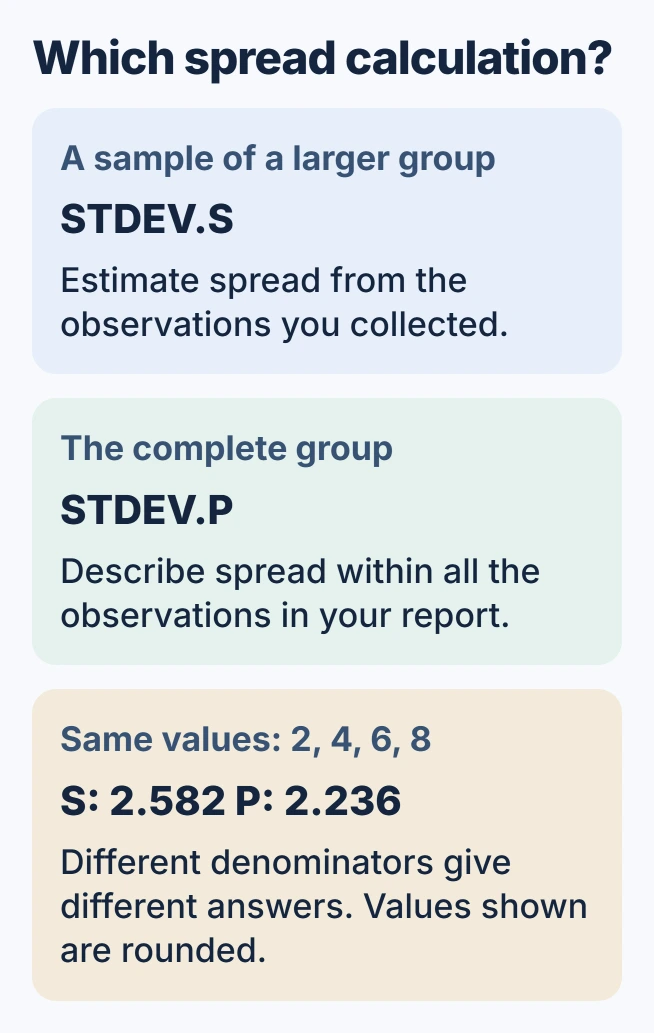
For standard deviation in Excel, use =STDEV.S(B2:B5) for a sample from a larger group. Use =STDEV.P(B2:B5) when the cells contain the entire group being described. Replace the range with your measurement cells.
The choice depends on what the data represents, rather than how many rows the spreadsheet contains. Four readings can be either a sample or a complete population, depending on the question being answered.
Choose the formula from the scope of the data
Suppose four delivery times represent a few deliveries from a much larger operation. Use STDEV.S to estimate the spread from that sample. If the report describes only those four deliveries, STDEV.P describes that complete group.
Microsoft documents the sample calculation in its STDEV.S reference. Standard deviation describes how spread out the measurements are around their average, in the measurements' own units.
Status: Microsoft's STDEV.S and STDEV.P instructions checked October 30, 2026. Example arithmetic was independently verified in Python; no Excel workbook was opened.
Microsoft says the sample calculation uses n-1, where n is the number of observations. Its STDEV.P documentation uses n for the full population. That difference changes the result.
Enter the range and check a small example
Put a heading in B1, then enter 2, 4, 6 and 8 in B2 through B5, with one number per cell. These are example measurements in minutes. Keep totals and averages outside this input range.
Select an empty result cell, type =STDEV.S(B2:B5) and press Enter. For these inputs, the result is approximately 2.582 minutes. Using =STDEV.P(B2:B5) instead returns approximately 2.236 minutes.
Both calculations use an average of 5 minutes. Neither result should be displayed as a percentage. A different result calls for checking the selected cells and stored numbers before changing the formula.
Our verification method is to try these four known inputs in a spare worksheet, then compare the real formula's range with its intended records. This checks formula entry separately from choosing the correct statistical method.
Check blank cells, text and real zeros
Microsoft states that referenced text, logical values and empty cells are excluded from these calculations. A genuine numeric 0 is included. Replacing a missing observation with zero therefore changes the data being analyzed.
Imported digits can arrive as text rather than numbers. If imported measurements behave unexpectedly, convert Excel numbers stored as text before interpreting the result.
Keep missing values distinct from measured zeros. Also check that every included observation uses the same unit; mixing seconds with minutes produces a number that does not describe either set sensibly.
For STDEV.S, provide at least two numeric observations. A single observation cannot supply the sample spread because its n-1 denominator is zero. Do not hide that condition by replacing the error with a fabricated result.
Use the result in the report it belongs to
Label the output as sample or population standard deviation and include its unit. Keep the measured values available so another reader can understand which records the result describes.
To display calculated amounts on a chart, use Excel's custom error-bar controls only after choosing the intended measure. Standard deviation and standard error are different quantities.
For a formula that fails on valid numbers, keep its exact error for Microsoft Support. If the sample-versus-population choice is unclear, ask the person responsible for the analysis which group the report describes.
The Short Version
STDEV.S estimates spread from a sample; STDEV.P describes the complete population. Select only the intended numeric observations, preserve the difference between blanks and zeros, and report the result in the original measurement units.

Isaac Smith is the founder and editor of PC Glance, a website that covers computers, laptops, and technology. He is a tech enthusiast and a computer geek who loves to share his insights and help his readers make smart choices when buying tech gadgets or laptops. He is always curious and updated about the latest tech trends.