Excel for Mac 16.9 could turn old comment text into unreadable code. One owner could read them again after a safe startup and copying an older workbook. Keep the original safe before trying this.
Hidden comments and comments full of unreadable code need different fixes. Modern Excel also calls the older cell annotations notes, so check which kind of annotation is affected before changing display settings.
In this guide
1. Keep the original workbook unchanged
Close the affected workbook and make a separate copy in Finder. Give the test copy a recognizable new filename and leave the original untouched. If a backup predates the problem, keep that backup separate too.
The 2018 discussion was about old .xls workbooks opened in Excel for Mac 16.9. New comments in a new workbook saved normally for the asker, while annotations in older files became unreadable.
That difference suggests Excel can still save new comments. Compare an affected old annotation with a note created in a new disposable workbook, rather than editing an important business file to test Excel.
If the old text opens as code, don't overwrite it with a newly typed comment. Replacing the content may make that one box readable while losing the original annotation you still need.
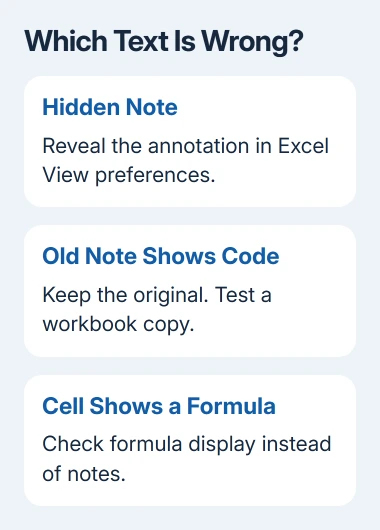
If formulas in the cells themselves are displaying as text, use the formula-display checks instead. Cell formulas and the text inside an annotation are separate parts of a workbook.
2. Rule out a hidden note first
In current Excel, a threaded comment supports replies; a note is the older annotation attached to a cell. The original thread used the older name, comments. Don't assume an old note will appear as a conversation in the Comments pane.
Right-click a cell that should contain an annotation. Edit Note refers to the older kind. New Note lets you create a simple annotation in a test workbook, while New Comment starts a threaded discussion.
For missing indicators in Excel for Mac, open Excel > Preferences > View. Under For Cells with Comments, Show, check whether No comments or indicators is selected. Choose the indicator or visible-comment option you need.
The comment and note instructions describe these separate controls. A display change can reveal a hidden annotation, but it doesn't convert unreadable stored text back into its original words.
If the annotation is visible and still contains garbled code, continue with the copy in safe mode. If simply revealing it shows the original text correctly, the problem was visibility and you don't need the recovery test.
3. Open the copy after a safe startup
Safe mode changes the software loaded at startup. The owner could read comments after a safe startup and copying an older workbook. They could read the text in that session, but didn't report a permanent fix.
First check Apple menu > About This Mac. A Chip entry means Apple silicon; a Processor entry naming Intel means an Intel Mac. The startup procedure differs between those two types.
For Apple silicon, finish saving and shut the Mac down. Keep holding its power button to reach Loading startup options. Choose the startup volume. With Shift held, select Continue in Safe Mode.
For an Intel Mac, hold Shift immediately after switching on or restarting. Release it at the login window and sign in. A second login may be needed. Look in the menu bar for Safe Boot.
These are the current safe-startup procedures. The older thread's Shift-at-startup directions apply to Intel Macs, not the Apple silicon startup-options screen.
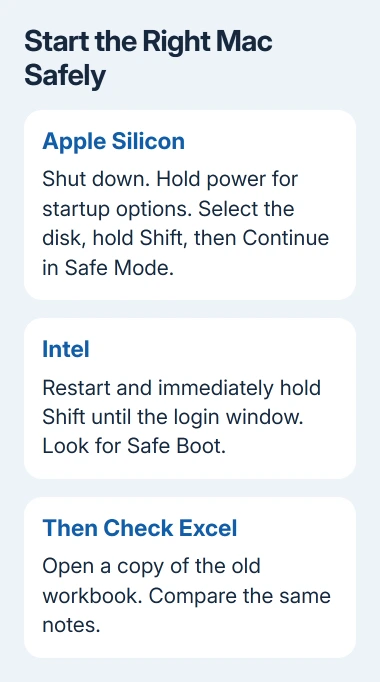
Use Excel to open your workbook copy. Compare the cells that contained code during normal startup. Save the copy if the text is readable, and record important annotation text separately before making more changes.
Leave safe mode by restarting without holding any keys, then compare that copy again. Readable text only in safe mode means the startup environment changes the result. It doesn't tell you which particular background program is responsible.
4. Is an intact older copy available?
If safe mode still shows code, compare a known older backup or a copy held by a colleague. Open that copy separately and check the affected cells before replacing your current working file.
The support reply in the original discussion found differences between two .xls files and suspected file damage. It recommended getting an intact copy from a colleague or an organization server when one was available.
An undamaged workbook may also contain older data. Compare recent cell edits as well as the comments, so an annotation recovery doesn't silently discard newer business information.
For a workbook already stored in OneDrive, check whether an earlier version contains the original annotations. A local-only workbook needs its own backup source; it doesn't acquire cloud version history simply because Excel is signed in.
I'd check that intact copy before recreating every annotation by hand. If the text is already damaged in the current file, adjusting display preferences repeatedly won't recover the missing words.
Send support the old-file comparison
If no readable copy remains, contact Microsoft Support for Excel for Mac. Include Excel > About Microsoft Excel version details, the macOS version, the .xls file format, and whether safe startup made the comments readable.
Tell support whether new notes work in a new workbook and whether older copies still have readable text. Share a nonconfidential sample only after checking what data and annotations it contains.
For a workbook that also refuses to save changes, use the separate Excel save-error checks. Don't treat a successful save as proof that the damaged annotation text has recovered.
The Short Version
Protect the original .xls file. Reveal hidden notes through Excel's display settings, or try a safe startup for garbled text. Keep any readable recovery and compare backups when the annotations remain damaged.
Checked November 16, 2026.