Excel 2016 crashing on an i7 with Intel integrated graphics can come from the Windows regional format. Check for English (Sweden). Changing it fixed chart crashes for several owners after changing graphics settings or drivers hadn't helped.
Owners reported this workaround in 2017 on Surface and Dell computers. It fits a particular combination of chart crashes and blank chart-button labels, rather than every Excel crash on an Intel processor.
In this guide
1. Change the regional format that triggered the crashes
Save the workbook before closing Excel. Open Control Panel > Clock and Region > Region. On older Windows 10 layouts, the category can say Clock, Language, and Region. Choose Change date, time, or number formats to reach the same dialog.
Select the Formats tab and note the current Format selection. If it's English (Sweden), try Swedish (Sweden) or English (United States), the two choices confirmed in the original report. Select Apply, then OK.
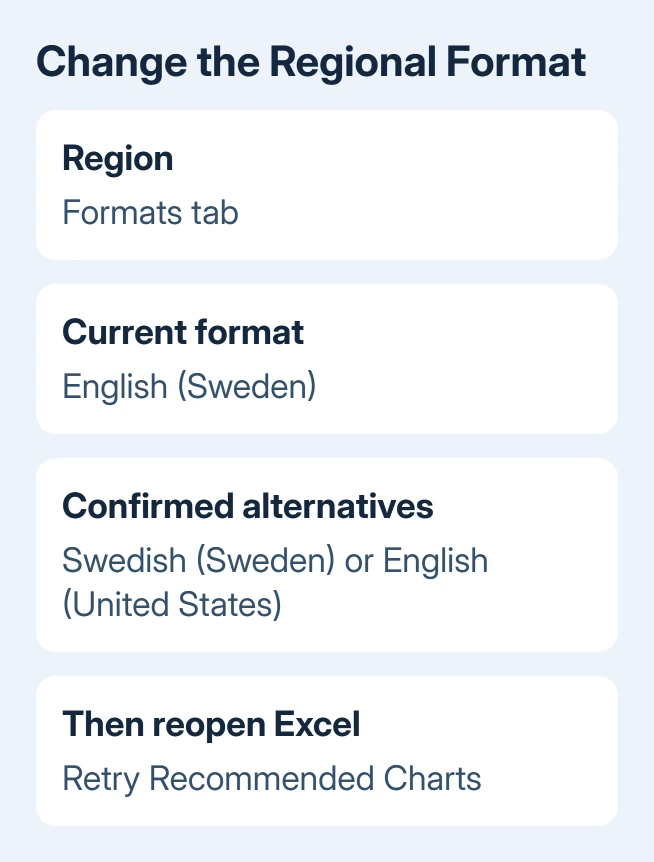
This changes how Windows apps display numbers, dates and currency. Check that the replacement suits your dates and decimal separators. The Windows display language and Office language can stay as they are.
On Windows 11, use Settings > Time & language > Language & region > Regional format. On Windows 10, use Settings > Time & Language > Region > Regional format. Control Panel also reaches the format dialog.
Reopen Excel and make a chart in a small workbook. If it works, keep that format while checking your real workbook. If it still crashes, compare charts in new and existing workbooks next instead of trying every available country.
2. Check whether the chart failure matches this case
In a new workbook, enter four ordinary numbers in a two-by-two block. Select those cells and choose Insert > Recommended Charts. Use a new file so the check doesn't risk the only copy of a report with hours of chart annotations.
The original failure could occur while opening Recommended Charts. Owners also described chart buttons with missing text. A fresh workbook could crash too, so rebuilding an existing chart wasn't enough to solve their problem.
One owner in the original discussion confirmed the regional workaround. Another used English (United Kingdom) instead. Another had tried a locale change earlier without success, then reported success after further troubleshooting.
A failed regional change doesn't mean the graphics chip needs replacing. It means the regional change hasn't fixed your crash. Check whether the failure affects every workbook or just the one you're using.
Try the small chart and your normal file separately. If only the existing chart fails, inspect its data and formatting. The chart setup checks help review its selected cells before treating Excel itself as broken.
3. Install the available Office and computer updates
In a responsive Office app, open File > Account > Update Options > Update Now where those controls are available. If your workplace manages updates and that menu is missing or disabled, have IT apply the approved update.
The old thread names Excel 16.0.8326.2096 and Windows 10 version 1703. These identify the historical incident. Don't install those old builds or assume current Microsoft 365 has the same fault because its version also starts with 16.0.
Run Windows Update, then check your computer maker's driver downloads for that model. For a Surface, use Surface updates; for a Dell, use its service-tag or model list. Select drivers by computer model rather than CPU name.
I'd try the regional setting before replacing a display driver. Owners tried newer and older drivers, and one Dell still failed after a motherboard replacement. Those changes hadn't repaired their chart crashes.
After updating, repeat the same small chart action. If it works, return to your workbook. If it crashes again, you have a short example support can repeat without needing your entire private spreadsheet.
4. Compare safe mode when other workbooks also fail
Close Excel. Press Windows+R, enter excel /safe, and press Enter. This starts Excel without various customizations and add-ins. Open your small test workbook, then retry the same chart command.
Microsoft's Excel crash troubleshooting explains this comparison. If safe mode works but normal Excel doesn't, check add-ins rather than blaming the Intel graphics name printed in your computer's specifications.
In normal Excel, use File > Options > Add-ins. At Manage, select COM Add-ins > Go, note the enabled entries, and clear them for the comparison. Restart Excel normally, then restore them one at a time if disabling them stops the crash.
Excel add-ins have a separate Manage > Excel Add-ins > Go list. Check that list if the COM list doesn't account for the difference. A problem that returns with one entry enabled gives you a specific add-in to update or report.
Safe mode didn't solve the original asker's chart failure. It's still useful for checking your computer, but repeating an unchanged result won't help.
When a crash names a module and password software is installed, the Excel autofill conflict checks cover a separate cause. Match the actual crash action and installed software before borrowing that fix.
5. Take the repeatable failure to support
If every workbook still fails, send the steps that crash Recommended Charts to your service desk or Microsoft 365 support. Include your Office edition, full build number, Windows version, model, regional format and safe-mode result.
Open Event Viewer > Windows Logs > Application and find the crash-time error. Copy its application, faulting module and exception code. chart.dll, ntdll.dll and KERNELBASE.dll appeared in old reports but don't identify the cause alone.
Avoid third-party DLL downloads. Have support review the crash details and choose an Office repair or check the tiny workbook against your exact installed build.
Support has ended for Office 2016. Ask about moving to a supported edition as part of the repair. Returning to Office 2013 helped one historical owner and failed another, so it isn't a dependable next step today.
The Short Version
Check English (Sweden) and try a confirmed regional alternative. Compare a fresh chart with your real workbook, apply updates, and try safe mode if all files fail. Tell support which action triggers the crash and send the error details.
Checked November 17, 2026.