A blank OneDrive Copy Link window can mean desktop sharing has failed even though the online file still works. Open the same file in OneDrive on the web and create the link there first. One owner confirmed this worked for the same fault.
An empty copy panel, an unusable link, and an invitation email that never arrives need different checks. Start by getting a link, then check access or email delivery if either fails.
In this guide
1. Create the link from the file's online location
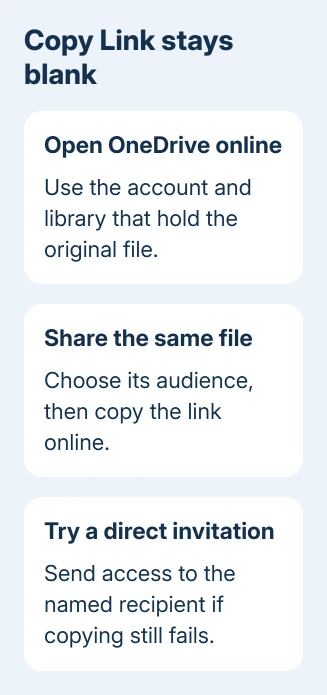
Sign into the file owner's OneDrive account through a browser. For work or school files, open OneDrive from the work account's Microsoft 365 launcher. For a team library, open its SharePoint site.
Find your file, select it, and choose Share. Before using Copy link, check the audience and the permission to view or edit. Paste the result into the email or chat where you wanted to send it.
Limit access to the people you want to share with. An unrestricted link could expose the document; it doesn't repair a broken desktop panel.
Ask the intended recipient to open the link using the account you shared with. A working browser-created link means the immediate job is done. It also shows that this file can be shared through another route.
If the file isn't in the online library, check its upload first with the OneDrive sync steps. Wait until the upload finishes, then share the online copy.
The owner in the original blank-window report could copy a link online while the workstation's Copy Link panel stayed empty. The failure affected several offices, rather than one document.
2. Use a named invitation when the copy panel fails
A direct invitation is another route if the file is online and the normal Copy Link panel won't produce text. Open Share, enter the intended recipient, check their permission, and use the sharing window to send the invitation.
For work or school accounts, the interface can show Add people and Send email notification. Enable the notification when the recipient needs an email. Copying a link by itself doesn't send a message.
The same owner successfully sent the invitation from their local file. That lets you share without the broken copy panel, while keeping the document in the same place.
If the recipient receives the invitation and can open the file, continue working on that original copy. A second copy with a different name can leave colleagues editing different documents after the desktop fault clears.
If access works but the automatic email doesn't arrive, use the sharing-email checks. That page follows a notification that failed to arrive after access was granted.
3. Check the account and sharing choices
Compare the online account name with the OneDrive folder on your PC. A personal Microsoft account, a work OneDrive, and a SharePoint team site can all appear on the same PC. They don't share one set of permissions.
In File Explorer, select the file inside its actual OneDrive folder. Avoid testing a similarly named copy in Downloads or an email attachment. The browser comparison is useful only when both routes refer to the same cloud file.
Open the online item's Manage access controls if the recipient gets an access request. Check that the invited address is correct and that the chosen link works for that person. A link for existing users doesn't grant a new person access.
Microsoft's sharing instructions explain the audience choices for personal and work accounts. Some work-account choices depend on your administrator's settings.
If Anyone or external sharing isn't offered, ask the library owner which audience is allowed. Don't keep recreating links with the same restricted audience and expect a different recipient result.
A copied address that appears normally but later produces an expiry message needs its expiration changed or a replacement invitation. It doesn't match a Copy Link panel that never displays an address in the first place.
4. Compare one PC with the wider organization
Try the same online file from another available work computer, without changing its permissions. Ask a colleague whether their desktop Copy Link panel is also blank. Record whether their browser sharing still works.
If only one PC fails, save your work, close its sharing windows, and restart that PC. Check for the current OneDrive version through its settings and your organization's update process. Then try sharing a file without private information.
I'd use the working browser route before resetting OneDrive or unlinking the account. The original report already showed that desktop sharing could fail while online sharing continued to work.
If multiple offices fail at once, give IT that detail immediately. When an entire organization loses the feature together, involve IT before changing individual PCs.
Have a Microsoft 365 administrator check Health > Service health in the admin center for OneDrive or SharePoint incidents. Include the time the fault started and whether browser-created links still open for recipients.
The historical thread ended with the owner confirming that Copy Link worked across all offices again. It didn't identify a particular reset or reinstall as the repair, so don't treat either as the proven answer to that incident.
5. Send support a precise sharing example
If desktop copying stays blank, give IT the Windows version, OneDrive version, account type, and the library involved. Include a screenshot of the empty panel and whether Share itself opens normally before Copy link is selected.
Describe the outcome of the browser link and direct invitation separately. Those results help support decide whether to check desktop sharing, who can access the file, or email delivery.
For work accounts, open a case about the blank desktop dialog through Microsoft 365 support. For personal OneDrive, use the service's Help or support option and describe the same comparison.
Keep private sharing URLs out of public forum posts. Support can start with the symptoms and account type, then request any sensitive details through its private support channel.
The Short Version
Create the link online or send a named invitation to get the file shared. If only the desktop Copy Link panel is blank, compare another PC and request a service-health review before changing account settings.
Checked November 17, 2026.