A full work or school OneDrive can become read-only, leaving deletion blocked even while the message tells you to delete files. Your administrator needs to check your storage limit and make enough room for cleanup.
A retention-policy error is a second case: the organization is preserving content, so ordinary deletion won't remove everything using storage. An empty recycle bin doesn't rule out either problem.
In this guide
1. Confirm the account and the exact block
Open the affected OneDrive online and check the signed-in account. Work or school storage is managed by your organization. Personal accounts use different storage and support controls.
Look for a storage warning and record its wording, used space, and limit. Then try deleting one file you no longer need and keep the exact error. Don't start with a folder containing records that your organization must retain.
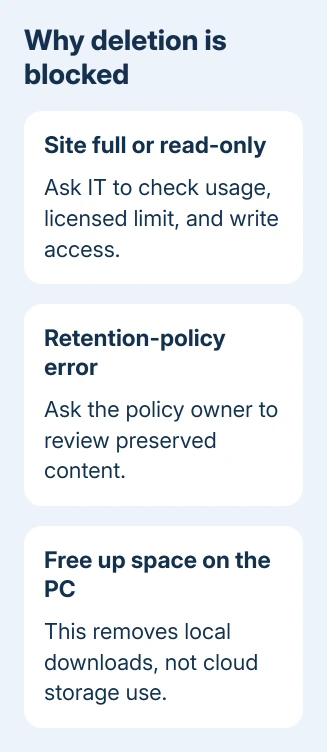
A message about the site being full points to its cloud storage allocation. A file being locked for editing points elsewhere; use the OneDrive file-lock checks for that message.
Microsoft's full-site troubleshooting page explains that using more than the account's allowed storage can put a work OneDrive into read-only mode. You can read files, but changes are restricted.
If the error appears online as well as in File Explorer, a desktop sync reset isn't the first fix. The storage or policy problem needs fixing online before your PC can delete the file there.
For a personal account, check its own storage management page instead of asking for business admin controls. The administrator steps in this guide apply to work or school OneDrive, which is the account type involved in the report.
2. Have IT restore enough storage headroom
Send IT the OneDrive site address, current usage, limit, and deletion error. Ask whether using more storage than the account's license allows has made it read-only, especially after a license or storage-limit change.
An administrator can open Microsoft 365 admin center > Users > Active users, choose the affected account, then its OneDrive tab. The storage details there let them compare current use with the applied limit.
To change the user's allocation, open Storage used > Edit, set the allowed maximum, and save. The increase depends on licensing and your organization's storage setup; a bigger number won't give the account storage its license doesn't allow.
The per-user storage instructions cover the administrative choices. If the account already uses all its licensed capacity, IT needs to review its storage options or arrange an approved reduction in use.
One owner in the original full-site report said a previous small quota increase had helped, but queued syncing filled the space again.
The accepted reply's suggestion to use classic OneDrive had no confirmed result. Don't spend time looking for that old layout switch in the current interface.
Ask for enough room to handle the pending uploads and the planned cleanup, rather than another tiny increase. Tell IT if a PC still has a large upload backlog so the newly available space doesn't disappear immediately.
When the administrator confirms that write access is restored, retry one small deletion online. If it succeeds, continue cleanup. If it still fails, keep that new error for the storage or policy review.
3. Remove unwanted files and check the cloud recycle bin
Once deletion works, review large files online. Keep anything you need in a location your organization allows before removing the OneDrive copy. A synced-folder deletion also affects the cloud copy and other synced devices.
Select unwanted items online and choose Delete. Then open OneDrive's Recycle bin and review the deleted items. Permanently remove only the items you are sure the organization no longer needs.
A work site's administrator may also need to review its second-stage recycle bin. Ask them to check both stages if storage remains full after ordinary cleanup, instead of trying the same local deletions again.
The original owner's recycle bin and second-stage bin were already empty. Emptying them again wouldn't have solved that account's read-only or retention problem. Check the contents before spending time on this step.
Check the storage usage after the service has processed the changes. If deleted content disappears but the reported use doesn't fall, ask IT to review retained content and the site's storage details before deleting more documents.
For a local drive-space problem, Free up space removes downloaded copies while keeping the cloud files. That is useful on a cramped PC, but it doesn't reduce the cloud storage that caused a full OneDrive site.
4. Have the policy owner review retention blocks
If the error mentions retention when you delete files or previous versions, copy that wording for IT. Retention is an organization's rule to preserve information for a period of time, even when someone removes it from normal view.
Depending on the policy or label, deletion can be blocked or a preserved copy can remain. That retained content can continue to use storage. Even if fewer files appear in the main library, retained copies may still be taking up storage.
Ask the Microsoft 365 or compliance administrator to check retention policies, retention labels, and any hold affecting this OneDrive. They should review the Preservation Hold library and its storage use with approved tools.
Don't attempt to clear that library or remove a compliance rule yourself. The person responsible for the records needs to decide what can be removed and when; ordinary file ownership isn't permission to bypass retention.
The original owner also hit a retention-policy error when trying to remove older versions. That explains why version cleanup wasn't a reliable escape route for their already full site.
If the current message is really about a large upload rather than deletion, use the OneDrive large-file checks. A file-size limit and a full site require different changes.
If the site still won't accept deletions
I'd stop trying desktop resets once the same deletion fails online. Request a OneDrive storage support case through IT with the site URL, storage limit, usage, whether the site is read-only, and any retention error.
Have them include the result after the quota change and the size of pending uploads. If the error continues despite valid available storage, send support those updated details along with the first screenshot of the full site.
The Short Version
A full work OneDrive may need an administrator to restore write access before cleanup works. Check both recycle-bin stages when relevant, and send retention errors to the policy owner instead of trying to bypass them.
Checked November 17, 2026.