

A OneDrive for Business file locked for use can remain open in Office or another browser tab, even when the warning names you. Close its editing sessions, wait a few minutes, then reopen the online library and retry Delete.
When a file returns after a local deletion, check whether the online copy is still locked. Checkouts, missing delete permissions and retention rules each need their own response.
In this guide
1. Close the file wherever it's open
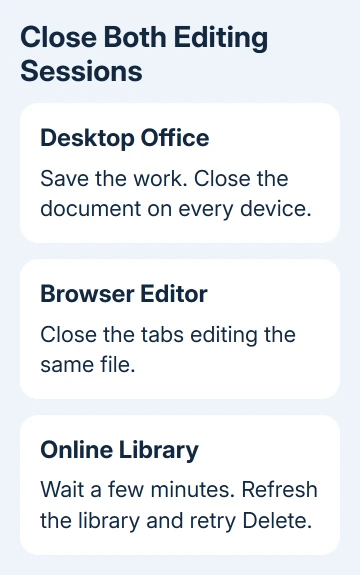
Save any work you need to keep, then close the document in Word, Excel or PowerPoint. Check other computers and any Office browser tabs using the same file. Close those editing sessions too, including tabs behind your current window.
If the warning names a coworker, have them save and close the document. Even an empty or unshared file can have an editing session holding it. Check those sessions before changing the library.
An owner in the original deletion discussion traced the same problem to files still open on their desktop. The accepted reply then described closing Office clients and browser sessions before retrying.
You don't have to close unrelated browser tabs. Concentrate on the tabs editing this document and any other devices that might have it open. If you're unsure which Office window owns it, read the filename in each title bar.
After closing the sessions, reopen the OneDrive for Business library and select the file you want to delete. Use Delete from its menu or toolbar. Check the name and folder before confirming, especially if there are similarly named copies.
If deletion now succeeds, the editing session was the obstacle. If the same lock returns immediately, keep the error text and give the server time to release it rather than repeatedly deleting the local synchronized copy.
2. Allow the server to release a stale lock
A file can remain locked after an editing window closes. Wait a few minutes without reopening it. Then refresh the library and try deleting it once more. Opening the file to check it during the wait can create another editing session.
Microsoft's locked-file guidance describes this delay for Excel files when the server still thinks a closed file is open. It doesn't give a fixed release time for every OneDrive deletion lock.
Read the new message after the retry. A changed error is useful: access denied, a retention notice and locked for shared use don't call for the same remedy. Send the wording you actually receive to the person helping you.
A full-site warning instead of an editing lock needs the OneDrive storage and write-access checks, especially when deletion itself is blocked.
If the warning still names your account after all sessions have closed, note when you closed the last one. That gives the administrator a useful timeline instead of a vague report that the file has been stuck for a while.
I'd check the online copy at this point rather than reset the sync app. A browser deletion that reports a server lock tells you why removing the local copy alone hasn't finished the job.
3. Compare the online library with the synced folder
Use your usual signed-in OneDrive for Business website and navigate to the same folder. Compare the filename, location and account with File Explorer. Work and personal OneDrive folders can contain similarly named documents.
If the online file deletes successfully but its local entry remains, select the OneDrive cloud icon and check whether synchronization has paused or shows an error. Let the client finish syncing before checking again in File Explorer.
When synchronization itself is failing, the OneDrive sync checks address that separate problem. Write down the sync message. A difference between the online and local copies doesn't always mean another editing lock is blocking the file.
If the browser also refuses deletion, check what's blocking deletion in the online library. Reinstalling the sync app doesn't grant delete permission or remove a retention policy on the server.
Before deleting any synchronized document, remember that a normal OneDrive deletion affects the cloud copy and connected devices. If your intention is to remove only the cloud copy, read how to keep files on the PC first.
4. Ask the library owner to check checkout and permissions
A checked-out document is reserved for editing by one person. Ask the library owner or SharePoint administrator whether the file is checked out and who holds it. Have the person finish and check in their work when appropriate.
Discarding another person's checkout can affect changes they haven't checked in. The administrator should check which version needs to be kept before taking control of the file.
The original thread includes advice about Require Check Out and old classic-library settings. It also includes a reply saying that checkout was already disabled and the problem persisted. Changing that setting isn't a universal lock repair.
Have the administrator confirm that deleting this file is allowed for your account. Being able to open or edit a document doesn't mean the same account can remove it from every library.
If the administrator can delete it and you can't, have them review the permission difference. Avoid changing an entire permission level to grant every available right just to get rid of one file.
5. Have IT check retention and remaining library blocks
Retention labels and organization policies can restrict deletion. Before trying to force the file's deletion, ask the Microsoft 365 administrator which retention requirements apply to that file or folder.
Provide the file's library URL, exact error, account named in the lock and time of the last editing session. State whether deletion fails in the browser, the synced folder or both, and whether other files in that folder can be deleted.
For an administrator, the current deletion troubleshooting page also lists permissions, checkout and site storage as checks. Have them use that list to review the library rather than run an old forum script against your whole OneDrive.
If the lock persists, ask IT to send the library details to Microsoft 365 support for help. They can check any proposed removal against the organization's retention requirements before acting.
The Short Version
Close the desktop and browser editing sessions, allow a few minutes for the lock to clear, then retry in the online library. A persistent browser failure needs a checkout, permission and retention review by your Microsoft 365 administrator.
Checked November 16, 2026.






