Excel can report too little memory or disk space for a downloaded workbook even when the PC has plenty of both. For a small workbook from someone you trust, keep a copy on your PC and check Properties > Unblock first.
The same warning during work on many files can mean a real resource problem. A failed save also needs a usable copy saved somewhere else before you clear space. When the warning appears determines which fix to try before buying RAM.
In this guide
1. Unblock one verified downloaded workbook
Use this step when a downloaded file won't open. If your current work won't save, go straight to step 4 to preserve it before changing anything else.
Put the downloaded file in a local folder. Close its Excel window, then find that saved workbook in Explorer. Right-click it and select Properties. Stay on the General tab.
If a Security section says the file came from another computer, select Unblock, then Apply > OK. Open the same local copy again. Some Windows dialogs show an Unblock button instead of a checkbox.
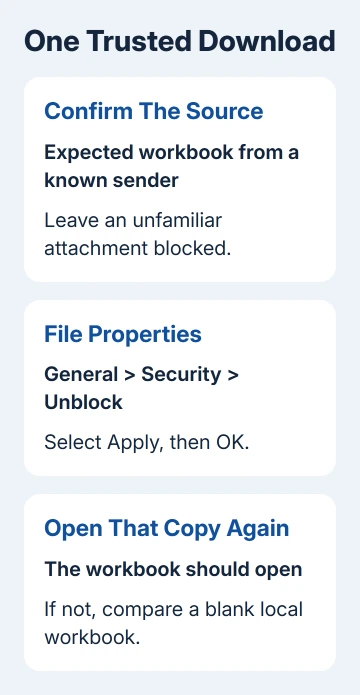
Use Unblock only when you trust the file, its sender and its contents. Removing its downloaded-file restriction changes how Office treats that copy; it isn't a reason to trust an unexpected attachment.
In the original Excel 2013 case, one owner confirmed that unblocking fixed their downloaded .xlsx. The file was only 35 KB, and the PC had plenty of free memory and storage.
If Unblock is absent, the file may not carry that downloaded-file mark, or the storage location may not support it. Don't change folder permissions just to make the option appear. Try the blank-workbook check next.
If it opens, review the sheets and save a separately named working copy. The opening problem is cleared, but check formulas and totals before relying on a report someone else supplied.
If an old workbook opens on a Mac but its comments show code, preserve the annotation text through the separate recovery checks.
2. Check whether this is one file or every workbook
Launch Excel through Start, then create a blank workbook. Enter a few values and save it to Documents or another writable folder on your PC. Then try another existing workbook you know opens correctly.
If those work but one downloaded file doesn't, check where it came from, its trust settings, or its contents. More free RAM won't necessarily change how Excel handles that particular file.
Ask the sender to create a fresh Excel export if the same file still fails. Have them verify that their exported copy opens before sending it, rather than renaming a different format with an .xlsx extension.
For a workbook that fails after transfer but works on the sender's PC, compare the filename and size with their copy. An incomplete download needs a fresh transfer before trying to repair its contents.
When multiple small local workbooks also fail, follow the Excel memory troubleshooting steps. That route checks add-ins, the printer driver and the limits of the installed Excel edition.
If a different file-opening message appears instead, use the Excel file-opening guide to match that message to association or recovery steps. Keep the exact wording so separate faults don't get mixed together.
3. Keep Protected View enabled for other files
Some replies in the historical thread fixed the symptom by disabling every Protected View option. That affects future downloads too, including files unrelated to the workbook that needs opening.
Protected View opens potentially unsafe documents with editing turned off. In Excel for Windows, its controls are at File > Options > Trust Center > Trust Center Settings > Protected View.
Leave those protections enabled. If they were turned off during earlier troubleshooting, restore them and use the one-file Unblock check for a trusted download instead.
Microsoft's Protected View guidance explains that leaving this mode makes a file trusted. For a workbook that opens in Protected View normally, read it there unless you actually need to edit it.
If a trusted workbook opens with a yellow message bar and editing is needed, use Enable Editing for that document. That's different from an error that prevents the workbook opening at all.
If your organization blocks leaving Protected View, ask IT to review the file and policy. Don't turn off managed protection or enable macros to work around an opening error; running macros is a separate decision.
4. Save current work before dealing with actual shortages
If the warning appears while saving a workbook already open, leave that Excel window open. Try File > Save As > Browse, then choose a writable local folder and a new filename.
Check that the new file appears in that folder. When practical, verify it opens before closing the working session. Don't overwrite the only usable copy while a network drive or sync folder is failing.
Open File Explorer > This PC and check how much space remains on both the destination and Windows drives. Even if a network drive has plenty of room, Excel can still need room to work on the Windows drive.
If a drive is actually full, move files you recognize to suitable storage or use Windows' storage cleanup controls. Don't delete unfamiliar system folders or the workbook you're trying to save.
Save and close unrelated workbooks and apps, then retry the save. For a large report, the number of formulas, objects and open files can matter more than the workbook's file size alone.
I'd preserve a usable save before changing Excel settings. Once a new copy is safe, you can check whether the original folder, the workbook, or a problem affecting Excel more generally caused the failure.
5. Avoid a CSV shortcut unless the lost features are acceptable
The old accepted answer also suggests opening a CSV export and saving it as an Excel workbook. That can recover plain table data if the source can still export it, but it doesn't restore the original workbook's features.
CSV doesn't retain multiple worksheets, workbook formatting or the normal Excel formula structure. Ask for a new .xlsx export first when those parts matter to the report.
If the data is all you need, keep the original workbook and compare the exported values carefully. Check dates, leading zeros and totals before rebuilding calculations around the replacement.
A registry change to the Windows Cache folder failed for the original asker, though another reply reported success with a different version of the problem. Don't change that Windows folder's location to fix one blocked attachment.
If a verified file stays blocked, request a review from IT or Microsoft Support. Give them its source details and the protection message. Include Excel's version, the message, the Unblock result, and whether a blank local workbook saved.
The Short Version
Unblock one trusted downloaded workbook before treating this warning as a hardware shortage. Compare a blank local file, keep Protected View enabled, and save open work to a new local copy before dealing with genuine disk or memory limits.
Checked November 16, 2026.