

Excel 2016 can crash when inserting a VBA module because of Windows' beta UTF-8 language setting. Clear that option in Region > Administrative > Change system locale and restart. This restored VBA editing for several owners.
A disabled Module command is a different problem from Excel closing outright. This guide covers the crash, including failures that continue in safe mode before you've written any code.
In this guide
1. Turn off the beta UTF-8 option
Save any open documents, then quit all Office apps. Press Windows+R, enter intl.cpl and press Enter. This opens Region on Windows 10 and 11, even though their Settings pages differ.
Select Administrative, then Change system locale. Windows may request administrator approval. Look for Beta: Use Unicode UTF-8 for worldwide language support.
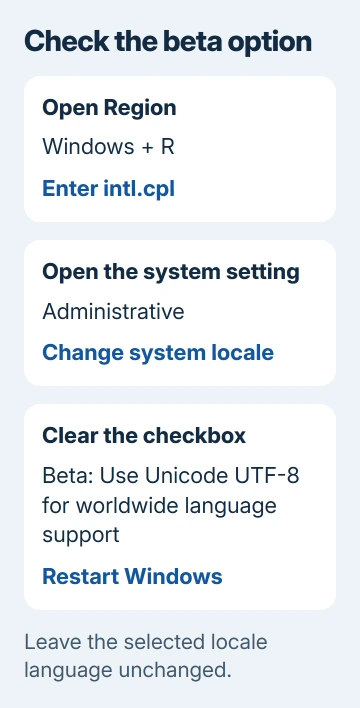
If that box is checked, clear it and confirm the change. Leave the selected system-locale language unchanged for this first check. Restart Windows when requested, then open Excel and create a blank workbook.
Press Alt+F11 or use Developer > Visual Basic, then choose Insert > Module in the editor. If it works, a module's code window opens and Excel stays running. Check this without executing a macro.
Owners in Microsoft's forum thread confirmed this stopped the crash. Earlier replies reported unsuccessful Office repairs, reinstalls and safe-mode checks; later replies confirmed that clearing the checkbox let them edit code again.
The option changes how older programs handle text, so ask IT before changing it on a managed computer. If it's unchecked already, keep that state and try the workbook comparison. Don't change regional languages at random.
Microsoft describes older application problems with regional settings.
2. Check whether the editor fails in every workbook
Start Excel normally with a new blank workbook. Enter the Visual Basic Editor using Alt+F11 or Developer > Visual Basic. Select the blank workbook's project and try inserting a module without pasting any code.
Office's macro language is Visual Basic for Applications, shortened to VBA. If Excel closes before you can create a module, changing code in an existing workbook won't fix that crash.
If the blank workbook works but one existing file crashes, keep a copy of that file and check its add-ins, forms or startup code with its author. The system-wide checkbox isn't the only possible cause of an editor crash.
If the editor stays open but Module is unavailable, follow the VBA project insertion checks. A locked project or a workbook you haven't selected needs different steps than an Excel crash.
Record the action that closes Excel: opening Visual Basic, choosing Insert > Module, opening a form or running a macro. That detail gives support a much better starting point than saying that macros don't work.
3. Compare the same action in Excel safe mode
With Excel closed, press Windows+R and run excel /safe. Create a blank workbook in the safe-mode session, then try the same editor command that failed when you opened Excel normally.
Safe mode bypasses several startup settings and add-ins, which are extra components loaded into Excel. If the editor now works, check what loads when you open Excel normally.
Open Excel normally and go to File > Options > Add-ins. In the Manage list, choose COM Add-ins, select Go, note the enabled items and clear one checkbox. Restart Excel normally and repeat the editor check.
Check Excel Add-ins through the same Manage list if the COM items don't change the result. Restore unrelated items as you go. Leave the add-in that changes the result turned off while its publisher checks it against your Excel version.
If safe mode still crashes in a blank workbook, don't keep repeating the add-in process. Owners with the UTF-8 fault reported that exact result, so a safe-mode failure doesn't rule out the Windows language setting.
For a compile error instead of a crash, use the hidden-module error checks. That message usually points to code or an add-in.
4. Update Office before considering installation changes
Go to File > Account > Update Options > Update Now in Excel when that control is available. Let the update finish, restart Excel and compare with the same blank-workbook action.
For organization-managed Office, send IT the Excel build from File > Account. The absent Update Options button may reflect the organization's installation policy rather than another fault.
Office 2016 no longer receives product support. Plan a supported release for continuing application fixes. Use the licensed installer supplied by Microsoft or your workplace, rather than an archived forum download.
I'd check the UTF-8 box before swapping between 32-bit and 64-bit Office. The saved thread includes crash reports from both, and one owner said switching editions and reinstalling still didn't help.
5. Repair Office only if the simpler checks fail
On Windows 10, open Settings > Apps > Apps & features, select Office and choose Modify. On Windows 11, open Settings > Apps > Installed apps, use Office's three-dot menu and choose Modify.
For Click-to-Run Office, start with Quick Repair. If needed, use Online Repair with an internet connection. An MSI installation instead offers Repair followed by Continue. Close Office apps before proceeding.
Once repair finishes, restart if prompted and try another blank workbook. For a continuing crash, report the Office build, Windows version, UTF-8 checkbox state and failing editor command to IT or Microsoft Support.
Ask them to examine the Excel crash entry and VBA installation. Some owners reinstalled Windows, but the later checkbox fix gives you a much simpler step to try first. Don't erase Windows as your first repair.
The Short Version
Clear the beta UTF-8 checkbox in Region, restart Windows and test Insert > Module in a blank workbook. If it still crashes, compare safe mode, update Office and repair it. Report the precise failing editor action if the problem continues.
Checked November 17, 2026.






