

To find an average in Excel, enter =AVERAGE(B2:B5) in an empty cell and replace B2:B5 with the cells containing your numbers. Check those cells before trusting the answer, because a blank cell and a zero affect the calculation differently.
The formula works in desktop Excel and in your browser. Use it for a simple average, then choose another function if you need to leave out zeros, average filtered rows or give some entries more weight.
Enter AVERAGE beside the numbers you want to use
Click an empty cell outside your data. For example, put 12, 18, 30 and 48 in B2 through B5, then enter this in B6 and press Enter or Return:
=AVERAGE(B2:B5)The answer is 27: those four numbers add to 108, which is divided by four. The colon means the formula includes the entire span from B2 through B5, including both ends.
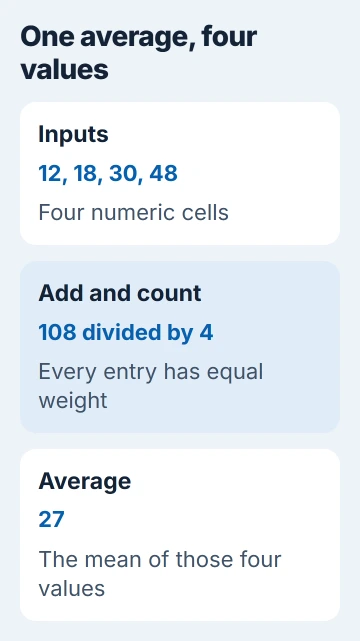
Select the cell with the answer, then read the formula bar. Check that its first and last cells match your list. Leave out any grand total, or Excel will count it as another number in the average.
Microsoft's AVERAGE reference explains which values count. Keep the answer outside the cells you're averaging, or the formula will refer back to itself.
For a quick check without adding a formula, select the numbers and look at Average on Excel's status bar if it's enabled. Use a formula to save the answer in your workbook and update it when its input numbers change.
Use the AutoSum menu when you prefer selecting cells
On desktop Excel, select the empty cell immediately after the list. On Home, open the menu beside AutoSum and choose Average. Check the highlighted selection, adjust it if necessary, then accept the formula.
A gap in your list can make Excel stop selecting cells too soon. Select the full range yourself instead of filling the gap with a made-up value. Check that the highlighted cells include all the numbers you want.
This is the same menu used to total a column in Excel, but Average calculates a different result. Selecting Sum by habit produces a total even when the chosen cells are correct.
For separate groups that belong together, include both ranges in the formula. This example averages the numeric entries in B2 through B5 and D2 through D5:
=AVERAGE(B2:B5,D2:D5)Every number counts equally. Excel doesn't average each group first, then average those answers. Doing that would give a small group as much influence as a large one.
Decide whether a zero is a real measurement
AVERAGE skips empty cells in a referenced range, but counts numeric zeros. Add 0 in B6 beside the four example values, and average B2:B6 in another cell. The answer becomes 21.6, because five numbers now count.
Leave B6 empty instead and that same formula returns 27. This difference matters for marks, delivery times and daily totals. A zero can mean nothing was recorded, or it can be an actual measurement.
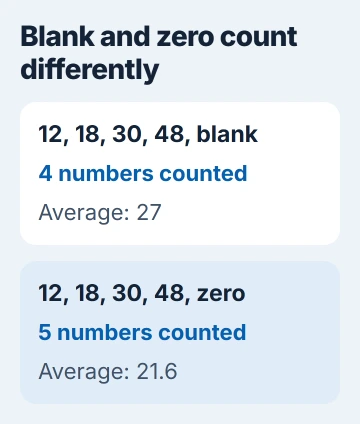
I'd decide what zero means in your records before choosing a formula. Leaving out real zero results raises the average and changes what you're calculating. It doesn't fix an unexpectedly low answer.
If your records use zero to mark missing data and you want to leave those entries out, use:
=AVERAGEIF(B2:B6,"<>0")The AVERAGEIF instructions cover the condition inside the quotation marks. This condition keeps negative numbers too; it excludes zero rather than selecting only positive values.
Check numbers that Excel has stored as text
An imported number can look normal but still be stored as text. AVERAGE ignores text in the cells it uses, so your column can look complete even though some entries aren't being counted.
Select one of those cells and look for a warning about a number stored as text. If you see it, use Convert to Number. Recheck the average after converting only entries that really represent measurements.
Keep your original data available while correcting the import. Don't convert reference numbers, phone numbers or product codes just because they contain digits. They identify things, so averaging them usually tells you nothing useful.
An error in one of the cells can also make AVERAGE return an error. Fix that cell instead of replacing every error with zero. Each replacement changes both the total and how many entries Excel counts.
Average only the rows left visible by a filter
AVERAGE still counts numbers in rows hidden by a filter. To average just the visible rows in a column, enter this outside the cells you're averaging:
=SUBTOTAL(101,B2:B100)In the SUBTOTAL function, 101 means average while excluding manually hidden rows. Filtered-out rows are excluded too. Change the filter and check that the answer changes with the visible records.
Leaving out hidden rows is different from leaving out zeros. Choose the function for the entries you want to skip. This formula works down a column; hiding a column doesn't have the same effect as hiding rows.
Use a weighted average for unequal quantities
Suppose you bought 10 items at $4 each and 30 at $8 each. The average cost per item is $7. Averaging just the two prices gives $6, which treats the small purchase like the larger one.
Put prices in B2:B3 and quantities in C2:C3, then calculate:
=SUMPRODUCT(B2:B3,C2:C3)/SUM(C2:C3)The weighted-average procedure multiplies each price by its quantity, adds the costs, then divides by the total number of items. Here, that's $280 divided by 40.
If the formula keeps yesterday's answer after you change a number, use the Excel recalculation checks. If the result still doesn't make sense, send the workbook author your formula and a small copy of the numbers it uses.
The Short Version
Use AVERAGE after checking its input cells. Check zeros, empty cells and text before judging the result. Use SUBTOTAL for filtered rows and a weighted calculation for unequal quantities.
Checked November 5, 2026.

Isaac Smith is the founder and editor of PC Glance, a website that covers computers, laptops, and technology. He is a tech enthusiast and a computer geek who loves to share his insights and help his readers make smart choices when buying tech gadgets or laptops. He is always curious and updated about the latest tech trends.