

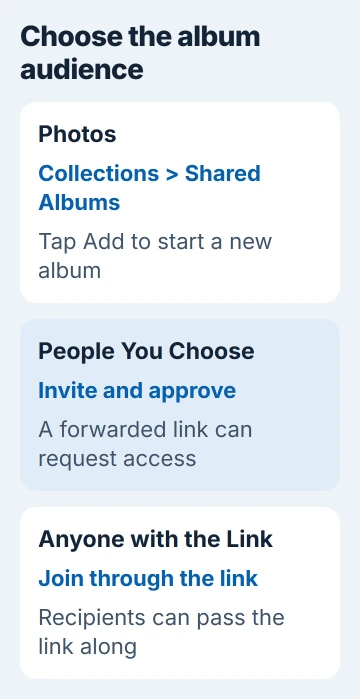
Share an iPhone album by creating it under Photos > Collections > Shared Albums, then inviting people to it. On iOS 27, choose People You Choose to control who joins or Anyone with the Link for a link others can pass along.
Naming an ordinary album in your personal library doesn't share it. Create the shared album first, add the pictures you want, then check its audience and posting permissions before sending invitations.
Set up Shared Albums for your iPhone version
Open Settings > your name > iCloud > Photos, then turn on Shared Albums. On iOS 27, also turn on iCloud Photos unless you're creating a temporary shared album. Temporary albums don't need iCloud Photos.
Use Settings to check the account attached to your photo library. Keep that account on each device where you want to open this shared album.
Apple says the creation controls differ between iOS 27 and iOS 26. Check Settings > General > About > iOS Version when your controls differ from the steps that follow.
If an existing iOS 26 album has vanished or stopped updating, use the older Shared Albums connection checks instead of creating another copy. The newer system changes how albums are created and stored.
Create the album and choose who can open it
On iOS 27, open Photos, tap Collections, then Shared Albums. Tap Add, enter a name and choose Add Photos to select the starting pictures or videos. Tap Done to confirm your selection.
Open Sharing Options before finishing. People You Choose lets you invite and approve people. Anyone with the Link lets anyone who has the link join without your approval.
For family pictures or work material, I'd choose invited people first. A link that can be forwarded is convenient for a group event, but it gives you less control over who receives it.
With People You Choose, someone who receives a forwarded link can ask to join. Approve only the people you meant to include. Receiving the link in a message doesn't tell you who else might use it.
Tap Done to create the album. Its name and selected pictures should now appear under Shared Albums. Open it once and check the contents before sending the invitation.
The current creation guide also offers Make Album Temporary. This sets the album to expire after 30 days, which can suit a short event rather than an ongoing collection.
Send invitations and check the first person can join
Open your album, tap Manage Shared Album, then Invite Participants. Pick the sharing method, enter the recipient and send the invitation. You can also use Copy Album Link when you need to paste it into an existing conversation.
Ask one person you've invited to open the link before sending it to a large group. They may need to choose Join, provide an email address, sign in or request access, depending on the album's settings and their account.
For pending requests, open Photos > Collections, tap the profile control in the upper-right corner, then open Invitations and Access Requests. Choose Approve or Decline for the person asking to join.
In the newer system, people without an Apple device or Apple Account can join and add pictures through the web. Someone using older Apple software may need to update or open the album on iCloud.com instead.
If the recipient sees a request screen, check your pending requests rather than repeatedly sending the same invitation. If the link opens the wrong album, return to the intended album before copying another one.
Give each participant the access they need
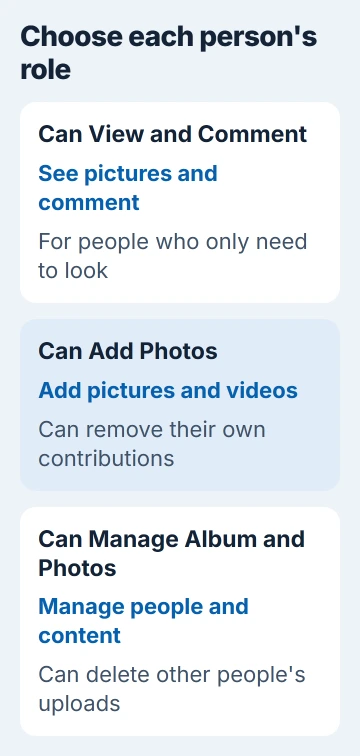
In the album, open Manage Shared Album and tap the participant. The participant permissions guide gives three choices:
- Can View and Comment: view the album and leave comments.
- Can Add Photos: add pictures and videos, and remove the ones they added.
- Can Manage Album and Photos: invite people, change permissions and delete pictures or videos other people added.
Give each person only the access they need, then tap Done. Someone helping organize a trip may need management access. Someone who just wants to see the pictures doesn't need those extra controls.
If a participant can see pictures but can't upload any, check their role first. That's different from an invitation failing to arrive. Choose Can Add Photos if they need to contribute.
To remove someone, return to their entry under Manage Shared Album and choose Remove Participant. Removing access doesn't erase copies they already saved, so share only material you're comfortable letting recipients keep.
Add more pictures without sending a new album
In your library, tap Select, choose the pictures, then use Share > Add to Shared Album. Select the existing album and tap Done on iOS 27. Participants receive a notification about the new content.
Open the album afterward to check that the pictures are there. Creating another ordinary album or sending pictures through Messages won't add them to the shared album people have already joined.
To keep a participant's picture in your own library, open it and choose Share > Save Image or Save Video. That saved copy can remain after the shared album disappears.
Check storage and the older iOS 26 route
If you create an album in iOS 27, it uses your iCloud storage for full-resolution photos and videos, including those other people add. This changed from the older system. Check your space before inviting a group to add videos.
The current limits page says temporary albums don't use that storage, but have a combined limit of 5,000 photos and videos. The newer album system allows up to 100 participants, including its owner.
If you've filled your iCloud storage, review the iCloud storage cleanup choices before removing pictures you want to keep. Save any originals you need before deleting an album or letting a temporary one expire.
On iOS 26, use Photos > Collections > Shared Albums > Add, name the album, select pictures and enter invitees, then tap Done > Create. Add later participants through More > album name > Add Participants.
The older image and storage limits don't apply to an album created in iOS 27. If an invitation error won't go away, give support the message you see and each person's iOS version.
The Short Version
Create the collection under Shared Albums, choose its audience, then invite people. Check one person's access and set posting roles. On iOS 27, permanent albums use the owner's iCloud space; temporary albums expire after 30 days.
Checked November 5, 2026.

Isaac Smith is the founder and editor of PC Glance, a website that covers computers, laptops, and technology. He is a tech enthusiast and a computer geek who loves to share his insights and help his readers make smart choices when buying tech gadgets or laptops. He is always curious and updated about the latest tech trends.