
A full iCloud account needs cloud storage cleared, rather than apps removed from the iPhone. Open Settings > your name > iCloud, check the storage breakdown and target the category using the space.
Old device backups, unneeded app backups and large iCloud Drive files can be better starting points than a photo library. Check what each deletion affects before confirming it, especially on a phone still relying on its backup.
Find the category using your iCloud storage
On iPhone or iPad, open Settings > your name > iCloud > Storage or Manage Account Storage. Read the category sizes before choosing a cleanup. The largest category determines which action will make a useful difference.
Apple documents Recommended for You on its iCloud storage page. On iOS 17 or later, look for that entry on the iCloud screen and review its suggestions for files, photos or backups.
Status: iCloud backup, Drive and photo-deletion effects checked October 29, 2026 against Apple instructions. Cleanup must match the storage category. No account data was removed.
If the iPhone Storage meter is full and iCloud has available capacity, use the device-storage checks instead. Deleting a cloud backup cannot enlarge the phone's physical storage.
Review the suggestions individually. A recommendation identifies removable content; it does not know whether that backup or file is your last usable copy.
Remove an obsolete backup or shrink the current one
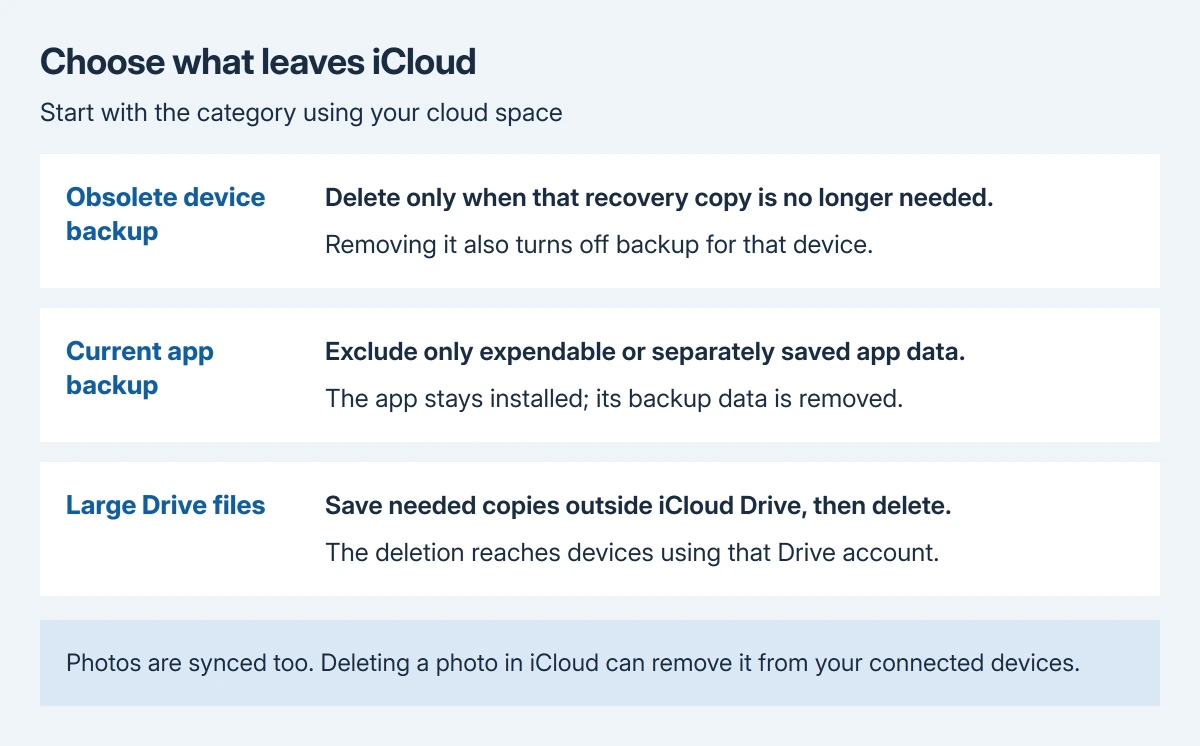
For a backup no longer needed, open Settings > your name > iCloud > Storage > Backups. The storage entry may instead say Manage Account Storage. Select the device and verify its name before proceeding.
Tap Turn Off and Delete from iCloud, then confirm Turn Off and Delete. Apple's guide also lists the devices through iCloud Backup.
Deleting the backup also disables iCloud Backup for that device. Apple says to enable it again in iCloud settings if the device should continue backing up. Keep an independent current backup before removing one a working phone still needs.
For a current backup that should stay, return to Backups, select the device being used and inspect its app list. Turn off only an app whose backed-up information is expendable or safely stored elsewhere, then confirm the change.
That removes the app's stored backup information and excludes it from future iCloud backups. It does not uninstall the app. Local-only drafts or records will lose that particular recovery route.
Afterward, use the iCloud backup date and size checks to verify that the remaining backup can complete. Some required app data cannot be excluded.
Copy important Drive files out before deleting them
For large files, open iCloud Drive at icloud.com/iclouddrive in a browser. Download anything that must be kept to a location outside iCloud Drive, then open the downloaded copy to verify it.
Select the unwanted files or folders and use the toolbar's Delete button. Apple's Drive deletion instructions say the deletion reaches every device using that Drive account.
The Drive Recently Deleted folder allows recovery for 30 days. Files there do not count against iCloud storage, so emptying it is unnecessary for this cleanup and removes a useful recovery option.
Downloading a file inside another iCloud Drive folder leaves it in the same cloud storage pool. The destination check is ours: open the saved copy outside the syncing location before removing the original.
Keep wanted photos and check other large categories
Removing photos from iCloud Photos removes them from connected devices too. Optimize iPhone Storage reduces local copies; it does not reduce the full-resolution library stored in iCloud.
Apple's photo-download instructions explain how to keep copies. On iPhone, Share > Export Unmodified Originals offers a Files destination. Choose storage outside iCloud Drive for a separate archive.
Check the downloaded pictures and videos before deleting originals. For something already removed accidentally, stop the cleanup and use the iCloud photo recovery steps.
If Mail is the large category, remove unwanted messages from the iCloud mailbox, then clear those messages from its Trash. Deleting mail held by a different provider will not reduce iCloud usage.
If Messages is large and Messages in iCloud is enabled, unwanted conversations and attachments also use that cloud space. Treat their removal as a change to synced history, rather than clearing only one phone's temporary files.
Verify the account has usable space again
Return to the same iCloud storage breakdown after syncing the changes. Confirm that available space has increased, then retry the blocked backup, upload or mail task. A successful deletion alone does not confirm that task has recovered.
If the category remains unexpectedly large, give Apple Support the category, selected action and software version. Keep needed files and backups while they check it. A larger plan is another option when the remaining content must stay.
The Short Version
Check the occupied category. Delete obsolete backups carefully, exclude expendable app backup data, or archive and remove unwanted Drive files. Keep needed synced content. Verify available space, then retry the failed task.

Isaac Smith is the founder and editor of PC Glance, a website that covers computers, laptops, and technology. He is a tech enthusiast and a computer geek who loves to share his insights and help his readers make smart choices when buying tech gadgets or laptops. He is always curious and updated about the latest tech trends.