
To transfer contacts from iPhone to iPhone, use the account that stores them or send an exported contact list. iCloud keeps the same address book updated on devices using one Apple Account; a list export sends a separate copy.
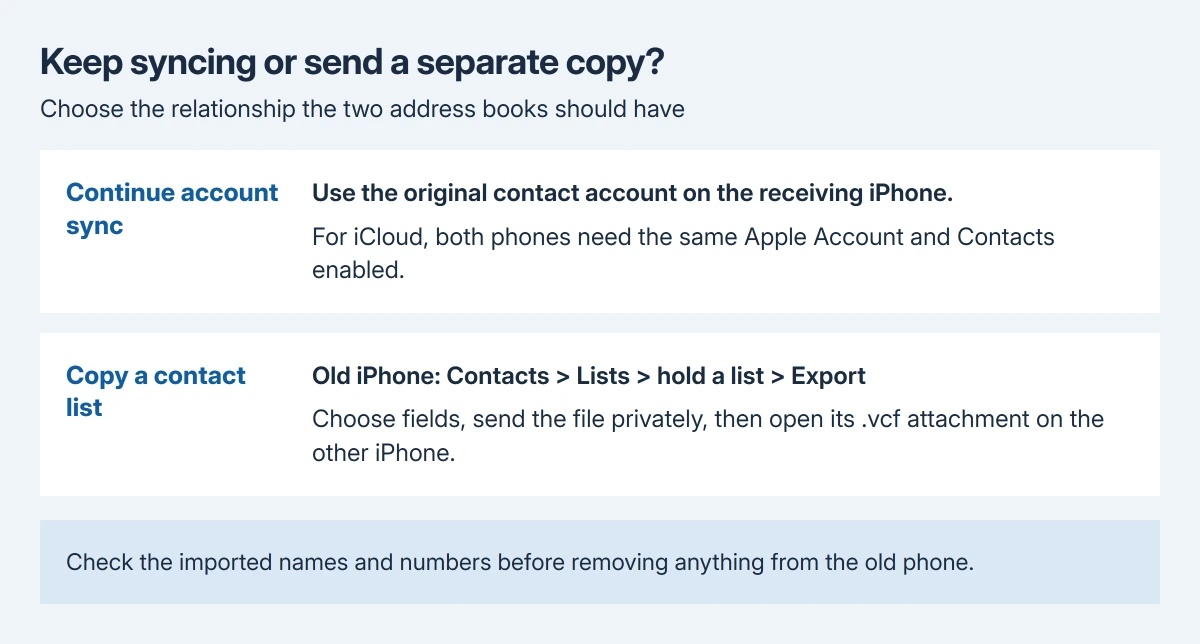
For a transfer without sharing the whole account, open Contacts > Lists on the old iPhone, hold the required list and choose Export. Send the resulting contact file privately to the receiving iPhone.
Choose a synced address book or a separate copy
Open Contacts > Lists on the old phone and identify the account holding the wanted cards. A mixed All Contacts view can include iCloud, Google, Exchange and other sources that do not all move through iCloud.
Apple documents a same-account requirement for iCloud Contacts. Use that route when both phones should keep one address book updated. Use an export when the destination should receive a separate copy.
Status: iPhone list export, vCard import and iCloud contact setup verified October 29, 2026 from Apple guides. A contact file copies cards. No address book was opened, sent or merged.
For iCloud on the receiving phone, use Settings > your name > iCloud > See All or Show All, then enable Contacts under the same Apple Account. Check the appropriate account list afterward.
Contacts must also be enabled in iCloud on the source phone. An address book stored only on that phone has not reached the other device just because the accounts match.
For contacts stored with Google or another provider, connect that original account and enable its Contacts service. The account visibility checks explain the exact iPhone account controls.
Signing into a different Apple Account does not pull the first account's contacts into the second. Choose a separate file transfer when sharing that original account is not intended.
Export the required list on the old iPhone
Apple's iPhone export procedure supports exporting some or all contacts. Check the list's contents before starting so the transfer does not include another account's private address book.
- Open Contacts, then go into Lists at the upper left. A wider layout may show a sidebar control instead.
- Touch and hold the existing list that contains the required people.
- Tap Export.
- Select the contact fields to include, then tap Done.
- Choose Messages, Mail or another offered delivery option. Send the exported file to a private address available on the receiving iPhone.
Review both the recipient and selected fields. A phone number may be needed while personal notes or home addresses are unnecessary. The field selection controls what travels with the exported cards.
Keep the old phone and its contacts intact until the destination is checked. Export creates a copy; deleting the source cards is a separate action with different consequences.
Only one person's details need sending? Use Share Contact for an individual card instead. That avoids exporting an entire list to solve a one-card task.
Open the contact file on the receiving iPhone
Open the email or message containing the exported contact file on the destination phone. Tap the .vcf attachment and follow the presented contact-import choices to add the intended cards.
Apple says tapping a .vcf attachment in Mail or Messages is the iPhone vCard import route. Inspect the preview and any offered account or contact choices before confirming.
After importing, return to Contacts > Lists and examine the destination's relevant list or All Contacts. Search for several transferred names and inspect their phone numbers and email addresses.
That verification is ours. Seeing an attachment arrive only confirms file delivery; it does not establish that its cards were added with the fields needed on the new phone.
If the preview is empty or the file will not open, confirm that the original list still contains the cards and export it again. For a managed work address book, ask its administrator whether exporting is permitted.
Keep the transfer separate from moving the SIM
An iPhone does not store its contacts on the SIM. Apple states that directly in its SIM contact instructions, which recommend iCloud or a mail account for moving contacts between iPhones.
Its Import SIM Contacts command reads contacts already stored on a compatible SIM by another phone. Moving an iPhone's SIM or eSIM does not make its address book travel with the mobile line.
If the source iPhone is unavailable, check whether the original contact account still holds the cards. Without access to the phone, its account or an existing export, a new iPhone cannot reconstruct that address book from the number alone.
For a failed import, give Apple Support the iOS versions, the list's account type and whether the attachment opens. Use a nonprivate sample when asked to demonstrate the problem.
The Short Version
Keep the address book synchronized through its original account, or send a list export as a separate copy. Choose fields and import the delivered .vcf attachment on the other iPhone. Check the cards before removing the source.

Isaac Smith is the founder and editor of PC Glance, a website that covers computers, laptops, and technology. He is a tech enthusiast and a computer geek who loves to share his insights and help his readers make smart choices when buying tech gadgets or laptops. He is always curious and updated about the latest tech trends.