
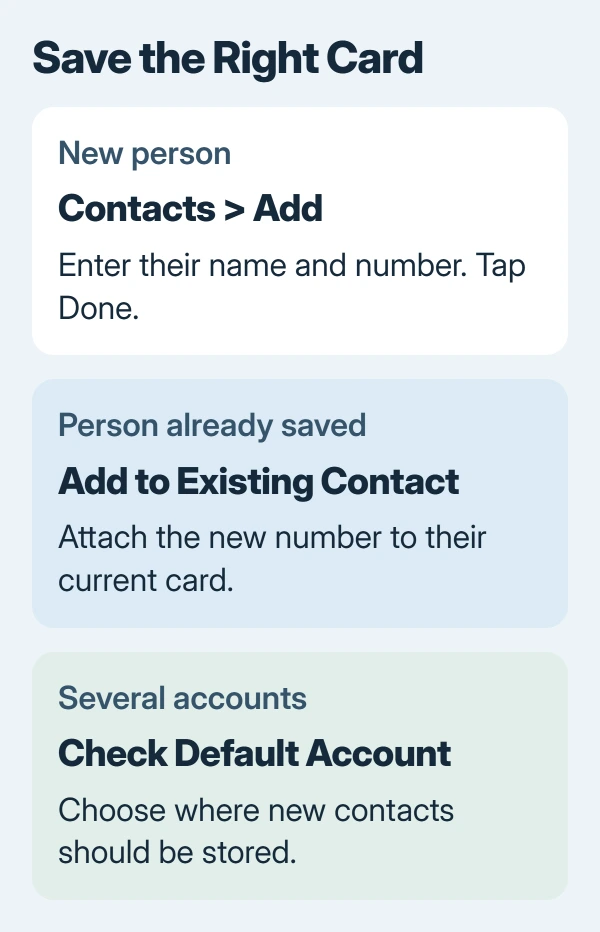
Adding contacts to an iPhone starts in Contacts: tap the Add button, enter the person's details and save. For someone already in the address book, edit their existing card instead of creating another entry for a new number.
With several contact accounts connected, check the default account before adding the person. That choice determines where a new card is stored, which matters when personal and work contacts share the same phone.
Create a card with the details you need
Open Contacts and search for the person's name or number first. If the search finds their card, open it and use Edit to add the missing information. Otherwise, return to the list and tap the Add button, shown as a plus.
Enter the name and phone number, adding an email address if needed. Check the digits, then tap Done. Apple documents this creation procedure in its iPhone contact instructions.
Status: Apple's current Contacts and Phone guides checked November 1, 2026. The Calls layout can differ from older Recents screens. No personal address book was accessed.
Return to the list and search for the saved number. Check the details on the resulting card. This verification is ours; it catches a mistyped digit before the card is used for a call or message.
Save a number from a recent call
In the current Phone layout, open Calls, tap the number and choose Create New Contact. Fill in the person's name and save the card. This uses the number from the call entry instead of requiring it to be typed again.
For someone already saved, choose Add to Existing Contact and select their card. Apple says both choices are available in its Phone contact guide.
An older Phone layout can show Recents with an information button beside the call. Open that entry's details to reach its contact options. Use the details control carefully so a save does not become an unintended call.
Review the identity before saving an unfamiliar caller under a trusted name. A recent-call entry supplies a number, not independent proof of who called.
Choose the account for newly created contacts
Open Settings > Apps > Contacts > Default Account, then select the intended account. On iOS 17 and earlier, Contacts sits directly in Settings. The default-account choice applies when multiple contact accounts are configured.
Apple states that this selects the account for new contacts in its contact-management help. Existing cards do not move into another account merely because this default changes.
For an address book that already exists on another iPhone, use the contact transfer options. Recreating those people individually adds work and can produce extra copies.
If the expected account is absent, inspect Contacts Accounts on the Contacts settings page. Add the appropriate account or ask the organization managing a work account to confirm its permitted setup.
When the saved person cannot be found
Search by phone number as well as name. In Contacts, inspect Lists and the expected account; a narrowed list may hide a contact stored elsewhere.
Use the missing-contact checks when an account's cards are absent. Repeatedly adding the same person can create duplicates without resolving the account problem.
If a new card keeps disappearing, contact its account provider or Apple Support. Include the account type and whether the provider's web address book shows the card. Keep the person's private details out of public support posts.
The Short Version
Use Add in Contacts for a new person, or add the number to their existing card. Check Default Account when more than one address book is connected, then find the saved card and verify its details.

Isaac Smith is the founder and editor of PC Glance, a website that covers computers, laptops, and technology. He is a tech enthusiast and a computer geek who loves to share his insights and help his readers make smart choices when buying tech gadgets or laptops. He is always curious and updated about the latest tech trends.