Select neighboring table cells, then choose Table Layout > Merge Cells in Word for Windows. On Mac, use Layout beside Table Design, then Merge Cells. Select the cells themselves rather than words inside one cell.
This creates one larger table cell. For a title spanning several columns, select only the title's cells so the rest of the table keeps its separate columns.
In this guide
Select the cells that should become one
In desktop Word, open your document and click a table cell. Find the exact row or column you want to change. For a heading across two columns, select those two neighboring cells rather than the entire table.
Drag across the intended cells until both cells are highlighted. Check the highlighted area before choosing a command. Selecting text inside one cell won't tell Word to combine that cell with its neighbor.
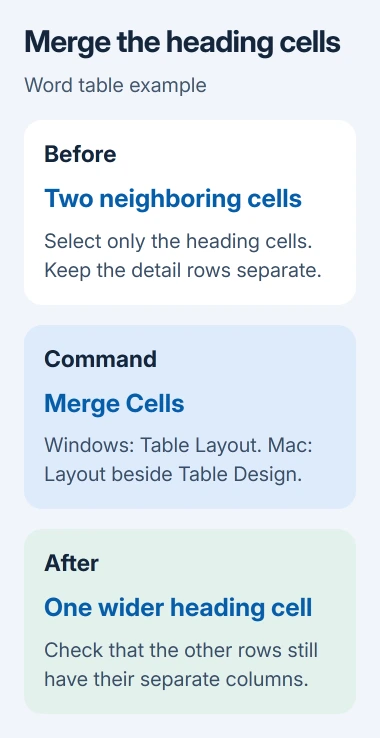
A simple practice example helps: make a two-column heading with a separate row of entries under it. Merge the heading cells only. The heading becomes a single cell while the entries keep their two-column layout.
If the table already contains important work, save a copy before changing its layout. You can return to that copy if several later edits make the original layout hard to rebuild.
Microsoft says its desktop merge instructions apply on Windows and Mac. The web and mobile versions can have fewer table features; use the steps for your app.
Use the table ribbon in Windows
With the neighboring cells selected, open Table Layout and choose Merge Cells. The line between the selected cells disappears and that part of the table becomes one larger cell.
Word's normal Layout tab handles page layout. Table Layout appears when you select a table and holds the commands for editing it. If you keep reaching margins and page orientation, you're using the wrong tab.
The context menu offers another route: right-click the selected cells and choose Merge Cells. Use that when the ribbon is crowded or the table command is hard to find at your current window size.
After the merge, click another cell and inspect the result. Make sure the row you meant to preserve still has separate entries. Selecting too many cells can combine more of the table than you intended.
If the result is wrong, use Undo immediately before making more changes. Then select the smaller group and repeat the merge. I'd correct the selection at this point rather than rebuild the whole table afterward.
Find the corresponding command on a Mac
Select the adjacent cells in the Word table. Open the Layout tab beside Table Design, then choose Merge Cells. The selected area should become one combined cell.
The important distinction is the table's Layout tab, which sits next to Table Design. The page-layout controls elsewhere in Word don't replace it.
Look at the selection before moving the pointer to the ribbon. If only a word is highlighted, extend the selection over the cells themselves. The command needs more than one adjacent cell to merge.
The Excel merge guide covers spreadsheet cells. Use it when the open app is Excel; this procedure is for Word's document tables, which have different menus and work differently.
For a document you edit on both Windows and Mac, check the combined heading after opening it on the other computer. Review its wrapping and spacing in the actual document rather than relying on what the ribbon button shows.
Combine vertically when one label covers several rows
A merge can also join neighboring cells in the same column. Select the label cells down that column and use the same Merge Cells command. Leave the detail cells in adjacent columns out of the selection.
For example, a project name might occupy one tall cell beside several rows of tasks. Select the project-name cells, not the task descriptions, so those task rows stay separate.
Plan the label before applying the merge. A long paragraph in a narrow, tall cell can become harder to read than a short label. Combining cells is useful when the information in them belongs together.
If the merged result seems too narrow, check whether you selected the intended columns. A vertical merge joins the selected cells down the column; it doesn't automatically create a full-width heading across the rest of the table.
Make the cell boundaries visible when selection is difficult
Click in the table and choose View Gridlines from its table Layout controls. In Windows, look in the Table group of Table Layout; on Mac, use View Gridlines on the Layout tab next to Table Design.
Gridlines help you see cells in a table that has no visible borders. Use them to identify the neighboring cells before merging. Text lined up with spaces or tabs may look like columns, but it isn't a table with cells you can merge.
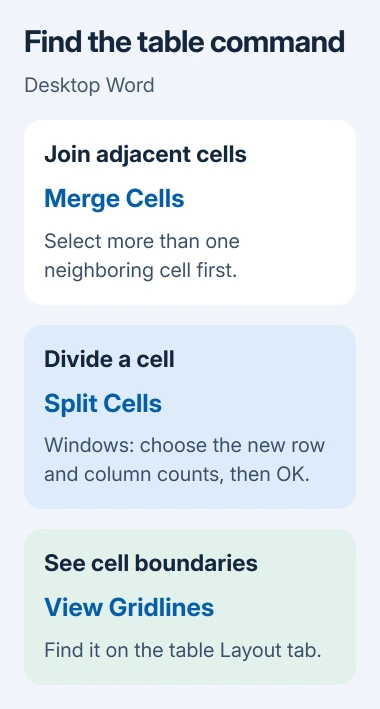
If Merge Cells is missing, check that multiple adjacent cells are selected. Return to the table, select the intended group again, then reopen the command. Selecting one cell is enough for some table commands, but not a merge.
If the document is actually a personalized letter built from a mailing list, mail merge from Excel to Word is a separate task. It fills documents with records rather than joining table cells.
Divide a cell again and check the finished document
For the Windows desktop split procedure, select the cell, choose Table Layout > Split Cells, and enter the required number of columns and rows. Click OK, then check the new arrangement.
Splitting turns that cell into several cells. Read the entries after the split and put each piece of text in the cell where it belongs. Don't treat a later split as a substitute for Undo when you've just made an accidental merge.
Finally, inspect the table in the document's print preview. Check the heading, the remaining columns and any rows near a page break. The finished table should be easy for your recipient to read.
If the command is still unavailable in desktop Word with neighboring cells selected, ask Microsoft Support about that document and Word version. Mention whether the same problem happens in a new test table and which table tab you can see.
The Short Version
Select neighboring cells, then use Merge Cells on the table's Layout tab. Check the combined area before editing further. Use View Gridlines for a hard-to-see table and Undo immediately after an accidental merge.
Checked November 11, 2026.