

A Word table row that won't get smaller often has paragraph spacing or double line spacing keeping it tall. Select the cell text and check those settings before dragging again.
One owner fixed this exact problem by changing double line spacing.
A row that won't grow needs a different check: its height may be set to Exactly. Choose the section matching your table's behavior, then check cell margins and hidden paragraphs if the space remains.
In this guide
1. Remove extra paragraph and line spacing
Select the text in the affected row. On Word for Windows, open Home > Line and Paragraph Spacing > Line Spacing Options. Check Before, After and Line spacing in the Paragraph dialog.
For ordinary single-line table entries, try Before: 0 pt, After: 0 pt, and Line spacing: Single. Apply the change to that row first. If the unwanted space disappears, the text formatting was keeping the cells tall.
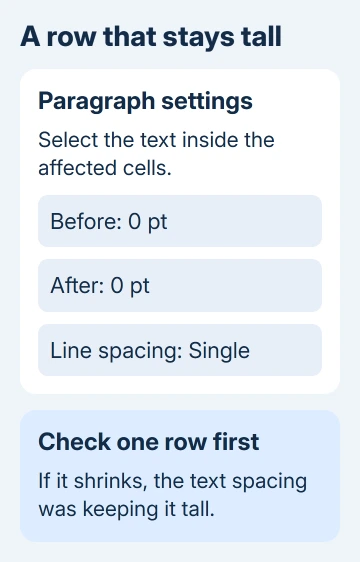
On Word for Mac, select the same cell text and open Format > Paragraph. Check the spacing before and after the paragraph and choose single line spacing there. These settings control your text, but they can keep the whole row tall.
An owner in Microsoft's forum confirmed that double line spacing was the reason their row wouldn't shrink. Changing it removed the unwanted space. This is a better first check than changing the table's entire style.
I'd try the paragraph settings on one row before selecting the whole table. That gives you a visible comparison with the neighboring rows and avoids changing intentional spacing in other parts of the document.
2. Check whether the row height is fixed
Click in the row, right-click, and open Table Properties > Row. Look at Specify height and the choice between At least and Exactly. These settings control the row itself, separately from the spacing around your text.
At least sets a minimum. The row can become taller when the contents need more room. If that minimum is larger than you want, reduce it or clear Specify height so the contents can determine the height.
Exactly fixes the row at the chosen measurement. If text disappears or the row won't grow when you type, change it to At least or clear the fixed height. Check the last line in every cell afterward.
Avoid forcing a tiny exact height just to hide the gap. It can hide text instead of correcting the paragraph spacing responsible for the space. Use the first section when you want the whole entry visible in a shorter row.
For a direct size adjustment, use Table Layout > Cell Size > Table Row Height. The table-resizing controls also let you drag a row boundary. Click inside the table first to reveal its layout tab.
These instructions address Word's desktop table controls. A spreadsheet has different sizing rules, so use the Excel AutoFit checks if the row is actually in Excel.
3. Show empty paragraphs inside the cells
Open Home and turn on Show/Hide in the Paragraph group. Word displays paragraph marks and other formatting marks that aren't printed. Look inside the tall row for extra paragraphs after the visible words.
A cell can look empty while still containing several paragraph breaks. Each paragraph takes space according to its font and spacing settings. Remove only the extra breaks you don't need, leaving the cell's end marker in place.
Check every cell across the row. The tallest cell determines how much room the row needs, so clearing extra paragraphs from just the first cell may leave the height unchanged.
If the row becomes smaller after removing an empty paragraph, keep formatting marks visible while you finish the table. They make it easier to spot the same problem in another row without guessing from the printed appearance.
When no extra paragraphs appear, compare font size and line spacing across the cells. A large font applied to an empty paragraph can still occupy space. Select that paragraph and match the intended formatting of its cell.
4. Reduce unwanted space inside the cells
Select the affected table and open Table Layout > Cell Margins. Check the Top and Bottom values. These add space inside the cell, between its contents and its edges.
Reduce a value only if it explains the unwanted gap. Keep enough room for readable text. The change applies to the selected table, so review several rows rather than only a single cell.
For a single stubborn cell, open Table Properties > Cell > Options. Check whether Same as the whole table is selected. A cell with its own margins can behave differently from its neighboring cells.
If those individual margins are accidental, return the cell to the table's margins. If they are intentional, adjust that cell's top and bottom values. The row should then fit its contents without that extra margin keeping it tall.
Vertical alignment changes where text sits within the row's existing height. It doesn't remove an oversized minimum, extra paragraphs or padding. Fix those causes first, then choose the alignment that suits the table.
5. Keep the correction when adding more text
Type a short new entry in a corrected row and check whether the spacing stays right. If pasting text brings the gap back, inspect the pasted paragraph's spacing instead of repeatedly resizing the row.
When several rows need the same appearance, select the text across those rows, then apply your paragraph settings. Keep headings or multi-paragraph notes separate if they need more space than the data rows.
For a repeated document layout, use a paragraph style for the table's text. That gives the entries consistent font and spacing. A table style and a paragraph style aren't the same control, even though both affect the finished table.
If moving a Word table into a spreadsheet causes the problem, the Word-to-Excel table guide covers cells that split during copying. Changing row height won't repair extra spreadsheet rows created by that transfer.
If a row still won't respond, save a copy and compare a small new table in a blank document. Tell Office support whether only the original table is affected, and include its row-height, paragraph-spacing and margin settings.
The Short Version
Check paragraph spacing first when a Word row won't shrink. Check Exactly when it won't grow. Then remove extra paragraphs and unwanted cell margins. Finish by testing a new entry so the same formatting doesn't return with the next edit.
Checked November 16, 2026.
 If you have any business, I can build it online






