

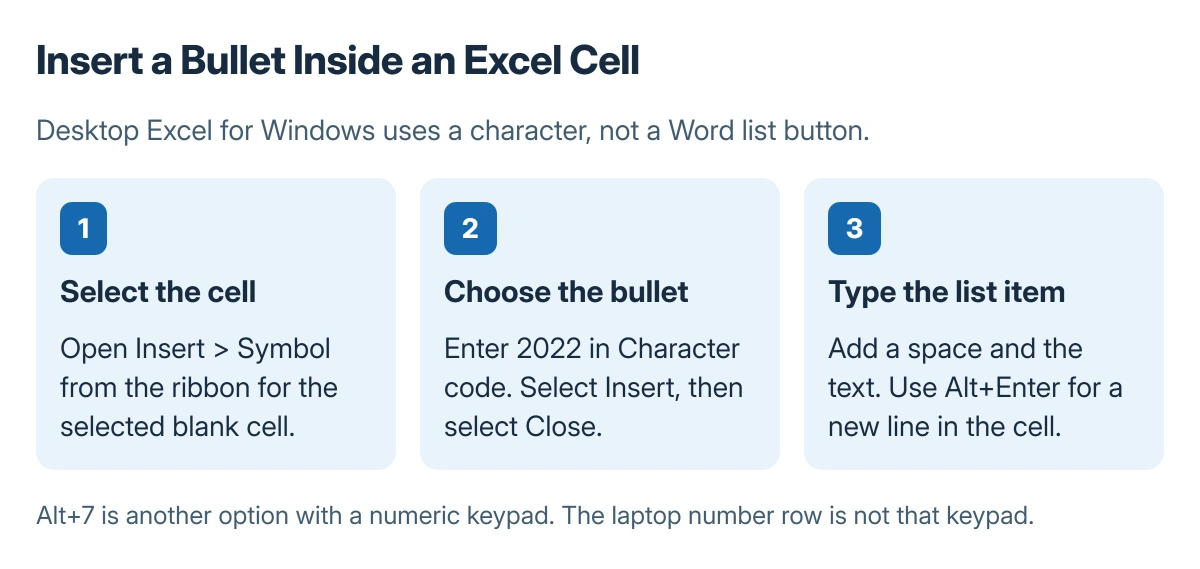
Bullet points in an Excel cell are characters. In desktop Excel for Windows, open Insert > Symbol, choose the bullet, and type the item beside it. Use Alt+Enter for a new line inside the cell.
Decide first whether the list belongs in one cell or across several rows.
Insert the bullet where the list should begin
Select the blank cell. On Insert, open Symbol in the Symbols group. Enter 2022 in the Character code box, choose Insert, then Close. Type a space and the first list item after the inserted character.
Status: Microsoft's Windows Excel bullet instructions checked 23 October 2026. These are character and cell-editing controls, not a Word-style automatic list. No worksheet was edited here.
Microsoft documents this method in its worksheet bullet instructions. If the selected font does not provide the character, choose a font with an appropriate bullet instead of assuming the insertion failed.
Microsoft says Alt+7 is another bullet shortcut when the keyboard has a numeric keypad. The number row across the top of a laptop is not that keypad. Use Symbol when the required keypad is unavailable.
Keep multiple items in one cell
While editing the cell, press Alt+Enter after the first item. Insert or paste the bullet at the beginning of the new line and type the next item. Finish editing only after the intended lines are in the cell.
Resize the column or use Wrap Text if the list does not fit its display. For a row that refuses to show all the text, use the Excel row-height checks rather than putting extra blank lines into the list.
Paste a list without spreading it across rows
Microsoft states that a list copied from another program normally places each bullet in its own cell. To keep the whole list together, double-click the destination cell before pasting, so the paste happens inside cell editing.
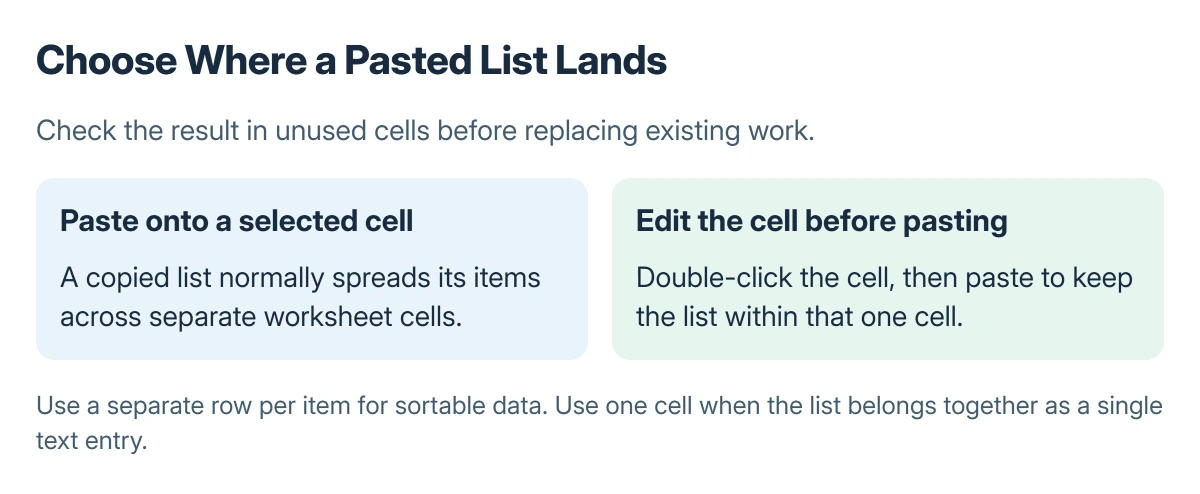
Try the paste in an unused area and inspect the result before replacing existing work. If tabs split a different paste across columns, the Excel pasted-column checks address that behavior.
A shape uses actual list formatting
For text inside a shape or text box, right-click the text and choose Bullets. This is a different editing surface from worksheet cells, even though both appear on the same sheet.
For data that must be sorted or counted, keeping each item in its own row may be easier than storing the whole list inside one cell. Choose the structure for what the worksheet needs to do, then add the visible character.
The Short Version
Use Insert Symbol with character code 2022 for a cell bullet. Add Alt+Enter between items in one cell, and enter cell editing before pasting a whole list. Shapes and text boxes have their own Bullets command.

Isaac Smith is the founder and editor of PC Glance, a website that covers computers, laptops, and technology. He is a tech enthusiast and a computer geek who loves to share his insights and help his readers make smart choices when buying tech gadgets or laptops. He is always curious and updated about the latest tech trends.