

Adding columns in Excel starts with the column letter to the right of the new space. Right-click that letter and choose Insert. Excel adds a blank column before it and moves the existing columns to the right.
For several new columns, select the same number of column letters first. Select whole columns so every row stays aligned; inserting a few cells can shift only part of the sheet.
Make room before the correct column
Save the workbook before changing its structure. Decide which existing field should come immediately after the new field. To add a Quantity field before a Price field in column B, select the B header.
Microsoft documents both the header menu and Home > Insert > Insert Sheet Columns in its row and column insertion guide. The ribbon route also works with a cell selected in the destination column.
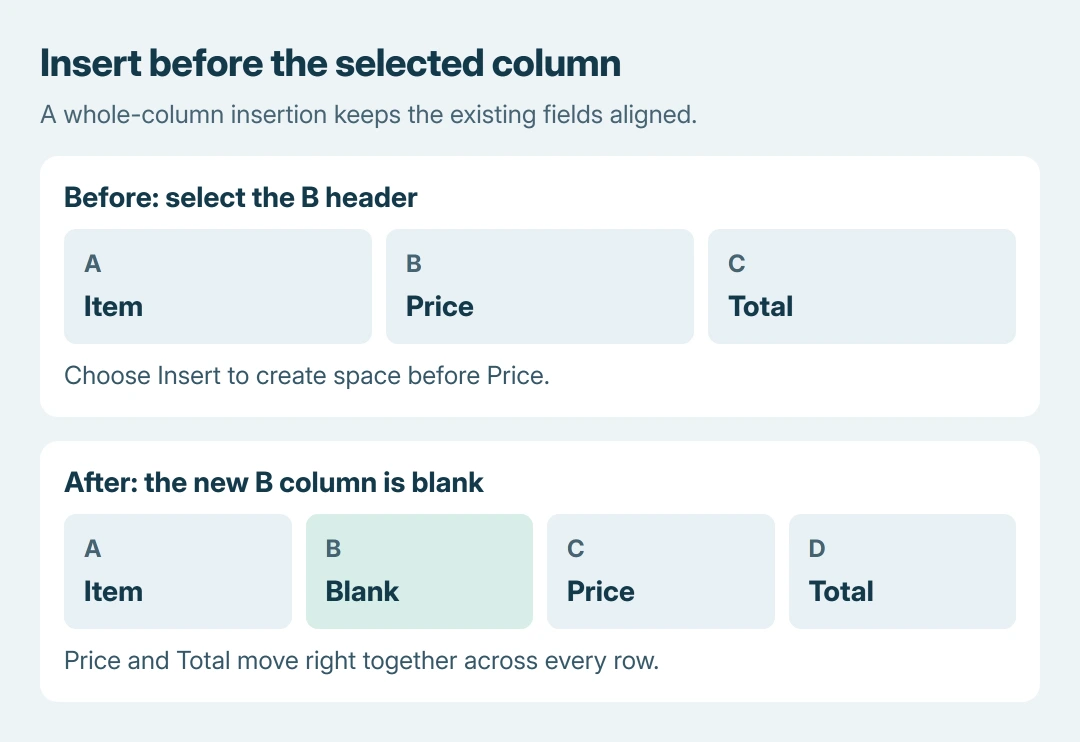
Status: Microsoft Excel column insertion instructions checked October 26, 2026, for Windows desktop and Excel for the web. The sample sheet is a diagram; no workbook was edited.
In the example picture, Price moves from B to C and Total moves from C to D. The new blank B column is ready for the Quantity heading and its values.
Insert one blank column in desktop Excel
Right-click the chosen column letter, then select Insert. A blank column appears at that position. Type its heading and add the values belonging to each existing row.
Alternatively, click a cell in that column and open Home > Insert > Insert Sheet Columns. Choose the sheet-column command rather than a command that shifts an individual cell.
Read across several records after insertion. The alignment check is ours: an item's existing price and total should still belong to that item after the new field is added.
For an existing field that merely belongs elsewhere, use Excel's cut-and-insert method. Adding a blank column creates space; it does not move that field's values into the new space automatically.
Add several columns in the browser
In Excel for the web, drag across adjacent column letters to select as many columns as the number needed. Right-click within the highlighted header block and choose Insert Columns.
For example, to add two fields before the current C column, select C and D first. The two blank columns become C and D; the old C column shifts to E. The selected count sets the amount of new space.
Microsoft says the web procedure inserts columns to the left of the selection.
The same selection principle applies in Windows desktop Excel: select adjacent headers, then use Insert. A single selected column creates one new column, regardless of how many records it contains.
Keep formatting and formulas under review
An inserted column may inherit formatting from its neighbor. If numbers look like dates or amounts acquire the wrong currency style, select the affected cells and choose the required number format.
Microsoft states that Insert Options can change inherited formatting after insertion. On Windows, a missing options button can be enabled at File > Options > Advanced > Cut, copy, and paste > Show Insert Options buttons.
Review calculations and chart ranges that should include the new field. The new column stays empty until its values or formulas go in, and an export or import built on the old column order may need updating.
A gap in column letters can mean a field is hidden. Reveal hidden Excel columns before adding duplicates of data that is already present.
If Insert is unavailable, check whether the sheet is protected or the file is open for viewing. Ask its owner for editing access or an approved editable copy. Use Undo immediately if the operation shifts the wrong part of the records.
The Short Version
Select the header immediately after the intended new space and insert a sheet column. Select several adjacent headers for several new columns.
Verify row alignment, number formats and dependent calculations before continuing with the edited workbook.

Isaac Smith is the founder and editor of PC Glance, a website that covers computers, laptops, and technology. He is a tech enthusiast and a computer geek who loves to share his insights and help his readers make smart choices when buying tech gadgets or laptops. He is always curious and updated about the latest tech trends.