

To hide values in selected Excel cells, apply the custom number format ;;;. The cells look empty, but formulas can still use their contents. This keeps your rows and columns in place while making the sheet look cleaner.
Anyone who selects one of those cells can still read its value in the formula bar. Use this to tidy the sheet's appearance, not to protect private information when you share it.
Select the values you want to keep out of view
In Excel for Windows, open your workbook and select the values you want to hide. Start with a small range you can identify again, such as a calculation input beside a report, rather than selecting the whole sheet.
Microsoft documents the three-semicolon format in its cell visibility instructions. It changes how the selected cells look without moving them or deleting their contents.
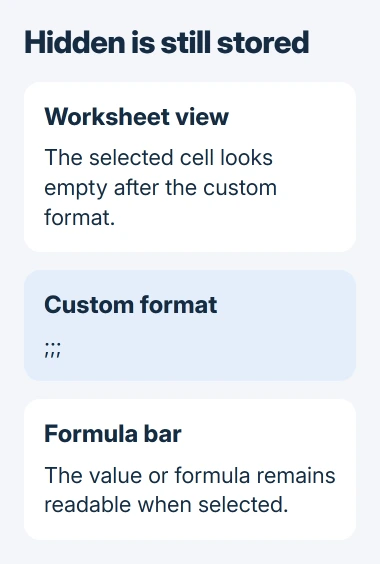
Status: checked November 3, 2026 for desktop Excel on Windows. The custom format hides cell contents from the sheet view; it leaves the stored values accessible.
Before changing a carefully formatted report, save a separate copy. Note whether the selected cells use Currency, Percentage, Date or a custom code, so you can restore the right format later.
If you want to hide a whole column, use Excel's column-hiding control. These steps keep all column letters and row numbers in their original places.
Apply three semicolons in Format Cells
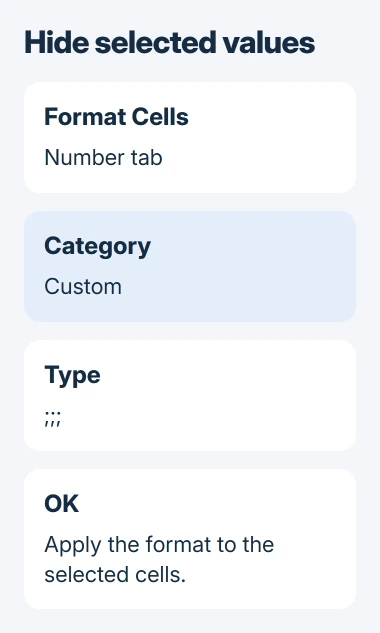
With that range selected, go to the Home tab. Click the small button at the corner of the Number group to open Format Cells. On Windows, Ctrl+1 opens the same dialog.
- Select the Number tab if another tab is open.
- Under Category, choose Custom.
- Select the existing contents of the Type box.
- Replace that code with
;;;, using three semicolons with nothing between them. - Click OK, then click outside the range to inspect the result.
Your selected values should disappear from the worksheet, but the cells are still there to select. If the semicolons appear as cell text, undo that entry: they belong in Type, not in the worksheet.
If you accidentally include a total in your selection, it can disappear with the inputs, though the calculation is still there. Use Undo, then select just the cells you meant to hide.
These steps use desktop Excel on Windows. If you're working in a browser and can't find the custom format control, open that file in Excel's desktop app before continuing.
Check the value and the calculation separately
Click one of the cells that now looks blank and read the formula bar. Microsoft says its hidden contents remain visible there. If you see the original value, you've changed its appearance without deleting it.
For example, suppose B2 contains 25 and C2 contains =B2*2. Applying ;;; to B2 leaves C2's result at 50. B2 looks empty, but the calculation still uses its stored number.
If B2 contains a formula instead, selecting it shows that formula in the formula bar. Formatting the cell doesn't turn the formula into a fixed value, and it doesn't remove its references to other cells.
I'd check one input and a total that uses it before formatting a large report. If the total changes unexpectedly, use Undo and check what you edited. Hiding a value shouldn't require changing a formula or replacing its input.
Check a cell's formula bar before typing into it, even if it looks empty. Your new entry replaces what's already there and may also stay invisible under the same format.
Bring the contents back with the right format
Select the same range and reopen Format Cells. In Number, choose General for ordinary values, or choose the previous Date, Currency, Percentage or other format. Click OK and check the displayed result.
Microsoft states that General restores the default display, but you can choose another format. With General, a percentage may show as a decimal, or a date as the number Excel uses to store it.
If you hid dates, prices and other values together, restore each group with its original format. Dates need their date format back; Currency fits the prices.
If row numbers or column letters are skipped too, check the whole row or column. Follow the row and column Unhide steps to restore that area before checking individual cell formats.
If values stay hidden after removing ;;;, read the formula bar again. A formula returning blank text, white font or conditional formatting needs a different fix. Don't overwrite the cell just to make something appear.
Hide only zeros when other values must remain visible
Use a different format if you want to hide only zeros and keep other numbers visible. Microsoft documents the custom code for this in its zero-value display guide.
Select the cells, return to Number > Custom, and enter 0;-0;;@ in Type. Zeros become blank while other values appear. This code displays whole numbers, so don't use it for prices that need decimal places.
To hide zeros across the sheet, open File > Options > Advanced. Under Display options for this worksheet, choose your sheet and clear Show a zero in cells that have zero value. This affects every zero on that sheet.
Choose the option that covers the cells you need. Someone reading your report may interpret a hidden zero as a missing entry, so label it clearly.
Resolve a blocked formatting control with the workbook owner
A protected sheet can block formatting changes. Look for Unprotect Sheet on the Review tab, then ask the workbook owner to approve or make the change before removing a shared template's protection.
If the command stays grayed out in a desktop workbook you can edit, tell Microsoft Support your Excel version and which files are affected. Include the selected range and the exact control you can't use.
Before sharing the workbook, review the data it still contains. Recipients can read hidden values by selecting them or changing their format. If any of that data is private, create a copy approved for sharing.
The Short Version
Apply ;;; through Format Cells > Custom to hide selected values. Check that the formula bar still shows them. Restore their previous format to display them again, and review stored data before sharing the workbook.

Isaac Smith is the founder and editor of PC Glance, a website that covers computers, laptops, and technology. He is a tech enthusiast and a computer geek who loves to share his insights and help his readers make smart choices when buying tech gadgets or laptops. He is always curious and updated about the latest tech trends.