
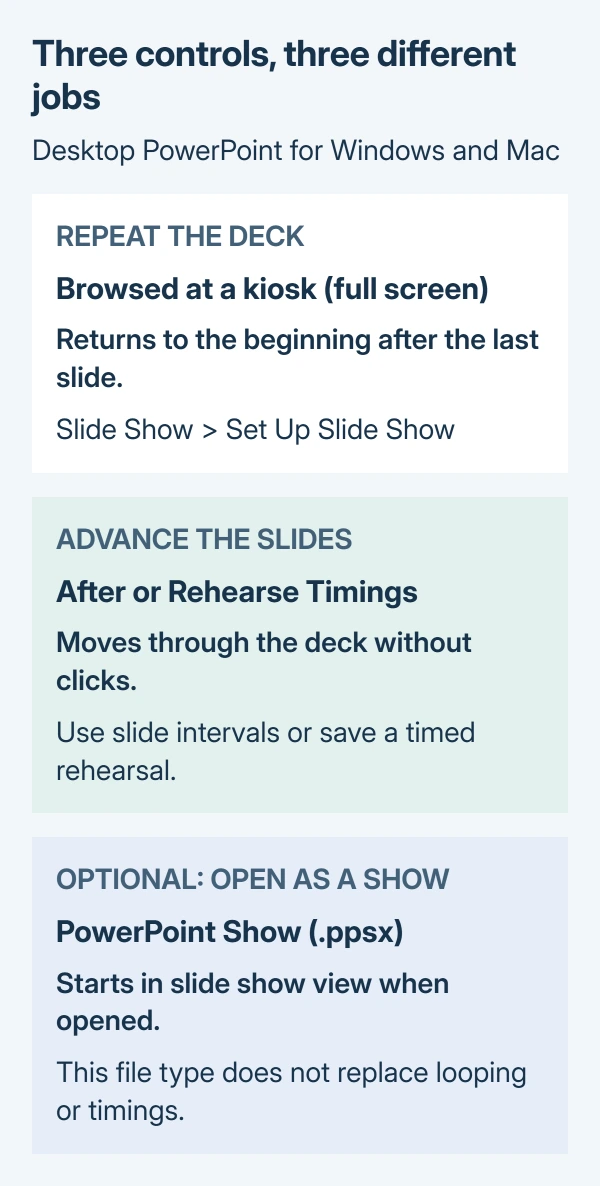
A PowerPoint presentation needs both looping and slide timings to run without clicks. In desktop PowerPoint, choose Slide Show > Set Up Slide Show > Browsed at a kiosk (full screen). Then give the slides automatic advance times.
The loop returns to the beginning after the last slide. Timings move the show from slide to slide. Changing only one setting can leave the presentation waiting for input or stopping after one pass.
Make the presentation repeat
Open the deck using the installed PowerPoint app on a PC or Mac. These instructions cover Microsoft 365, PowerPoint 2024 and PowerPoint 2021. Finish the slide layouts and content before setting the playback pace.
Microsoft documents the kiosk show type for a repeating, unattended display in its self-running presentation instructions.
Status: Microsoft's Windows and Mac desktop looping instructions checked October 29, 2026. Browser limitations verified separately. No slide show was run during preparation.
- Open Slide Show > Set Up Slide Show.
- Under Show type, select Browsed at a kiosk (full screen).
- Confirm with OK.
This mode repeats the slide show until Esc is pressed. It does not choose how long each slide stays visible. Set those times before leaving the presentation unattended.
Give every slide an automatic advance time
For a simple deck with a common pace, use the After setting. Microsoft's transition timing guide documents these controls in both the Windows and Mac editions.
- Select a slide and open Transitions.
- In the Timing group, find Advance Slide.
- Select After and enter how long that slide should remain visible.
- Choose Apply to All if every slide should use that interval and transition.
For different reading times, set After on individual slides instead. Allow longer for a dense slide than for a short title. Check the final slide as well; it needs an advance time to reach the repeat.
Do not confuse Duration with After. Duration controls the transition effect's speed. After controls when the presentation moves on. Microsoft states that the advance timer starts after the slide's final animation or effect finishes.
A slide containing several effects can therefore stay visible longer than the After value suggests. Review that slide's animation sequence if its delay is unexpected.
Rehearse timings when slides need different pacing
Use Slide Show > Rehearse Timings as an alternative to entering each slide's interval. Advance through the deck at the intended reading pace, then choose Yes when PowerPoint asks whether to keep the recorded timings.
Open View > Slide Sorter to inspect the time assigned to each slide. Repeat the rehearsal if a pause or interruption was accidentally recorded.
In Windows, also check Slide Show > Set Up Slide Show > Advance slides. Choose Use timings, if present rather than Manually. Microsoft's rehearsal instructions identify that choice as the switch that enables saved timings.
Watch the last slide return to the first
Save the deck, then start it with Slide Show > From Beginning on Windows or Slide Show > Play from Start on Mac. Leave the controls alone and watch a complete pass, including the return to slide one.
That full-pass check is our recommendation. It checks both automatic advancement and repetition on the computer that will display the presentation.
If a slide waits indefinitely, inspect its advance timing and any effect that expects input. If the show advances normally but ends after the final slide, reopen the setup dialog and check the kiosk choice.
Videos need their own playback check. A linked or online PowerPoint video can depend on a separate file or an internet connection even when the slide sequence repeats correctly.
Start in slide show view when the file opens
This part is optional. In Windows PowerPoint, File > Save As or Save a Copy can create a file that opens directly as a show. Choose Browse or More options, then PowerPoint Show under Save as type.
Microsoft's PowerPoint Show instructions explain that the resulting .ppsx opens in slide show view when double-clicked. To edit it, open it through File > Open inside PowerPoint.
The file type controls how the presentation opens. Keep the loop and timings configured in the presentation; saving as PPSX does not replace those settings.
Microsoft says PowerPoint for the web cannot loop a slide show in its presentation guide. Use the installed desktop app for this procedure. A missing browser loop control is a product limitation.
For a continuing desktop fault, send Microsoft Support a nonprivate copy and the PowerPoint version. An organization's IT team can also check it. Specify a stuck slide, failed media or the missing return to the beginning.
The Short Version
Choose the kiosk show type, set automatic slide timings, then watch a complete pass through the deck. The last slide should return to the first. A PPSX file is optional for opening directly as a show; looping requires desktop PowerPoint.

Isaac Smith is the founder and editor of PC Glance, a website that covers computers, laptops, and technology. He is a tech enthusiast and a computer geek who loves to share his insights and help his readers make smart choices when buying tech gadgets or laptops. He is always curious and updated about the latest tech trends.