

To remove animation from a PowerPoint object, select it, open Animations, and choose None. To keep the effects but stop them during a presentation, use Slide Show > Set Up Slide Show > Show without animation in desktop PowerPoint.
Those choices do different jobs. Removing an effect changes the presentation's content; turning animation off for the show keeps the effects available for later. Movement between whole slides is a transition and uses a separate tab.
In this guide
Choose what should stop moving
Open the presentation in its normal editing view and select a slide that contains the unwanted movement. Click the picture, shape or text box involved. An effect attached to that object is an animation.
If the whole slide fades, wipes or moves as the next slide appears, check Transitions instead. Selecting None in the animation gallery won't remove a transition because it belongs to the slide rather than an object.
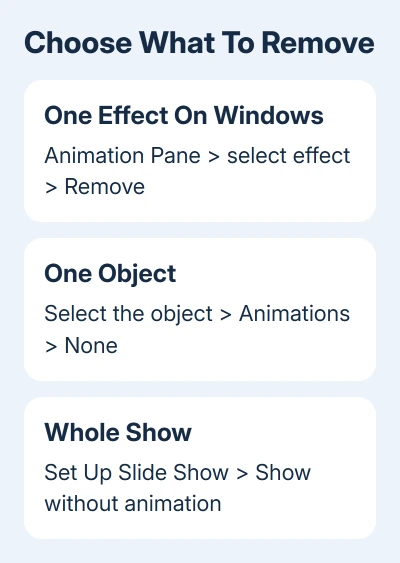
Decide whether you're editing the shared file or preparing a quieter show for yourself. I'd use the slide-show switch for a single presentation session, rather than delete effects a colleague may still want in the shared deck.
Keep an untouched copy of an important deck before clearing many effects. That gives you an easy way back after several rounds of editing, when a long undo history becomes awkward to manage.
Remove every effect from one object
On Windows, select the object on the slide. Open Animations, expand the animation gallery if necessary, then select None. This removes all animation effects attached to that selected object.
Make sure you've selected the object you want to change. Clicking a text box's edge selects the box; clicking inside its text places the typing cursor there. Keep that object selected while you use the gallery.
Preview the slide afterward. A picture with an entrance, an emphasis effect and an exit should no longer perform those effects after you choose None. Other animated items on the same slide can still move.
For another object, select it and repeat the command. Selecting one picture doesn't clear effects from every object on that slide, and it doesn't clear the entire presentation.
In PowerPoint for the web, select the object, open Animations, and choose None in the gallery. This is also the direct route for removing all effects from a single selected object when you're editing in a browser.
Microsoft explains how to remove individual animation effects separately from clearing every effect on an object. Use the pane when some movement should remain.
Delete one effect and keep the others
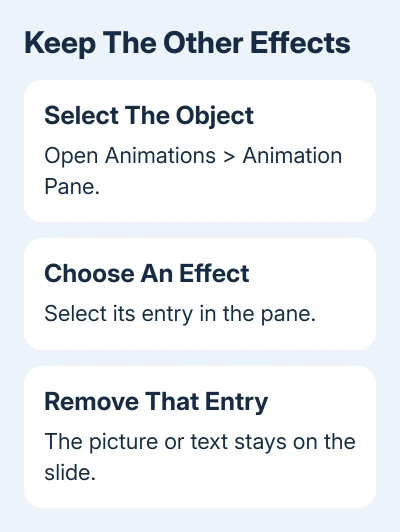
In Windows desktop PowerPoint, open Animations > Animation Pane. Select the animated object on the slide. Its applied effects are highlighted in the pane, so it's easier to distinguish them from effects on nearby objects.
Select the unwanted effect in Animation Pane, open that effect's menu, and choose Remove. For several effects, hold Ctrl while selecting the entries you want to remove, then press Delete.
Check the object and preview again. If its entrance should stay but its spinning emphasis should go, remove only the spinning entry. Choosing None on the object would remove the entrance as well.
In PowerPoint for Mac, use Normal view and open Animations > Animation Pane. Select the effect in the pane, then use the pane's red X to delete it. Select entries in the pane rather than deleting the slide object.
To clear that Mac slide's full effects list, select the first entry, hold Shift, select the last entry, and use the red X. This clears the selected list on that slide, so check that you want to remove every effect in that list.
For the browser edition, choose Animations > Animation Pane, select the effect, and choose Delete for that effect. The browser uses a different control from the Windows desktop menu, but both remove the animation you've selected.
If deleting removes the picture or text instead, undo immediately and select the effect in the pane. The slide object should remain visible after an animation is removed; you're changing how it appears, not discarding its content.
Turn animations off for the whole show
In Windows desktop PowerPoint, select Slide Show > Set Up Slide Show. Under Show options, select Show without animation, then confirm with OK. Start presenting and compare the affected slides.
PowerPoint for Mac also provides Slide Show > Set Up Slide Show > Show without animation. Use it to turn off animations during the show while keeping their settings in the file.
To bring the effects back for a later show, return to the setup dialog and clear that option. The effects are still attached to their objects, so they don't need rebuilding.
For a large deck, the desktop switch saves editing time. This Windows workflow has no single command that permanently clears every object's animation across every slide. To remove them for good, edit each affected object.
If you're editing in a browser and want that show option, open the file in the installed PowerPoint app. Don't assume a missing browser command has the same effect as None, which edits the selected object's animations.
For a show that also restarts unexpectedly, check the PowerPoint looping controls. Looping and turning animations off are separate presentation settings.
Remove slide transitions separately and review the deck
Select the slide whose transition you want to remove. Open Transitions and choose None. To remove the transition effects throughout the presentation, use Apply To All after choosing None.
Morph is a transition too, so it lives on this same tab; if it's grayed out there, Morph's PowerPoint 2016 limits explain which versions can create it.
Review the whole slide show after changing these settings. Look for text that previously appeared one bullet at a time and objects that previously disappeared. Without effects, those items need to be readable together while you're speaking.
If the presentation includes an automatic video, check its playback settings separately. Removing object animation isn't a general command to stop every kind of media playback in the file.
The PowerPoint presentation basics cover slide layouts and presenting if the content needs reorganizing after the effects are gone. Keep that editing separate from deleting the effects themselves.
For an effect that won't clear, give Microsoft Support your PowerPoint build number, whether you're editing on Windows, Mac or the web, and a copy containing only the affected slide with private content removed.
The Short Version
Use Animations > None to clear one object's effects. Use Animation Pane to remove selected effects, or Show without animation in desktop PowerPoint to turn them off for the show. Remove slide transitions on Transitions.
Checked November 11, 2026.
 If you have any business, I can build it online






