Google Calendar not syncing on Android can mean a calendar is hidden, events belong to another account, or syncing is switched off. Check the calendar list and the missing event's account before clearing app data.
An event that exists but gives no reminder needs notification checks instead. Missing appointments older than a year are another case: the app syncs only the past year of events. Those older appointments need the web calendar.
In this guide
1. Show the calendar and inspect the event's destination
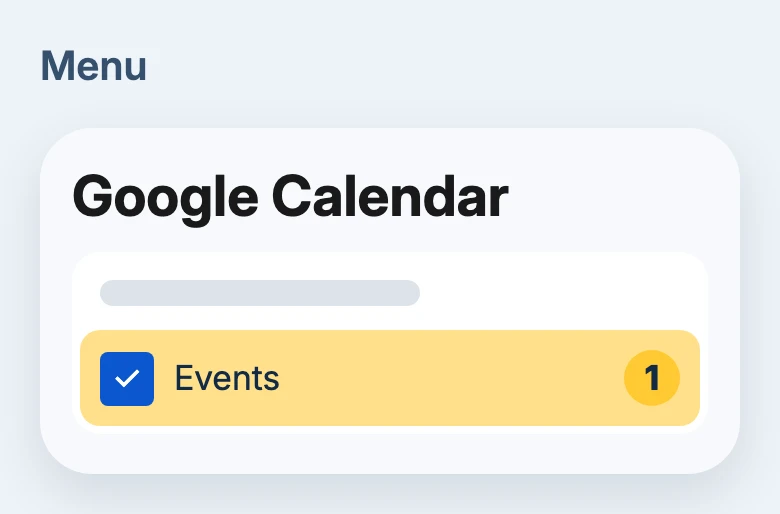
Open Google Calendar, tap Menu at the top left, and check the box beside the missing calendar's name. A calendar can be on the account but hidden from the current view. Selecting it should bring its events back into that view.
Check the account email as well as the calendar's name, especially with a mix of work and personal accounts on one phone. Two calendars called Events can belong to different accounts. Make the comparison using an appointment you recognize.
For an appointment created on the phone, open its details and check which calendar contains it. When creating a new event, inspect the calendar selection near the top. It needs to belong to the Google Account you expect to sync.
An event saved to a different service or a phone-only calendar won't appear in the intended Google calendar just because the app can display both. Correct the destination for new appointments before trying to repair account syncing.
Compare a recent event on another device where that account already works. If the appointment is missing there too, first check where it was saved. If it exists there but not on Android, continue with the phone's sync controls.
2. Turn on Android's Calendar account sync
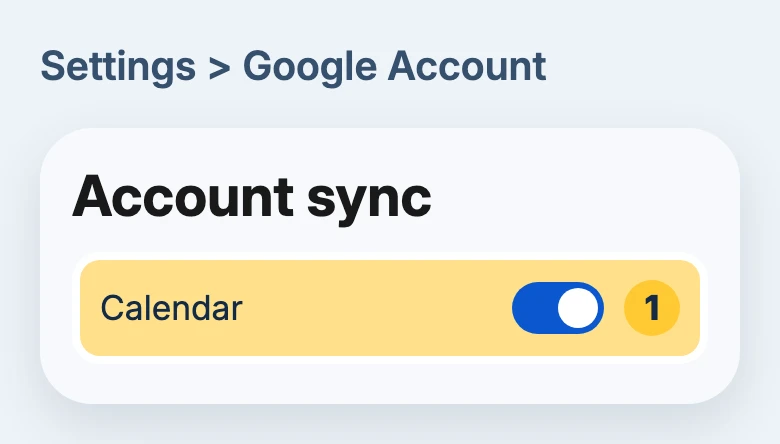
Open Android Settings > Passwords, passkeys & accounts, select the affected Google Account, and choose Account sync. Turn on Calendar. This lets your phone sync calendars belonging to that account.
Google lists another route through About phone > Google Account in its sync instructions. Settings names vary by phone, so search for account sync if your maker uses different labels.
Return to Calendar, open Menu, and select Refresh. Give events time to appear after turning sync on. Check the recent appointment again instead of judging the result by an old event that was already stored on the phone.
If more than one Google Account is listed, change the one that owns the missing appointment. Turning on another account's Calendar switch won't bring back events that belong to the first account.
If several services on the account won't update, note that pattern for support. If only Calendar won't update, check the individual calendar's setting next before removing your whole Google Account.
3. Enable Sync for a missing secondary calendar
In Google Calendar, open Menu > Settings and select the calendar that isn't appearing. Tap Show more if you can't see it in the list. For a calendar you created, turn on the Sync setting near the top.
The primary calendar is different. It normally appears as Events, unless renamed, and doesn't have this same Sync switch. Skip hunting for that control on the primary calendar; it isn't part of that calendar's settings.
The menu checkbox controls visibility; this calendar setting controls syncing. A calendar can need both. After changing the setting, give the app time to download its events, then check the missing appointment in the normal calendar view.
If only a shared calendar is absent, check its account on your other working device. If it's missing there too, have its owner review the sharing permission. Resetting Android won't grant a missing sharing permission.
Outlook uses a separate account connection inside its own app. For events missing there rather than in Google Calendar, use the Outlook Android sync checks and check the account type used for that connection first.
4. Check the connection, app update and available storage
Try a web search in the phone's browser. If it can't load, switch between Wi-Fi and cellular data where available. A working search checks basic internet access before you spend time changing calendar settings.
If Calendar updates on cellular data but not your usual Wi-Fi, use the Android Wi-Fi troubleshooting steps. Use whichever connection works to check for that appointment.
Open Google Play, find Google Calendar, and install Update if offered. Reopen the app and refresh. Make sure you're updating Google's Calendar app rather than another app with a similar name and icon.
Check Settings > Storage too. When storage runs out, Calendar stops syncing. Remove unwanted files or uninstall unused apps, then refresh again. Google doesn't give a free-space target for this repair.
Also check Calendar storage, the system app that stores calendar information. Go to Settings > Apps > See all apps, open More > Show system, and find Calendar storage. It needs to be enabled; app-list controls vary by phone.
5. Protect unsynced appointments before clearing app data
Check connection and sync settings before this step. Compare important appointments on your phone with the account on another working device. Copy any missing appointment's details somewhere safe before clearing the phone's stored data.
Clearing Calendar data can lose events that haven't synced. An appointment you can see only on this phone is exactly the one to protect. I'd check the next few weeks of important bookings before using this step.
Open Settings > Apps > See all apps > Calendar > Storage & cache > Clear storage > Delete, using the equivalent labels on your phone. Restart the device, open Calendar and allow it to download the account's events again.
Check the recent event. If it still won't sync, use the Calendar Help Community linked from the support page, or ask your Workspace administrator for help with a managed account. Include the phone model, app version and affected account.
Report whether events fail from phone to account, account to phone, or both. Include any sync error exactly as shown.
The Short Version
Show the right calendar, check the event's account, and enable Calendar in Android account sync. Check secondary-calendar Sync, internet access and storage. Protect phone-only appointments before clearing Calendar data.
Checked November 27, 2026.
 If you have any business, I can build it online