
You open Settings to turn Apple Intelligence off, the way you could before, and the switch is not there. You find Siri, you find the summaries, but no single Apple Intelligence off.
Before you assume it is hidden somewhere, it is not. Apple split it up in iOS 27 and macOS 27. I will take you through each switch that matters, biggest first, and what turning them off does to your storage.
Why the one switch is gone
Apple's iOS 27 page on this is titled around features, not a switch. It opens: "You can turn off Apple Intelligence features like Siri AI (Beta), summarization features, and more."
What follows is a list, one feature at a time. The Mac is the same. One owner on macOS 27 went looking and reported: "There is no setting in MacOS 27." All they found was "Only 'Siri'".
A Level 10 adviser added some context for the Mac: "It's off by default on macOS 27." Siri AI, the headline feature, needs you to sign up for it first.
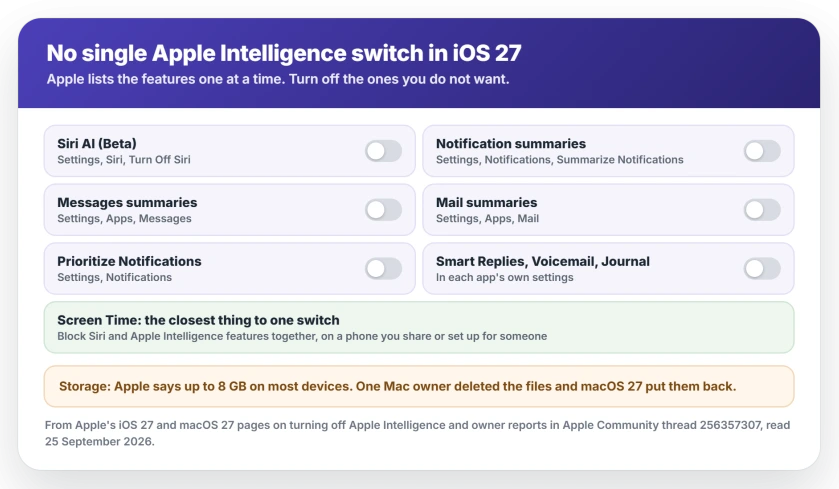
Status: iOS 27 and macOS 27, checked 25 September 2026. Apple documents the features one by one and points to Screen Time for blocking them. An owner who deleted the Apple Intelligence files on a Mac saw macOS put them back.
1. Turn off Siri AI
This is the big one, and the one people usually mean. On your iPhone, Apple's steps are: "Tap Siri, scroll down, then tap Turn Off Siri. Tap Turn Off Siri again to confirm."
If you still want to talk to Siri, turn it back on and pick Siri Classic when iOS asks which one. You keep the old Siri without the AI version.
Wanted Siri AI, but it keeps failing with an error instead? The Siri AI fixes go by the message you see.
2. Turn off the summaries
These are the parts you see every day. In Settings, Apple's routes are:
- Messages: "Tap Apps, tap Messages, then turn off Summarize Messages."
- Mail: "Tap Apps, tap Mail, then turn off Summarize Message Previews."
- Notifications: "Tap Notifications, tap Summarize Notifications, then turn off Summarize Notifications."
If notifications are being reordered for you too, the same Notifications screen has Prioritize Notifications. Turn that off as well.
3. The quieter features
Apple lists a few more that you may never have noticed. Personalized Smart Replies live in Mail's settings, and Suggestions in Voicemail live in Phone's.
Writing Prompts in the Journal app have their own switch too. Turn off whichever ones you meet. Your phone works normally without any of them.
4. Block the rest with Screen Time
The closest thing to one switch is Screen Time. Apple's page points to its guide to "Block or allow Siri and Apple Intelligence features" for restricting access for yourself.
That route suits a phone you share, or one you are setting up for someone else. It stops the features being switched back on by accident.
Will turning it off free up storage?
Do not count on it. Apple says Apple Intelligence can use "Up to 8 GB of storage" on most supported iPhones, iPads and Macs, and more on some newer models.
On a Mac, one owner deleted the files by hand and was pleased at first: "I can live with 18.7 MBs." Two days later, they found that macOS 27 "starts quietly reinstalling the deleted Apple Intelligence files". The space went back up.
My advice, and it is ours: turn the features off for how the phone behaves, not for storage. If you need space, the System Data guide goes after the bigger wins.
On a Mac
Apple's Mac steps for Siri AI are: "click Siri in the sidebar, then click Turn Off Siri." The summaries are switched off inside Messages, Mail and Notifications, one at a time, just as on the iPhone.
Turning off Siri AI on a Mac also brings back the old Writing Tools, if Proofread stopped working for you.
If a download of Apple Intelligence is what bothers you instead, the stuck download guide explains what that progress bar is doing.
Can I turn off Apple Intelligence completely on iOS 27?
Not with one switch. Apple lists the features separately: Siri AI under Siri, summaries under Messages, Mail and Notifications, and more. Screen Time can block them together.
How do I turn off Siri AI?
On your iPhone, open Settings, tap Siri, scroll down and tap Turn Off Siri, then confirm. Turn Siri back on and choose Siri Classic if you want the older Siri.
Does turning off Apple Intelligence free up storage?
Not reliably. Apple says it can use up to 8 GB on most supported devices, and one Mac owner who deleted the files saw macOS 27 put them back.
Is Apple Intelligence on by default on macOS 27?
On Apple's forum, a Level 10 adviser wrote that it is off by default on macOS 27, with Siri AI needing a sign-up first.
The Short Version
- iOS 27 and macOS 27 have no single Apple Intelligence off switch.
- Turn off Siri AI under Settings, Siri, Turn Off Siri.
- Turn off summaries in Messages, Mail and Notifications.
- Screen Time can block the features together.
- Turning features off does not reliably free storage.
- On a Mac, deleted files came back for one owner.
Where to Next
Start with Siri AI and the notification summaries. Those two are the ones you notice every day.
Which feature were you trying to get rid of? Leave a note in the comments and say iPhone or Mac. I will add any switch Apple moves in a later update.

Isaac Smith is the founder and editor of PC Glance, a website that covers computers, laptops, and technology. He is a tech enthusiast and a computer geek who loves to share his insights and help his readers make smart choices when buying tech gadgets or laptops. He is always curious and updated about the latest tech trends.