Goodnotes battery drain can come from a bright display, long writing sessions and background syncing or handwriting search. Lower brightness first, then try similar writing with fewer documents open before turning off study features.
A large Goodnotes percentage in Battery settings isn't the same as losing that percentage of a full charge. Check the actual battery drop and time spent writing together; heavy use can make it the largest app without showing a fault.
In this guide
1. Check the battery drop before changing the app
Open Settings > Battery on your iPad or iPhone. Select the day or period that includes your writing session, then inspect Goodnotes in the app activity list. Older versions offer Last 24 Hours, Last 10 Days and Show Activity.
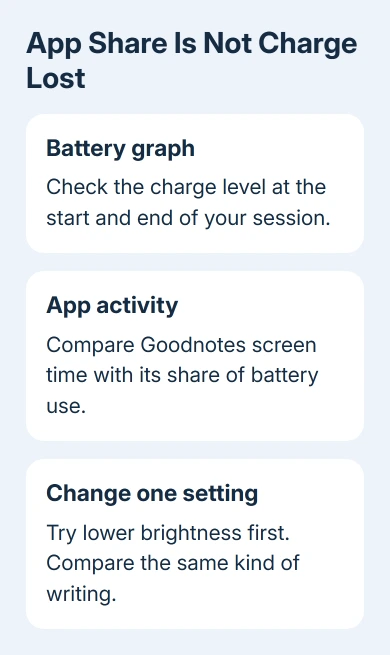
Compare the battery graph with the time Goodnotes was on screen. A long lecture spent writing and a short session followed by hours of background activity tell different stories, even if the app's percentage looks similar.
For example, an app's share applies to the battery used during the selected period, not automatically to the battery's full capacity. Don't read a large share as a matching drop from the device's displayed charge level.
Record the starting charge, finishing charge and session length. Keep the task similar, such as writing in the same notebook. Changing brightness, documents and accessories together makes the result harder to understand.
On a Mac, use Activity Monitor > Energy to compare Goodnotes with other apps. Energy Impact shows how much power an app uses compared with other apps. It isn't a battery percentage, so don't compare it directly with an iPad's app share.
2. Reduce screen power and unnecessary work
Open Control Center and lower brightness to a comfortable level. On an iPad, swipe down from the upper-right corner. Swipe up from the bottom on Home-button iPhones; other iPhones use the upper-right corner.
A display stays on throughout a writing session, so brightness is a useful first change even when Goodnotes heads the app list. Keep it readable rather than making the page so dim that studying becomes difficult.
Disconnect an external display or accessories you aren't using, then compare another ordinary session. Keep anything essential to the task connected. Writing without the Pencil wouldn't give you the same task to compare.
Close extra documents and app windows you're finished with. Goodnotes' battery troubleshooting page recommends reducing unused tabs and windows before testing processing features.
I'd try these small changes first. They preserve your searchable notes and writing aids while reducing work you don't need, which is a better trade during a lecture than disabling several useful tools at once.
3. Compare search and writing aids one at a time
Open Goodnotes menu > Settings > Handwriting Recognition and temporarily turn off Index PDF and Handwritten Notes. This reduces the work used to make that content searchable. Compare another session before changing anything else.
To check whether writing aids are using extra power, select the Pen tool twice. In Math Assist, turn off Suggestions. For spelling, open Writing Aids and turn off Check Spelling for the current document.
The separate Writing Aids > Advanced Settings > Enable Spellcheck for new Documents option affects new documents. Changing it isn't the same as switching spelling checks off in a notebook already open.
Turning these features off gives the app less work, but you'll lose their help. After comparing, turn each back on if it didn't reduce the drain or you need it more than the power saving. Keep useful tools on unless disabling them helps.
If the app version doesn't show one of those controls, skip that test instead of searching unrelated iPad settings. Record the app version for support; menus can differ across releases and available features.
4. Keep syncing on a steady connection
Use a stable Wi-Fi connection when notes are syncing or backing up. Weak or changing connections can increase the work involved, while large libraries and ongoing uploads keep the app busy even when you're only writing on one page.
Check sync or backup status before ending the session. Include unfinished uploads when comparing battery use. A library that's still uploading keeps the app busier than one that's finished syncing.
Don't delete the app as your first battery fix. Check that important notebooks are safely backed up before any reinstall or account change. Notes that exist only on the device need protection before trying anything that could erase them.
For battery loss across several apps, use the iPad battery-drain checks. A system-wide pattern needs a broader check than one handwriting setting inside Goodnotes.
5. Check updates and the device's battery condition
Update Goodnotes through the App Store. For the device, open Settings > General > Software Update and install an available compatible update when you can leave the device charging and complete the process.
After a system update, background tasks can affect heat and battery for a few days. Apple's battery guidance describes the update activity that may appear in Battery settings. Recheck after those tasks finish.
Where Settings > Battery > Battery Health is available on an iPad, inspect it. Not every iPad has that page. On iPhone 15 and later use Battery Health; earlier iPhones use Battery Health & Charging.
Follow a Service recommendation if one appears. An aged battery affects how long the device runs across apps, so an app setting can't restore the capacity it has lost.
If an iPhone also drains outside Goodnotes, the iPhone battery-use guide helps you compare other activity. Check whether the battery drains throughout the day or only when you write in Goodnotes.
When the drain still follows Goodnotes
Send Goodnotes support your device model, operating system and app versions, session length, battery screenshots and whether syncing or accessories were active. Explain which single change helped or made no difference.
Use Goodnotes menu > View Account > Account Settings > Export Diagnostic Data. Attach the file to your support request. Mention a notebook or writing action that triggers the drain, rather than sending only an app percentage.
The Short Version
Compare charge loss with writing time, lower brightness and close unused documents. Test search and writing aids separately. Check updates and battery health, then send diagnostics if the drain still follows Goodnotes.
Checked November 12, 2026.