
Before you panic, buy a new cable, or book a repair: on a recent iPhone, "not charging" and "charging slowly" are usually two completely normal behaviors that people mistake for a fault.
The same two designed features come up again and again.
One is the deliberate 80 percent limit, which you can change in two taps.
The other is a thermal pause after about 80 percent on a fast charger, which an Apple Community expert states plainly "is NOT overheating" and is "completely normal." Most people who think their charging port is dead are actually looking at one of these.
So rule those out first, then move to the real hardware checks.
First: Is It Actually Broken, or One of Two Normal Things?
Two designed behaviors fool almost everyone:
- The 80 percent stop. If your phone charges to 80 percent and parks there, that is very likely the Charge Limit or Optimized Battery Charging feature protecting your battery, not a fault. The charge settings below fix it.
- The cool-down pause. On a 20W or faster charger, the 17 Pro Max races to about 80 percent, then charging can pause on heat. Apple gives the Lock Screen wording as "Charging On Hold. Charging will resume when iPhone returns to normal temperature." That is normal and it resumes by itself once the phone cools. As the Apple expert put it, this "is completely normal."
If your phone does nothing at all on any charger, skip ahead. For most people, the charge settings are the answer.
Check Your Charge Settings First
This is the fix for the most common complaint, the phone that "won't go past 80 percent." It takes two taps and no new hardware.
The two taps:
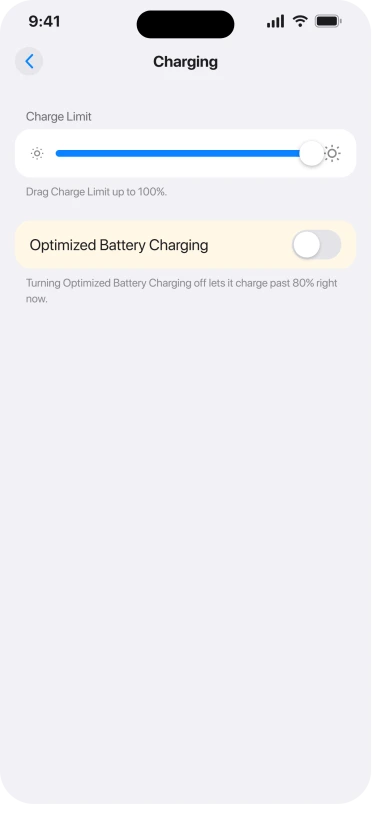
- Open Settings, then Battery, then Charging.
- Drag the Charge Limit slider up to 100%.
- If you want it to blow past 80 percent right now, you can also turn off Optimized Battery Charging, or just touch and hold the "Charging on Hold" notification on your Lock Screen and tap Charge Now.
Important: For long-term battery health, Apple actually recommends leaving Optimized Battery Charging on.
So once you have confirmed the phone can reach 100 percent, it is fine to turn it back on.
The slider is the real fix here.
Let the Cool-Down Pause Finish, and Speed It Up
If charging pauses with that "until iPhone cools down" message, your phone is not broken. It is protecting the battery from heat, and you can speed that up.
If yours runs hot even off the charger, see why iPhones overheat after iOS 26.
What actually helps:
- Take any case off while it charges, and move it out of direct sun or a hot car.
- Stop using the phone while it charges. Calls over AirPods, gaming, and streaming all add heat that pauses the charge.
- Use a cable instead of a wireless pad. Wireless charging wastes a lot of energy as heat, so wired runs much cooler and pauses less.
Use a Real Fast Charger, Then Swap the Cable, Adapter, and Outlet
The 17 Pro Max has a big battery, and a tiny old charger simply cannot feed it. If charging is crawling or dead, the charger, cable, or outlet is the most likely reason.
Test one thing at a time so you know which part failed, and do not assume "Apple brand" means "working," because plenty of people fixed this with a different cable, sometimes not even an Apple one.
Test in this order:
- Use a 20W minimum, ideally 25W USB-C power adapter, with an Apple-certified (MFi) USB-C cable. For wireless, use a 25W MagSafe or Qi2 pad fed by a 30W or higher adapter.
- Retire any old 5W USB-A brick. As one owner put it, "if you want your phone to charge at its maximum speed, invest in a 25W charger."
- If it still will not charge, try a different cable first, then a different adapter, then a different wall outlet, one change at a time.
- Try a USB-C cable you know works from another device. One person revived a dead 17 Pro Max using a USB-C cable from a Lenovo laptop, and once it hit 5 percent, their normal charger worked again.
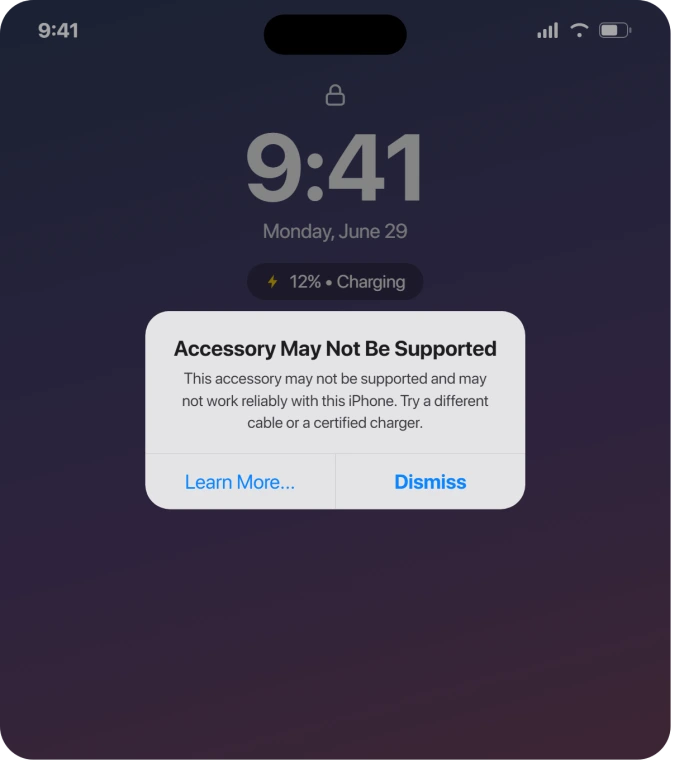
Important: A cheap, uncertified cable can also trigger an "Accessory may not be supported" warning or simply refuse to fast charge. If you see that alert, swap to a known-good MFi cable.
One caveat on the adapter advice above. It is aimed at a phone that will not charge at all.
If yours does charge and iOS is only complaining about the speed with a Slow Charger message, a bigger brick is often not the fix, and plenty of owners report the warning surviving 20W, 30W and 45W adapters.
Our page on what actually trips the Slow Charger message covers that case, where the cable is the more likely variable.
Force Restart the Phone
A force restart fixes a surprising number of charging glitches, including a frozen battery percentage that is stuck showing the same number.
In the Apple thread about a phone "stuck at 80%," this made the reading correct again.
The buttons below match Apple's own force restart steps.
The button sequence:
- Quickly press and release Volume Up.
- Quickly press and release Volume Down.
- Press and hold the Side button until the Apple logo appears (about 15 seconds, so do not let go early).
It does not erase anything. It just clears a stuck state.
Charging From a Mac or Laptop? Use This Trick
The 17 Pro draws more power than older iPhones, and a lot of computer USB-C ports will recognize the phone in Finder but never actually charge it. There is a clever workaround.
The workaround:
- With the phone still plugged into the Mac, power it completely off. It will often start charging the moment it is off. As one user found, "I was able to get my iPhone 17 Pro to start charging by powering the phone off while it was still connected to my Mac."
- On a desktop Mac, only certain ports deliver charging power. On a 2023 iMac, for example, only the two ports marked with a lightning bolt charge.
- When in doubt, use a wall adapter rather than a computer port.
Clean the USB-C Port, Carefully
Lint and pocket debris pack into the port and block a solid connection. This is a real and common cause, and it is free to fix, but you have to be gentle.
One thing to rule out before you touch it.
If the phone takes power from a wall charger but will not talk to a computer, a monitor or a dock, that is usually not debris at all, and our page on what your USB-C port is actually wired for covers the permission and the model limits behind it.
The method, then:
- Apple, on handling your iPhone: "Never force a connector into a port or apply excessive pressure to a button, because this may cause damage that is not covered under the warranty." Its instruction is to check for obstructions, which means look rather than dig.
- Apple also bans one popular method outright: "Don't use compressed air."
- Ours, not Apple's, and worth saying so: Apple publishes no method for clearing an iPhone port. If you can see dry grey fuzz, a wooden or plastic toothpick lifted gently is what most people use, but it is our suggestion and it carries Apple's warranty warning above.
- Never use a metal pin, needle, or paperclip. Those damage the delicate contacts inside.
- Do not do any of this if your phone is showing a liquid alert. Apple's instruction for a wet connector is the opposite one: "Don't insert a foreign object, such as a cotton swab or a paper towel, into the connector." Its newer pages ask for at least five hours of drying, not thirty minutes. Our page on the Liquid Detected alert has the whole procedure.
Totally Dead? Give It Time on a Wall Charger
If the battery hit absolute zero, the phone will show nothing at all for the first several minutes, which makes people think it is bricked when it is just deeply asleep.
What that looks like:
- Plug it into a wall charger, not a computer port.
- Leave it alone for at least 30 minutes before you expect to see any battery or charging icon. If it still shows nothing, Apple's full procedure runs to a whole hour, and our iPhone won't turn on guide walks the entire sequence.
- If a charging symbol eventually appears, let it climb to at least 5 to 10 percent before using it.
Update iOS, Then Check Battery Health and Apple
If you have genuinely ruled out the settings, the charger, the cable, the port, and the Mac trick, now you look at software and hardware.
If it charges fine but drains fast, that is iOS 26 battery drain, a separate problem.
Worth checking:
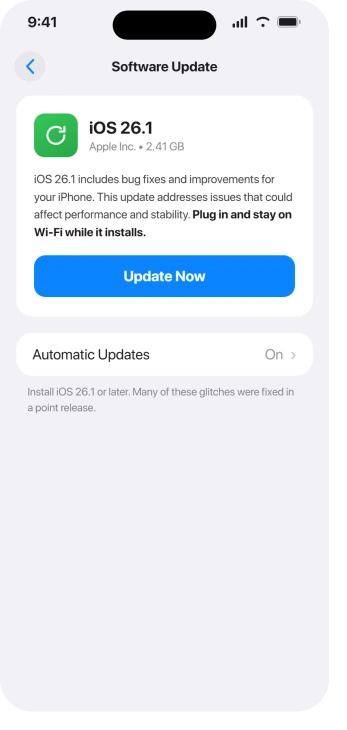
- Open Settings, General, Software Update, and install anything waiting.
- Then open Settings, Battery, Battery Health & Charging to see your Maximum Capacity.
- If charging still fails, it is time for Apple. People with genuine faults ended up with port repairs or firmware fixes under warranty.
Still Not Charging? What Is Left to Try
If nothing here worked and the phone truly takes no charge from any known-good wall charger:
- Restore through a computer. Connect to a Mac or PC, put the iPhone in Recovery Mode, and restore with Finder or the Apple Devices app. This rules out a deep software fault.
- Book a Genius Bar visit. A charging port or a charging-related firmware fault is a real, if uncommon, defect on a small number of units. If it is under warranty, this should be repaired or replaced. If your Apple TechWoven case has started to bubble, that is a warranty claim too, and you can raise it on the same visit.
- Watch for genuine burning heat. Warmth during fast charging is by design. But a phone that gets "almost burning hot," especially when it is not even fast charging, is worth raising with Apple. Do not dismiss real heat as normal.
The Short Version
Your iPhone 17 Pro Max is probably fine. The two things that look most like a broken phone, stopping at 80 percent and pausing to cool down, are both features doing their job.
Set the Charge Limit slider to 100 percent, let any cool-down pause finish, then give it a proper 20 to 25W charger and a certified cable.
If it is still stubborn, force restart it, try the power-off trick when charging from a Mac, clear dry lint from the USB-C port with a wooden toothpick, and let a truly dead phone sit on a wall charger for at least 30 minutes.
Only after all of that, with iOS updated and Battery Health checked, is it really time to suspect the hardware and call Apple.
Where to Next
More iOS 26 help: This fix is part of our iOS 26 problems and fixes guide, a single place that rounds up every common iOS 26 issue.
If something else on your iPhone is acting up after the update, start there.
An iPad 9th generation that ran flat after iPadOS 27 can look dead for hours. It usually comes back on the right charger.
On an iPhone 15 Pro Max, the 15 Pro Max charging page covers that model.
If a MagSafe battery pushes your iPhone past its charge limit instead, the MagSafe battery page covers that case.

Isaac Smith is the founder and editor of PC Glance, a website that covers computers, laptops, and technology. He is a tech enthusiast and a computer geek who loves to share his insights and help his readers make smart choices when buying tech gadgets or laptops. He is always curious and updated about the latest tech trends.